Gemini Notebook
Productivity app · built by the Vibecode team
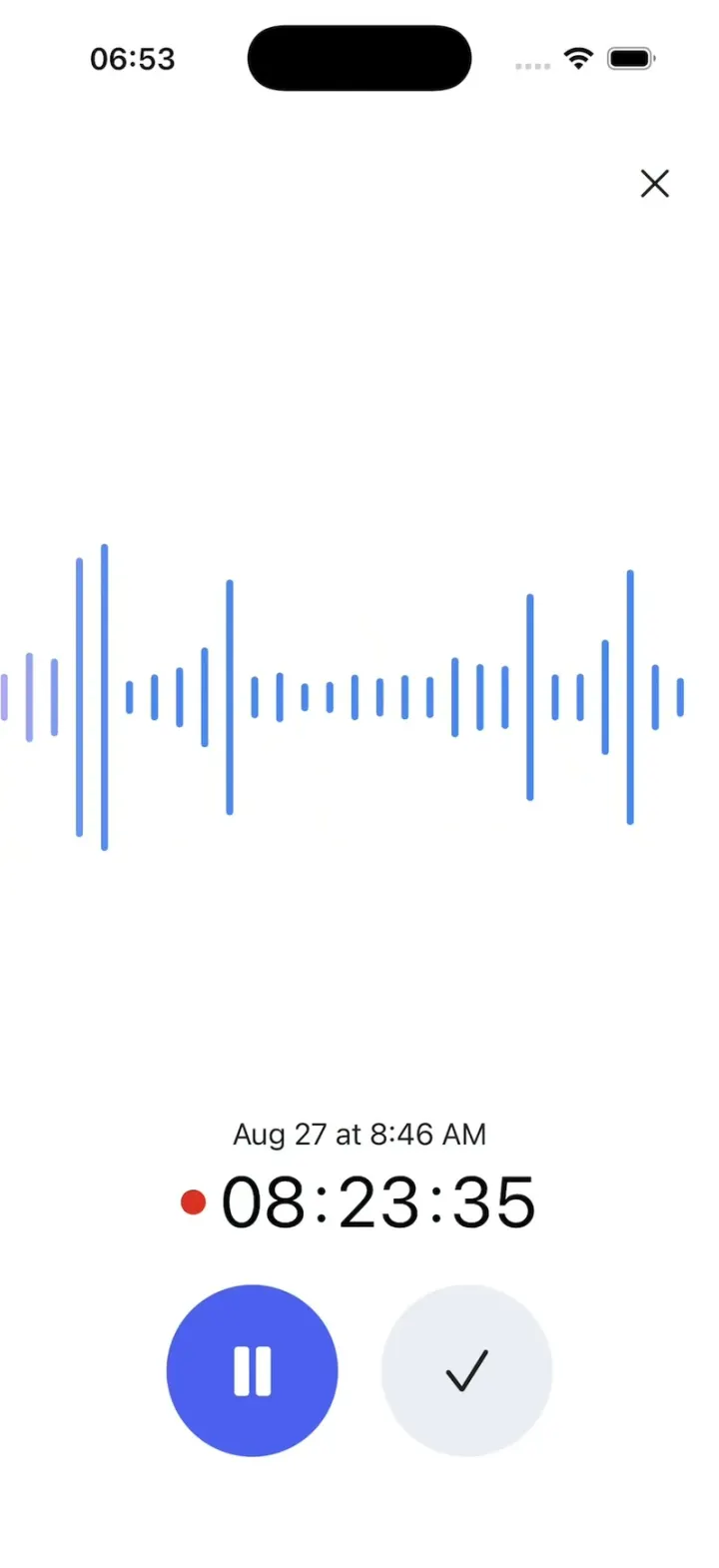
Gemini Notebook recreates the live audio recording in Google's Gemini Notebook app. Tap the mic and a speech-like waveform scrolls in from the right while the timer races through an hour-long lecture in seconds. Pause, tap the check, and the recording lands in a new notebook as a source with its transcript fading in line by line. Ask a question and the answer streams in with bold key points and citation chips, and tapping a chip slides up the exact passage it came from. Everything runs on built-in sample data, with no microphone or network needed.
- iPhone · Swift
- Built in 1 prompt
- Free to remix
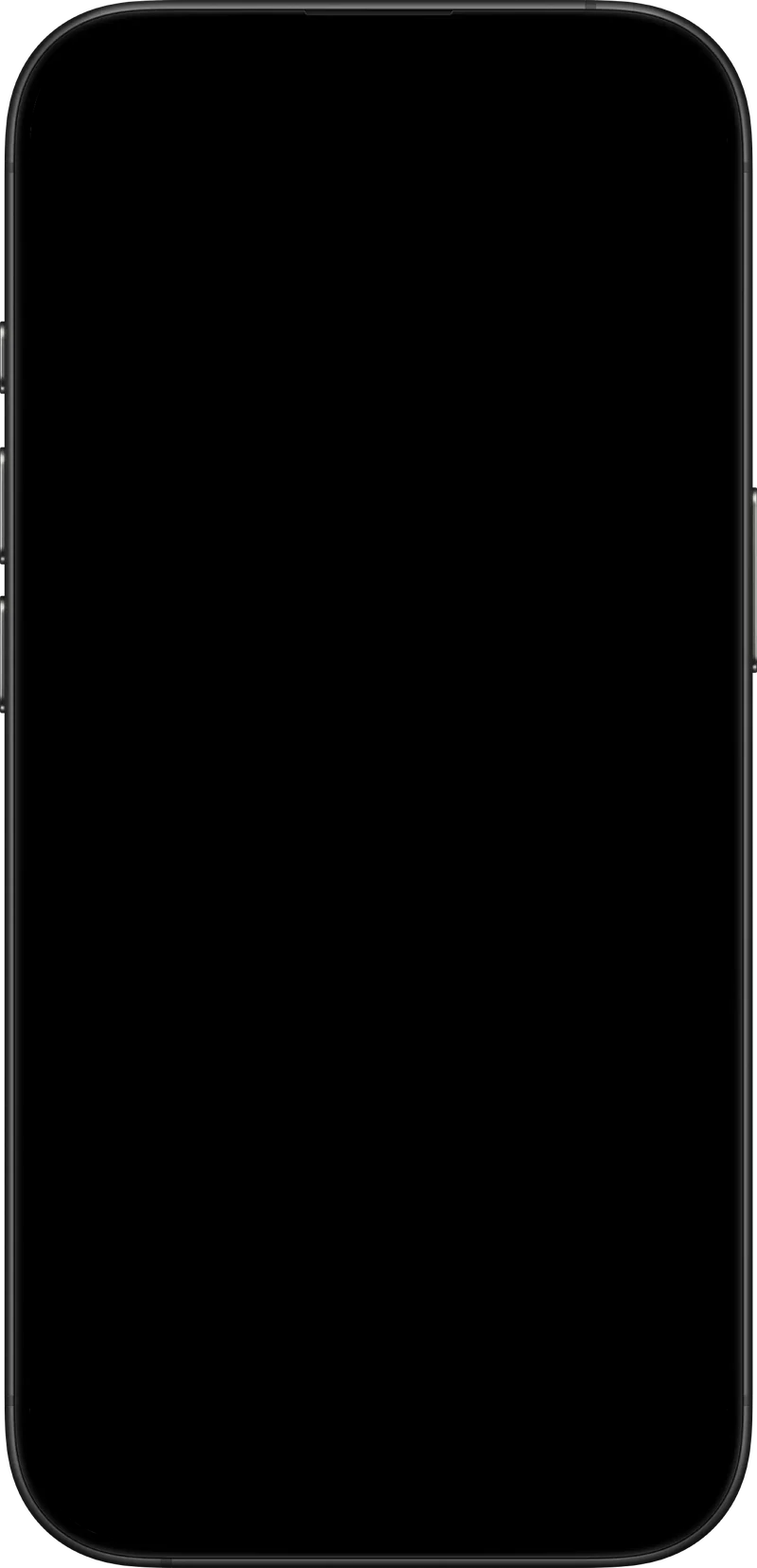
Remix copies the working app into your account for free, exactly as we built it. It runs in Vibecode's cloud iOS simulator, in your browser.
The prompt that builds it
We built Gemini Notebook in one prompt. Paste it into a new app to build your own copy, or change it first.
Prompt · 2,638 words
[image attached][image attached][image attached][image attached][image attached][image attached][image attached][image attached][image attached][image attached][image attached]
Download/reference the app shown in this post and clone it exactly, including the visual design, layout, interactions, animations, typography, spacing, and all visible states. Make it functional and runnable in the simulator. Match the reference as closely as possible and include any interaction shown in the source. Reference: https://x.com/Gemini_Notebook/status/2115199172836302964. The 11 attached screenshots are frames from the 38-second source video, in order (01-home ... 11-citation-sheet). Read every one of them carefully before writing code.

Build a native SwiftUI iOS app named Gemini Notebook using Opus 5.5. This is Google's Gemini Notebook mobile app (an AI notebook where your sources are documents and recordings) showing its new feature: record up to 1 hour of live audio right in the app, then use the recording as a source and ask questions about it. The source is an Android build; recreate the same screens as a clean iPhone app (iOS status bar, no fake Android status bar). Do NOT put a fake handset frame inside the actual app; the simulator provides that. Use realistic deterministic fixture data so every screen is rich and usable without permissions or backend: no real microphone, no network, no real AI. Everything (waveform levels, transcript, AI answer) is scripted fixture data. Do not publish externally.

Observed video sequence (0-38s):
0.0-1.0 Home list "Gemini Notebook" (screenshot 01). 1.0-2.3 the bottom action bar (camera button, mic button, "+ New notebook" pill). 2.3 tap the mic button: it turns dark navy with a light blue halo (screenshot 02). 2.9 the Recording screen opens: "Aug 27 at 8:46 AM", red dot + 00:00:02, empty waveform (screenshot 03). 3.0-15.3 the waveform grows in from the RIGHT edge and scrolls LEFT while the timer races up to 08:26 (screenshot 04). 15.4 tap pause: the pause icon becomes a play icon and the waveform freezes (screenshot 05). 15.6 tap the check button. 16.0 "Untitled notebook" opens with one source row "Recording Aug 27 8:46 am" and a small grey loading spinner at the right (screenshot 06), spinner spins ~2.5 s then disappears. 18.6 tap the source row. 18.9 the source page opens: "Source Guide" pill, "Transcript" label, and the transcript paragraphs fade in one after another (screenshot 07). 21.9 tap back. 22.1 the notebook chat: Save to note row, Audio Overview, suggested questions, disclaimer; the input box slides up from the bottom (screenshot 08). 24.4 tap the input box, a cursor blinks; 25.0-26.4 the question types in letter by letter: "Can you summarize the key points from the lecture recording?". 27.0 tap send. 27.6 the conversation: the question as a lavender bubble on the right, under it a thinking row whose status text changes every ~1 s: "Analyzing Physics Concepts", "Exploring Force Interactions", "Refining Response Guidance", "Clarifying Misconceptions" (screenshot 09). 32.1 the answer appears and streams in, then scrolls to its end (screenshot 10). 34.1 tap the citation chip "1". 34.6 a bottom sheet slides up over a grey dim showing the cited transcript excerpt and the source name (screenshot 11). 36 the Gemini Notebook logo end card (video only, not part of the app).

SCREEN 1 - Home (screenshot 01). Pure white background. Large title "Gemini Notebook" top-left (about 30pt, regular/medium weight, near-black #1F1F1F), circular profile photo avatar (44pt) top-right. Below, filter chips in one row: "Recent" (selected: light grey #EEEEEE capsule fill), "Shared", "Title", "Downloaded" (plain text, 17pt). Then 6 notebook cards stacked with 12pt gaps, each a full-width rounded rectangle (corner radius 24, height ~96pt, 16pt side margins) with a soft pastel fill, an emoji on the left, title (19pt, #1F1F1F) and subtitle (15pt, grey #5F6368), and a 52pt white circle button on the right with a black outline play triangle (one card has a magic-wand-with-sparkles icon instead):
  1. 🍎 "Newton's Laws of Motion" / "6 Sources • 5 hrs ago" / fill #F1F1E6 / play
  2. ⚡ "Edison's Spark: The lightbul..." (truncate "Edison's Spark: The lightbulb moment" with an ellipsis) / "4 Sources • 7 hrs ago" / fill #E3F2E6 / play
  3. ⚙️ "Engineering Illumination" / "5 Sources • 18 hrs ago" / fill #F6EAE8 / magic wand icon
  4. 🧪 "Intro to Chemistry" / "4 Sources • Aug 1, 2026" / fill #F0E8F0 / play
  5. 💻 "CS History" / "3 Sources • July 30, 2026" / fill #DFF1F7 / play
  6. 🌿 "Plant Biology" / "4 Sources • July 28, 2026" / fill #EDECF8 / play
Floating at the bottom center over the list (screenshot 02): a 64pt black circle with a white camera icon, a 64pt black circle with a white mic icon, and a black capsule (64pt tall) with "+ New notebook" in white 20pt. When the mic is tapped it turns dark navy #22407A with a 10pt light-blue #A8C7FA halo ring around it (spring scale), then ~0.5 s later the Recording screen appears (fast cross-fade, full screen cover).

SCREEN 2 - Recording (screenshots 03-05). Pure white. A plain black X close button top-right (closes back to Home). WAVEFORM in the vertical middle of the screen (center ~45% down): vertical rounded bars, 4pt wide, 14pt pitch (so ~28 bars across the screen width), heights from 10pt (silence) to ~190pt (loud), centered on one horizontal line. Bars are blue #4A86F0; the oldest bars at the far left fade to lavender #B3A8F4. Recording starts with NO bars; new bars are born at the RIGHT edge (one every ~0.12 s) and the whole row scrolls LEFT smoothly, so in the first ~4 s the waveform fills in from the right edge toward the left, then keeps scrolling. Use a deterministic speech-like level generator (seeded random with bursts, groups of tall bars and quiet stretches, like a person talking), not a sine wave. Below the waveform, near the bottom: "Aug 27 at 8:46 AM" (17pt, #1F1F1F) centered, and under it a red dot (14pt, #D93025) followed by the elapsed time in big digits "00:00:02" (40pt, monospaced digits, slightly spaced colons, black). Under that two 96pt circles side by side with 24pt gap: left = solid blue-violet #4C5FEF with a white PAUSE icon; right = very light lavender-grey #ECECF4 with a black check mark.
TIMER (time-lapse, the source does this too: its caption says "Sequences shortened"): the elapsed display runs much faster than real time so a long lecture fits in a few seconds. Display seconds as a function of real seconds t since recording started: 0-5.5 s: 68 x t (reaches ~00:06:14); 5.5-9.0 s: ease-in-out from 00:06:14 up to 08:21:11; after 9.0 s: 08:21:11 + 90 x (t - 9.0). Format HH:MM:SS with leading zeros.
Tap pause: the icon turns into a white PLAY triangle, the timer and the waveform freeze in place (bars stay visible). Tap play resumes. Tap the check: it flashes a light blue #C9D8FB fill (0.2 s), then the Recording screen is replaced by Screen 3.

SCREEN 3 - Untitled notebook (screenshot 06). White. Top bar: back arrow "←" (left), title "Untitled notebook" (20pt, #1F1F1F), vertical three dots "⋮" on the right; a thin light grey divider under the bar. One row below: a small RED waveform glyph (5 short vertical red #D93025 bars of different heights, like ·|||· ) + "Recording Aug 27 8:46 am" (19pt) and a small grey circular indeterminate spinner at the far right. After 2.5 s the spinner disappears (source processed). Tapping the row opens Screen 4. Back arrow returns to Home.

SCREEN 4 - Source page (screenshot 07). Top bar: "←", the red waveform glyph, "Recording Aug 27 8:4..." (truncated, 20pt), an "open in new" icon (square with diagonal arrow, SF Symbol arrow.up.forward.square), "⋮"; thin divider. A "Source Guide" pill: full-width minus margins, 56pt tall, fill #ECECF8, corner radius 20, a small 4-point sparkle icon (✦ with a tiny star), "Source Guide" (20pt medium) and a solid down caret ▼ on the right. Then "Transcript" (17pt, #444). Then the transcript paragraphs (19pt, #1F1F1F, 1.35 line spacing, 14pt between paragraphs), each fading + sliding up 6pt in sequence ~0.2 s apart when the page opens:
"Alright, class. Welcome back to Physics 101."
"Today, we cover Newton's three laws of motion, the foundation of classical mechanics."
"Newton's first law, the law of inertia, states: An object at rest stays at rest, and an object in motion stays in motion at constant velocity unless acted upon by a net external force."
"This resistance to change is called inertia. Think about a body lurching forward when a bus stops suddenly: the bus stops, but your body keeps moving."
"Newton's second law tells us that acceleration is directly proportional to force and inversely proportional to mass. Pushing an empty shopping cart is easy; pushing a full one takes far more force for the same acceleration."
"And the third law: for every action, there is an equal and opposite reaction. A rocket pushes gas downward, and the gas pushes the rocket upward."
"Now, a common misconception: if every force has an equal and opposite partner, why does anything move at all? Because those two forces act on different bodies. Your foot pushes on the ground, and the ground pushes back on you."
Tapping back goes to Screen 5 (the notebook chat for this recording), NOT to Home.

SCREEN 5 - Notebook chat (screenshot 08). Same top bar as Screen 4. Scrolled content: first a short Source Guide summary paragraph (19pt): "This lecture introduces Newton's three laws of motion: inertia, force and acceleration, and action and reaction, and clears up why equal and opposite forces still produce motion." Then an action row: an outlined capsule (light grey #DADCE0 border, 44pt tall) with a pin icon and "Save to note" (19pt), then three plain icons: copy (dotted-square), thumbs up, thumbs down. Then a full-width outlined capsule (56pt) "Audio Overview" with a small blue-purple sparkle-waveform icon. Then a horizontally scrolling row of suggestion cards (light grey #F5F5F5, corner radius 24, ~260pt wide, two-line 19pt text): "How do Newton's laws challenge Aristotle's earlier ideas about motion?", "Explain why action and reaction forces don't cancel out.", "Give me three everyday examples of inertia." Then centered small grey text (15pt, #80868B): "Gemini Notebook can be inaccurate, so double-check." Pinned at the bottom: the INPUT BOX, a rounded rectangle (corner radius 28, 1pt grey #9AA0A6 border, ~120pt tall, 8pt side margins) that slides up from below with a spring 0.6 s after the screen appears. Inside at the bottom right: an outlined capsule with a document icon, "1" and a small down caret (sources selector), and a 56pt solid blue-violet #4C5FEF circle with a white paper-plane send icon (pointing right).
Input behaviour (match the source exactly): tapping the empty input box shows a blinking black cursor at its top-left WITHOUT raising the keyboard, and 0.5 s later the question types itself in, letter by letter over ~1.4 s: "Can you summarize the key points from the lecture recording?" (19pt, black, wraps to 2 lines). The keyboard must NOT appear for this demo typing (draw the text yourself, do not focus a TextField). Long-pressing the input box focuses a real TextField so a user can type their own question. Tapping send (with text) sends it.

SCREEN 6 - Conversation (screenshots 09-11). When sent, the summary/actions scroll away and the conversation shows: the question in a bubble on the right (fill #E9E9FB, 19pt #1F1F1F text, padding 18, corner radius 26 except the bottom-right corner which is square, max width 80%), sitting low on the screen with empty white space above it. Under it, left aligned: a thinking row: a small icon of four black squares in a 2x2 grid (8pt squares, 4pt gaps) that animates (squares pulse/rotate one by one), then grey text (19pt, #5F6368) and a chevron-down at the far right. The text changes every 1.0 s with a quick cross-fade: "Analyzing Physics Concepts" -> "Exploring Force Interactions" -> "Refining Response Guidance" -> "Clarifying Misconceptions". After 4 s the answer streams in word by word quickly (~45 words per second), the view auto-scrolls to keep the newest text visible, and it ends scrolled to the bottom. The answer is rendered as formatted text (19pt, #1F1F1F, 1.4 line spacing), bold where marked, bullet list with hanging indent, and each [1] is a small lavender #E8E8FA circle chip with "1" in it (24pt circle, 13pt text), inline at the end of the sentence:
"The lecture outlines **Isaac Newton's three laws of motion**, establishing a fundamental framework for understanding how objects move:
• **First Law (Inertia):** Objects maintain their state of motion unless acted upon, as seen when a body lurching forward in a stopping vehicle continues moving—a concept that overturned Aristotle's earlier ideas [1].
• **Second Law (Force and Acceleration):** Acceleration is directly proportional to force and inversely proportional to mass, demonstrated by comparing the force required to push an empty cart versus a full one [1].
• **Third Law (Action and Reaction):** Forces always occur in equal and opposite pairs between two distinct objects, such as a rocket expelling gas downward while the gas pushes the rocket upward [1].
• **Resolving a Key Misconception:** Motion and acceleration are possible despite equal and opposite forces because action-reaction pairs act on **different bodies** rather than canceling each other out on the same body (for instance, your foot pushing on the ground and the ground pushing back) [1].
💡 If you are reviewing this material for a class, would you like to generate a practice quiz or flashcards to test your understanding of these principles?"
Under the answer: an action row (outlined capsule with pin "Save to note" truncated as "Save to n..." if needed, copy, thumbs up, thumbs down) and a row of two suggestion cards (#F5F5F5, radius 24): "Generate a practice quiz" and "Create flashcards for these principles".
Tapping any "1" citation chip: the chip gets a light blue pressed ring, the screen behind dims with a 45% grey overlay, and a white bottom sheet (top corners radius 28, ~55% of screen height) slides up with a spring. The sheet shows the cited excerpt in large grey text (22pt, #5F6368, 1.35 line spacing): "Alright, class. Welcome back to Physics 101." / "Today, we cover Newton's three laws of motion, the foundation of classical mechanics." / "Newton's first law, the law of inertia, states: An object at rest stays at rest..." and pinned at the sheet bottom, above a thin divider, the red waveform glyph + "Recording Aug 27 8:46 am" (22pt black). Tap the dim area or swipe down to close.

RESET FOR FILMING: tapping the back arrow on Screen 5/6 returns to Home with every state reset (new recording, empty notebook, empty chat), so the whole flow can be repeated from Screen 1 cleanly. The app always launches on Home.

Typography: SF Pro everywhere (system font), regular weight for body, medium for titles; dark text #1F1F1F, secondary #5F6368. Use native spring animations and gestures, not static screenshots. Keep all timings above (the waveform, the timer, the 2.5 s spinner, the 1 s thinking steps, the streaming) exactly, they are synced to the source video.

For the profile avatar, generate a friendly portrait photo of a young woman with curly dark hair (circle-cropped, realistic photo style) with gpt-image-2.5-flare: run `env` to find the project's proxied OPENAI_API_KEY and POST to https://api.openai.com/v1/images/generations, save it into the asset catalog. If generation fails, use a soft gradient circle with the initial "A".

Keep every file you create inside /home/user/workspace (fonts, generated images, scripts): tool access to /tmp and other paths outside the workspace is denied in this sandbox.

Build it in small source files (one view per file, keep SwiftUI types simple and split complex view bodies), get a first version compiling and running before polishing, run compile/build validation, resolve all errors, and launch in the web simulator. Prioritize fidelity to the attached screenshots and the full flow above. Deliver complete implementation rather than a plan.
More templates
All templates- View template
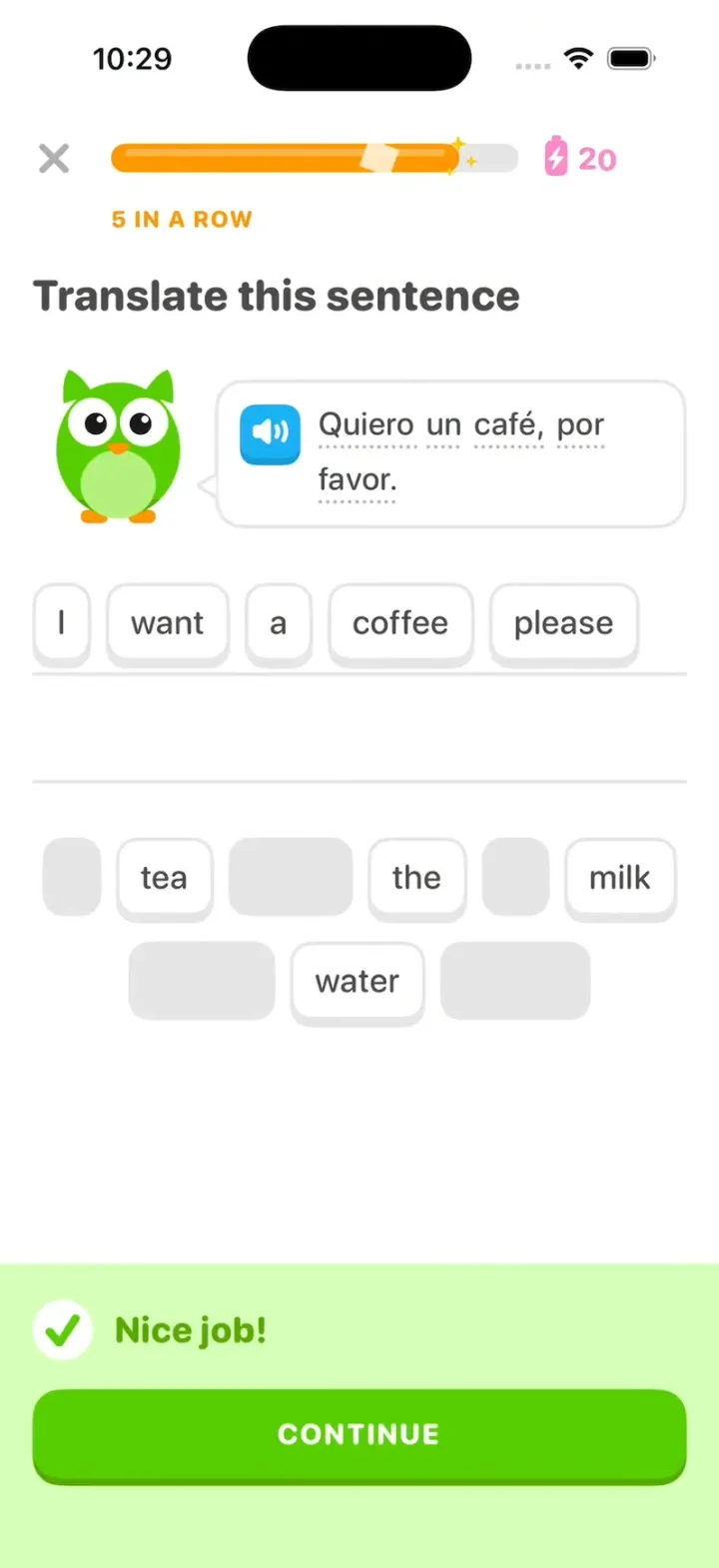
Duolingo Clone
iOSDuolingo with its real look: word chips fly to the line, "Nice job!" slides up and your streak rolls to 28.
- View template
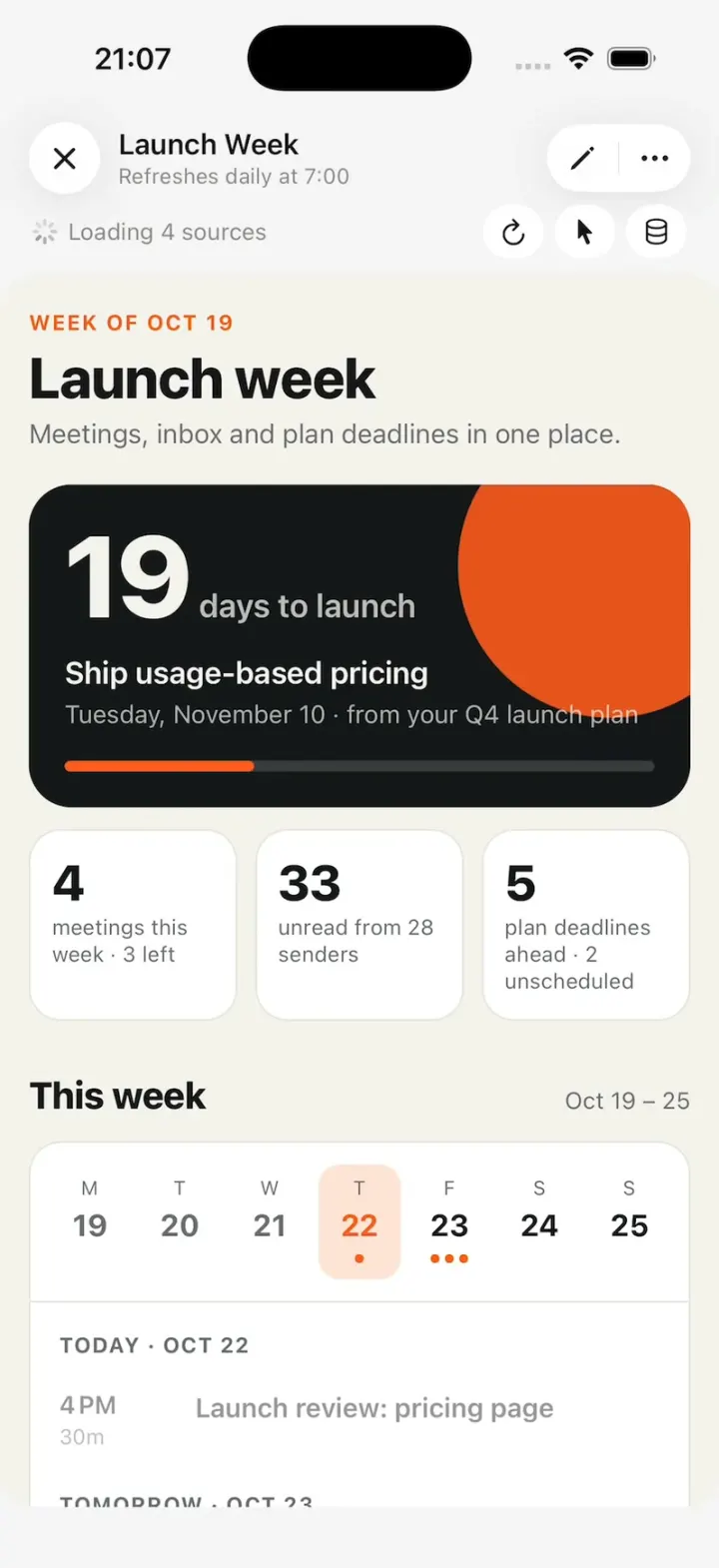
Claude Duet
iOSA working Claude Duet: it reads your inbox and calendar, runs tasks in the background, asks before it sends.
- View template
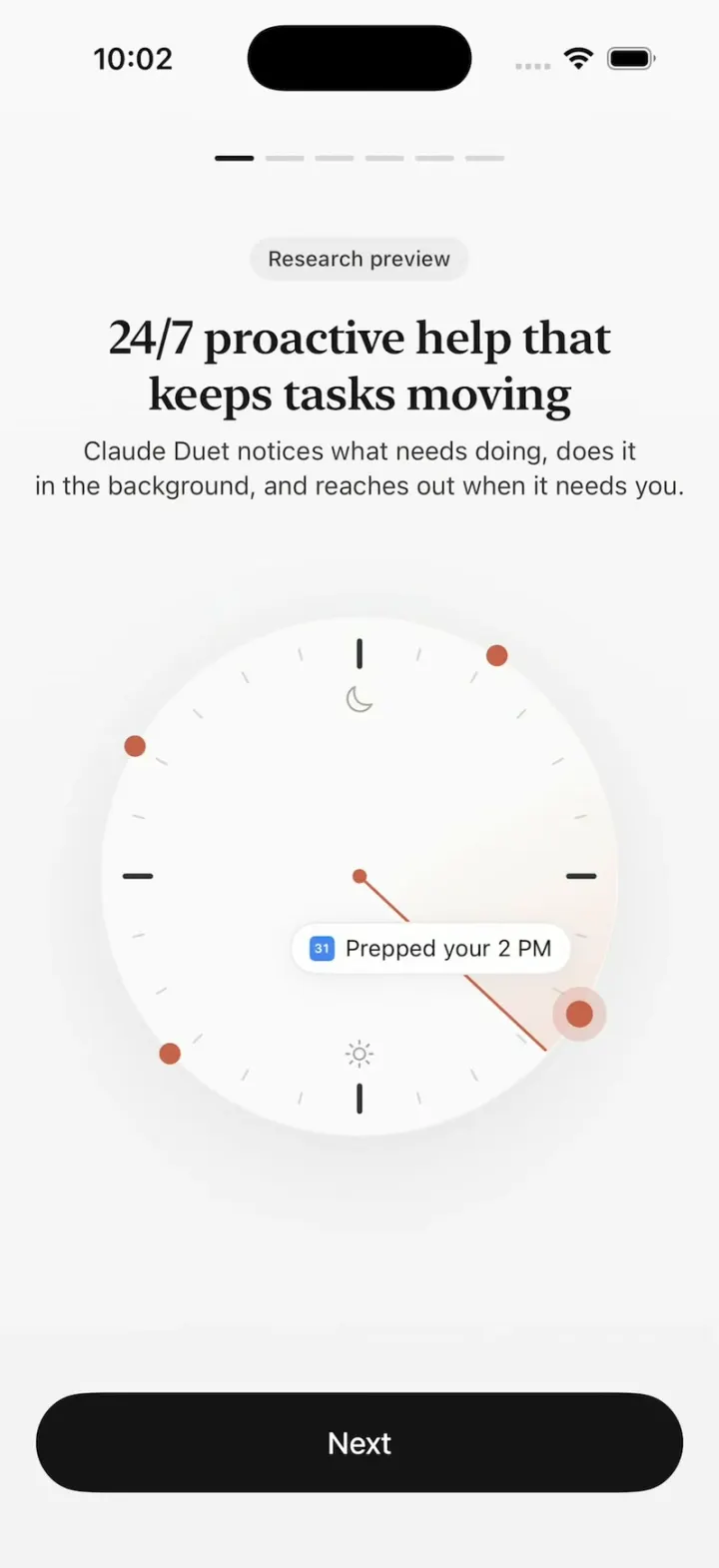
Claude Duet
iOSClaude Duet's onboarding: a clock sweeping through your day, tools flying in, Claude filling out a form.
- View template
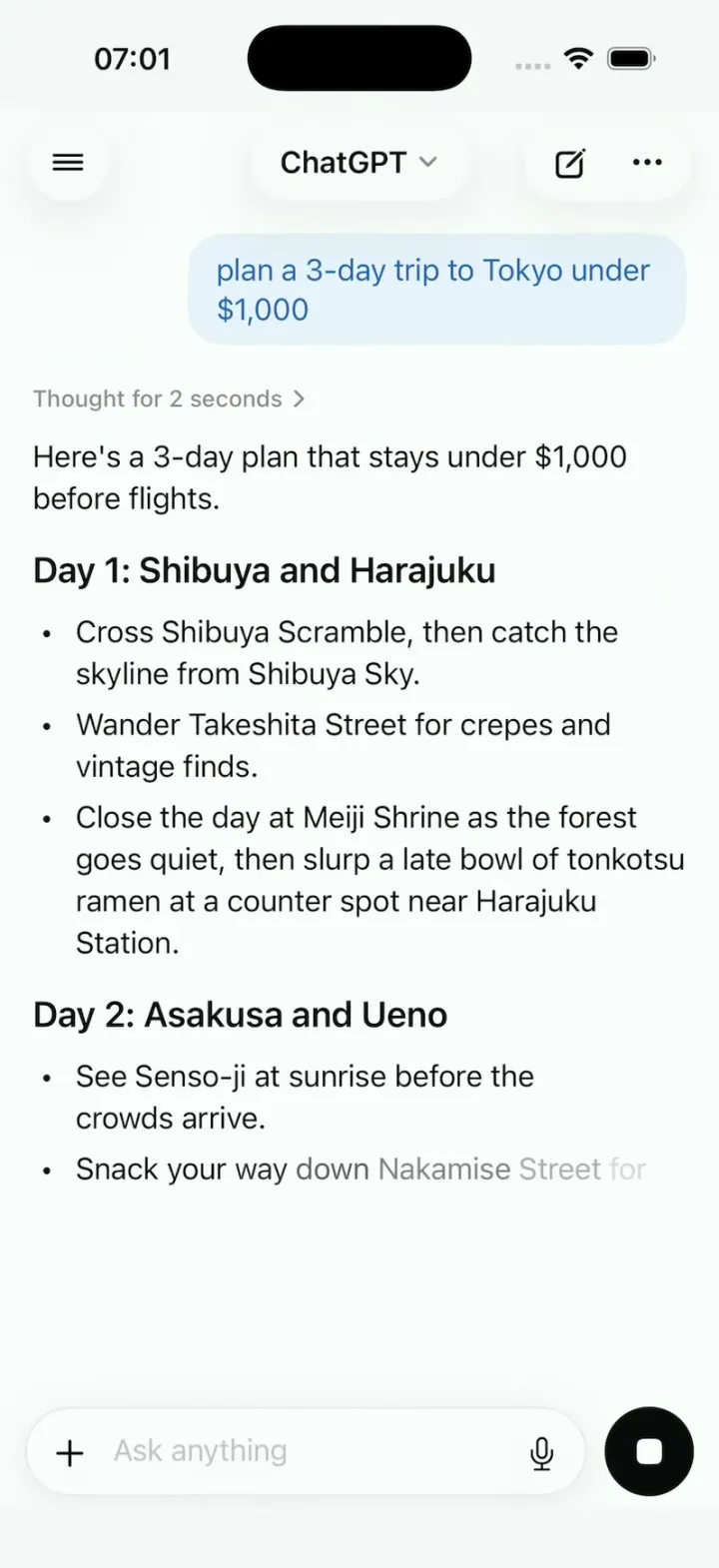
ChatGPT Clone
iOSChatGPT on iPhone: answers stream in word by word, a Tokyo map sharpens from a blur, and voice mode breathes.