Tesla
Automotive app · built by the Vibecode team
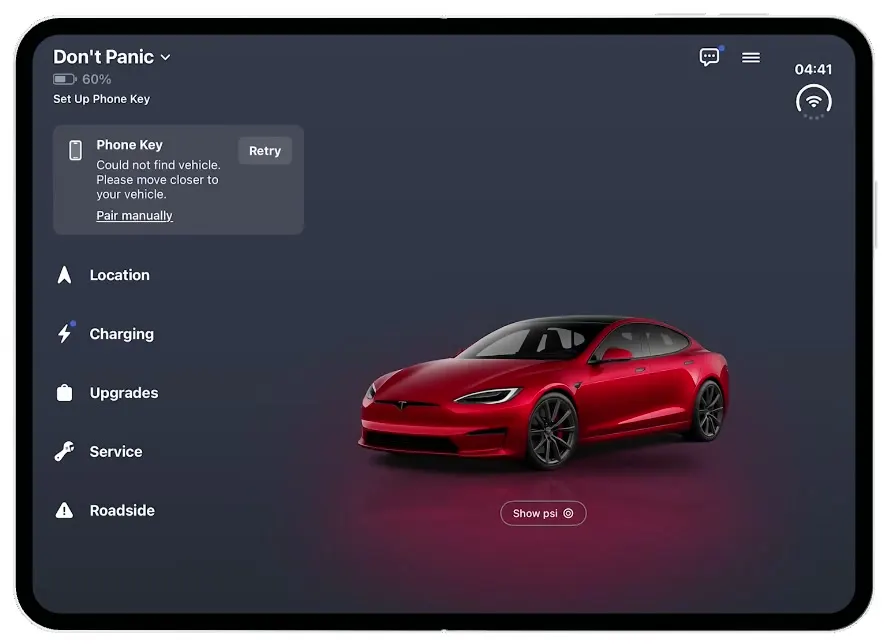
Tesla recreates the car owner's app on the foldable iPhone Duo, as it looked on launch day. Folded, the cover screen shows "Don't Panic" at 60%, a red Model S, the Phone Key card and a scrolling list of controls. Unfold it and the same Home reflows into a left column of controls next to a big Model S standing on a glossy floor with a burgundy glow and its reflection. Tap "Show psi" for tire pressures at each wheel, open Charging to start a charge, or fold it shut and pick up where you left off.
- iPhone Duo · Swift
- Built in 1 prompt
- Free to remix
Remix copies the working app into your account for free, exactly as we built it. It runs in Vibecode's cloud iOS simulator, in your browser.
The prompt that builds it
We built Tesla in one prompt. Paste it into a new app to build your own copy, or change it first.
Prompt · 1,154 words
Download/reference the app shown in this post and clone it exactly, including the iPhone Duo visual design, layout, interactions, animations, typography, spacing, and all visible states. Make it functional and runnable in the simulator. Match the reference as closely as possible and include any interaction shown in the source. Reference: https://x.com/earcos/status/2113352465420628255. The actual 21-second video is uploaded as source.mp4 in project Files. Inspect it carefully, extracting frames as necessary.

Build a native SwiftUI iOS app named Tesla using Opus 5.5. This is the official Tesla app (the car owner's app, dark mode) demonstrated on the foldable iPhone Duo: the same Home screen in two layouts. Switch layouts on the available width: narrow (folded cover screen) = one scrolling column with the car on top; wide (unfolded inner screen, landscape) = a left column of controls next to a big car on a lit stage. Keep all state across fold/unfold and animate the reflow with a spring. Do NOT put a fake handset frame inside the actual app; the simulator provides that. Use realistic deterministic fixture data so every screen is rich and usable without permissions, network, Bluetooth or backend. Do not publish externally.

Observed video sequence (0-21s): 0.0 the folded Duo's lock screen; 1.5 swipe up to the home screen; 2.6 tap the Tesla icon (red rounded square, white Tesla "T" logo) in the top-left; 3.0 the app opens on the cover screen in the narrow layout; 3.0-6.0 the narrow Home holds still; 6.0-8.0 the device is unfolded like a book; 8.4-9.6 the inner screen shows the wide layout (the car sits in the middle-right, the left column fades in); 9.6-14.0 the wide Home holds still; 14.2-15.4 the device is folded closed; 15.6-19.5 the narrow Home again; 19.7 lock.

App icon: a red (#E31937) rounded square with the white Tesla "T" logo centred (draw it as a vector: the wide curved top bar with the shield-shaped stem), display name "Tesla".

Colours: background dark charcoal-slate #24272F in the narrow layout; in the wide layout a slightly lighter slate #343A4A at the top fading to #2C3140 at the bottom. Text white #FFFFFF, secondary text grey #9A9CA5. Cards #3A3B46 (wide: #4A4D5C at 85%), corner radius 10. SF Pro throughout, bold for titles and row labels.

Narrow layout (cover), top to bottom, 16pt side margins:
1. Header row: "Don't Panic" (the car's name, SF Pro Bold 22pt) followed by a small chevron.down; on the right two white icons, a message bubble with dots (ellipsis.bubble) carrying a small blue (#3E6AE1) dot badge at its top-right, and a hamburger menu (line.3.horizontal). Under the name: a small grey horizontal battery glyph (about 60% filled, grey) then "60%" in grey 15pt semibold. Under that: "Set Up Phone Key" white 13pt semibold.
2. The car: a photorealistic red Tesla Model S Plaid (deep metallic Ultra Red paint, black glass roof, dark grey 21-inch turbine/arachnid wheels), seen from the front-left three-quarter view, slightly from above, facing toward the lower-left, about 300pt wide, on the dark background with a soft shadow under it.
3. Phone Key card (full width, #3A3B46): a phone outline icon (iphone) on the left; bold white "Phone Key"; then "Could not find vehicle. Please move closer to your vehicle." in white 14pt; then an underlined "Pair manually" link; on the right a "Retry" button (white bold 14pt on a slightly lighter rounded rect #4A4B57).
4. Rows (white bold 17pt, SF Symbol on the left, chevron.right in grey on the right, about 64pt tall each, no separators): "Location" (location.north.fill), "Charging" (bolt.fill with a small blue #3E6AE1 dot at its top-right), "Upgrades" (bag.fill), "Service" (wrench.fill), "Roadside" (exclamationmark.triangle.fill), "Safety" (shield.lefthalf.filled), "Security & Drivers" (lock.fill), "Climate" (fan.fill), "Controls" (car.fill), "Schedule" (clock.fill). The list scrolls; Location, Charging and the top of Upgrades are visible on first load under the card.

Wide layout (inner screen, landscape):
- Left column about 290pt wide, 24pt from the left edge: the same header (name, battery "60%", "Set Up Phone Key"), then the Phone Key card (the text wraps to: "Could not find vehicle." / "Please move closer to" / "your vehicle." with "Retry" on the right and "Pair manually" under it), then the rows WITHOUT chevrons and with more spacing (about 68pt apart): "Location", "Charging", "Upgrades", "Service", "Roadside".
- The message and hamburger icons sit at the top-right of the screen.
- Right area: the same red Model S, now seen from the front-left three-quarter view at eye level (facing left), about 430pt wide, centred in the space right of the column and a little below the middle, standing on a glossy dark floor: a soft burgundy/red glow (#6B2034, radial ellipse) spreading on the floor around and behind the car, and a faint mirrored reflection of the car under it.
- Under the car, centred: an outlined capsule button "Show psi" (white 12pt, 1pt grey border #8E8E96, a small tire/circle icon after the text).
- When the wide layout appears (unfold), the car eases in from about 60pt to the left with a quick 0.45s spring while the left column fades in over 0.3s. The same in reverse is not needed on fold.

Interactions:
- "Show psi" toggles tire pressures: four small labels ("42 psi" front-left, "42 psi" front-right, "41 psi" rear-left, "42 psi" rear-right) fade in next to the four wheels of the car image, and the button reads "Hide psi". Tap again to hide.
- "Retry" shows a small spinner in place of the word for 1.2s, then the same card again.
- Tapping a row pushes a simple native detail screen with a back button and fixture content (Location: the car's address "1 Tesla Road, Austin, TX" with a static dark map-like panel drawn in SwiftUI, no MapKit permission prompts; Charging: "60%" big, "Charge Limit 80%", "Start Charging" button; others: a few realistic rows). Swiping back returns to Home.
- Tapping "Don't Panic" resets Home to its first state (scrolled to the top, psi hidden, any pushed screen popped) so it can be filmed again.

Generate the two car images with your image generation tool: run env and use the project's proxied OPENAI_API_KEY with https://api.openai.com/v1/images/generations and gpt-image-1 (background transparent, 1536x1024), prompts describing the red Tesla Model S Plaid at the two camera angles above, studio product shot. Bundle the PNGs in the asset catalog. Draw the floor glow and the reflection in SwiftUI (a flipped, faded copy of the car image), so the car sits on the stage. Render every piece of text in SwiftUI so it is crisp and spelled right.

Use native spring animations and gestures, not static screenshots.

Keep every file you create inside /home/user/workspace (fonts, generated images, scripts): tool access to /tmp and other paths outside the workspace is denied in this sandbox.

Build fully, run compile/build validation, resolve all errors, and launch in the web simulator on the iPhone Duo. Test folded and unfolded. Prioritize fidelity to the attached source and functional main interaction flow. Deliver complete implementation rather than a plan.
More templates
All templates- View template
Lightly
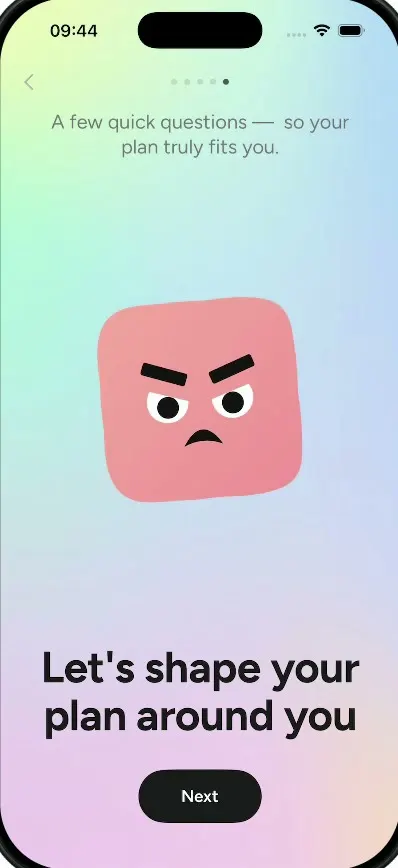
iOSA wellbeing journal with a $70K/month onboarding: a cloud mascot, a face that shape-shifts by mood, a plan.
- View template
Milo
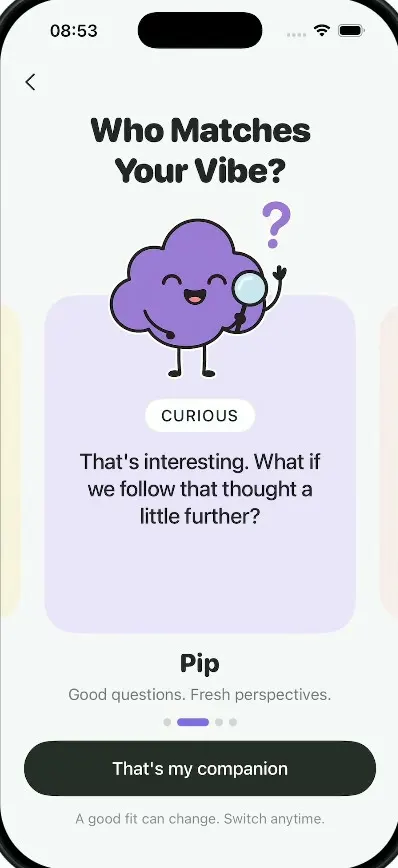
iOSAn AI companion onboarding: springy sticky notes, four cartoon companions, a rolling dial and a postage stamp.
- View template
HomeView
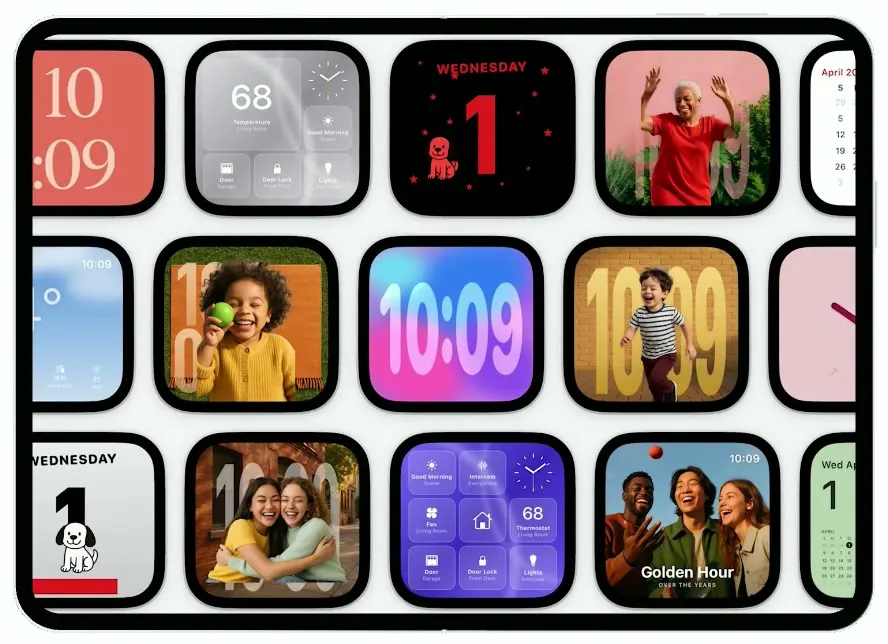
iOSA smart-home display on the iPhone Duo: drifting clock faces, face recognition, Siri answers, a 68° dashboard.
- View template
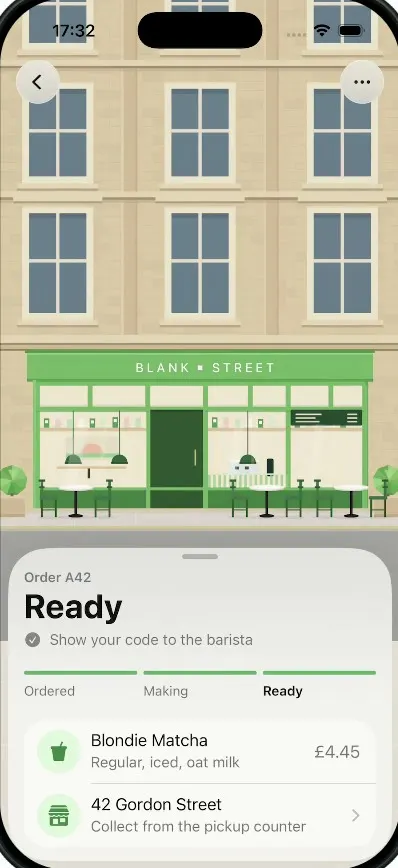
Pickup
iOSA coffee order tracker whose street tilts into a 3D field of QR blocks that flattens into your pickup code.