
A 3D space exploration game built from one prompt in the Vibecode web app
- iOS app: a native Swift app for iPhone and iPad. See Native iOS Apps.
- Mobile app: a React Native app for iOS and Android
- Web app: a website or web app that runs in any browser
Start a Project
- From the home page: type your idea in the prompt box (“What do you want to create?”). Use the platform picker in the prompt box to choose Web, Mobile, or iOS, then send.
- From your projects: click New app in the sidebar (or Create on the Workspaces page). Choose Mobile app, Web app, or iOS app, then describe what you want to build.
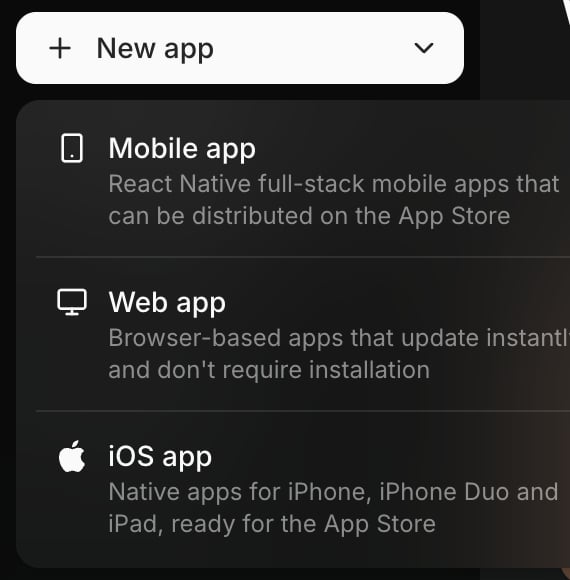
New app: pick Mobile app, Web app, or iOS app
Find Your Way Around
A project opens with the chat on the left and your app on the right.Prompt Box
- The model picker shows the current model. Click it to choose which AI model builds your app. Some models also let you set Reasoning.
- The camera button attaches a screenshot of the preview
- The mic button lets you dictate your prompt
- Drag files onto the prompt box to attach them
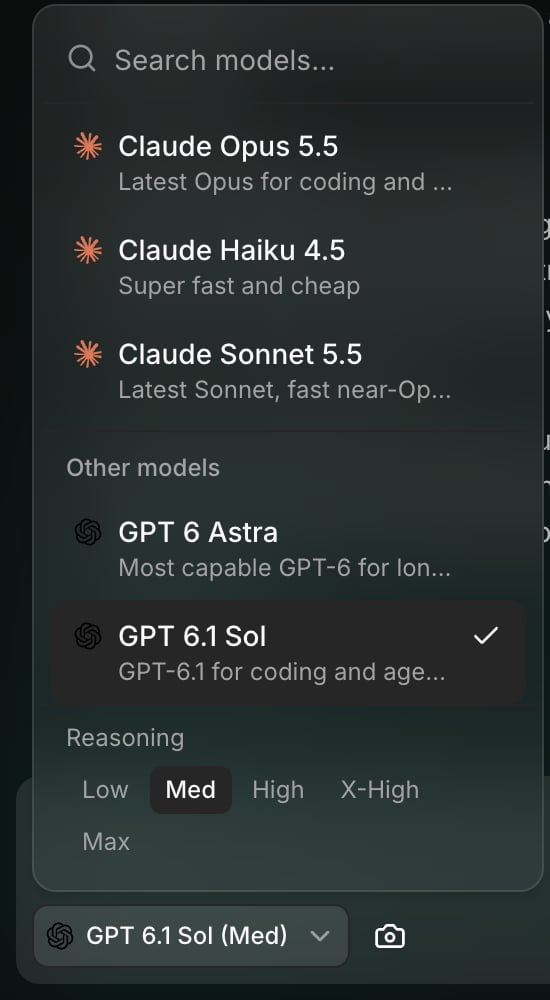
The model picker in the prompt box
Preview
What you see depends on the project type:- Web app: a browser preview. Switch between Desktop, Tablet, and Mobile sizes, or open it in a new tab.
- Mobile app: runs in the browser. Click Open on mobile for a QR code to preview it on your phone. You can also switch the simulator type to iOS (beta).
- iOS app: a live stream of an iOS Simulator in the cloud. See How the Preview Works.
Top Bar
- Your credit balance, shown in dollars. Click it to buy more credits, turn on auto reload, or redeem a promo code. See Plans and Credits.
<>: code options, including Download Code on Pro and Max plans- Share: once your app is published, copy its link or share it (Mobile and Web apps). Before that, it asks you to publish first.
- Deploy or Publish: see Publish Your App
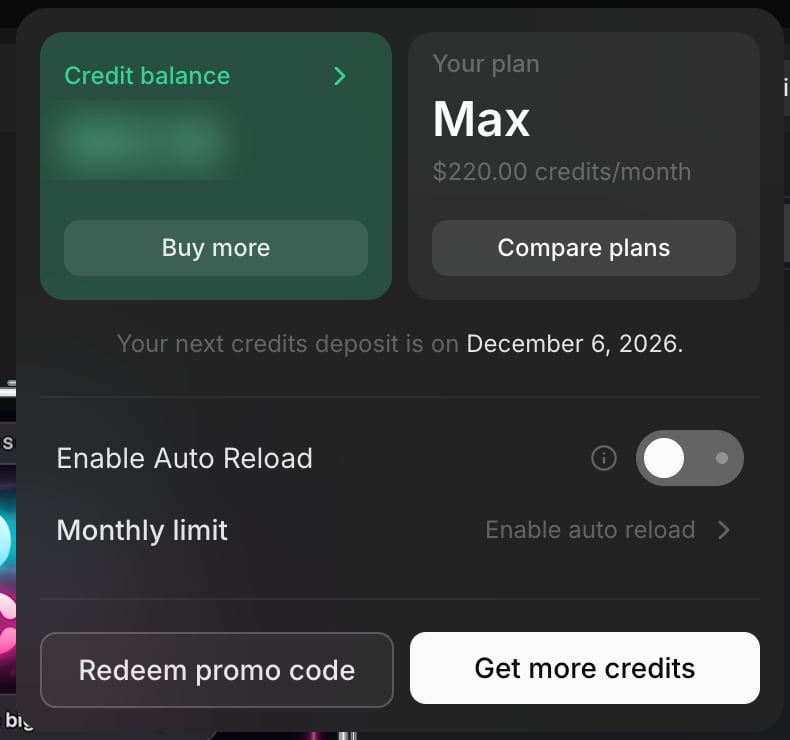
Click your credit balance to buy credits, compare plans, or set up auto reload
Publish Your App
The button in the top right depends on the project type: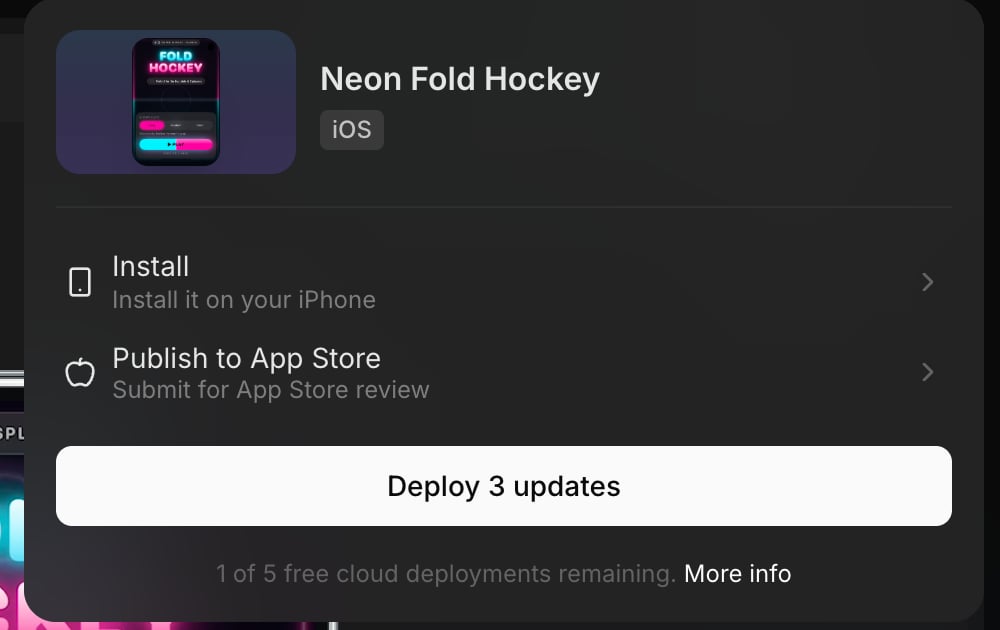
Publish menu for an iOS app
Keep Working While the Agent Builds
You don’t have to wait for the agent to finish.- Queue prompts. While the agent works, the prompt box shows “Queue more prompts”. Type your next request and click Queue.
- Manage the queue. Queued prompts sit above the prompt box (for example, “2 in queue”). Click to open the list, then hover a prompt to edit or delete it.
- Stop ends the current run and clears the queue.
Next Steps
Creating Your First App
Write a prompt and generate your app
Native iOS Apps
Build native Swift apps without a Mac
Choose Your Deployment Path
Compare install, App Store, and web options
Browse Integrations
Add AI, maps, payments, and more