
iOS app (Swift) projects: ask the agent in chat, as described in iOS App Projects. Mobile app (React Native) projects: follow the Payment tab steps. Charging on the web? Use Stripe instead.
In-App Purchases at a Glance
iOS App (Swift) Projects
In a native iOS app project, the agent sets up subscriptions from one message. Say what you want to sell, for example:Example prompt
- Connects RevenueCat. If your account isn’t connected yet, it shows a link. Sign in or sign up in RevenueCat’s window, and the agent carries on by itself. You never copy an API key.
- Picks the plans and prices from your app and tells you what it chose and why, unless you asked to review them first. You can change prices, trials, and plans later.
- Creates the products in App Store Connect: the subscription group, each subscription’s price and trial (available worldwide unless you say otherwise), and the review screenshot of your paywall. If it needs your Apple account, it sends a secure Apple sign-in link once.
- Links RevenueCat to Apple by creating Apple’s In-App Purchase key and uploading it to RevenueCat. The key files never enter your project.
- Sets up RevenueCat: the products, an entitlement (the access a purchase gives, such as
premium), an offering with your plans, and the paywall. - Adds it to your app: the RevenueCat Swift packages, the paywall, premium features that switch on with the entitlement, Restore Purchases, and Manage Subscription.
- Tests a purchase in the cloud simulator, with Apple’s real purchase sheet in Apple’s free test environment. It checks that buying turns on premium, that access survives a relaunch, and that restoring works.
What’s Left for You
- Tax and banking. Apple won’t sell your subscriptions until the Paid Apps Agreement, tax forms, and bank account are done in App Store Connect under Business. If the agreement is waiting, the agent accepts it with your connected Apple account. Tax and banking are yours, and the agent walks you through each field.
- Trying it on your iPhone (optional). Ask the agent. It sets up an Apple sandbox test account for you, and you install the app with Publish → Install.
- Publishing. When you submit the app, the agent sends your subscriptions to App Review together with that version.
Where Purchases Cost Money
Mobile App (React Native) Projects
In a Mobile app project, you connect RevenueCat in the Payment tab and add Apple’s keys in RevenueCat yourself.Before You Start
You’ll need the following:- A paid Vibecode plan (Plus or higher)
- RevenueCat Account (sign up for free)
- Apple Developer Program Membership ($99/year). See How to Create an Apple Developer Account.
- A Mobile app (React Native) project
Step 1: Connect Your RevenueCat Account
- Open your project in Vibecode
- Click the Payment tab
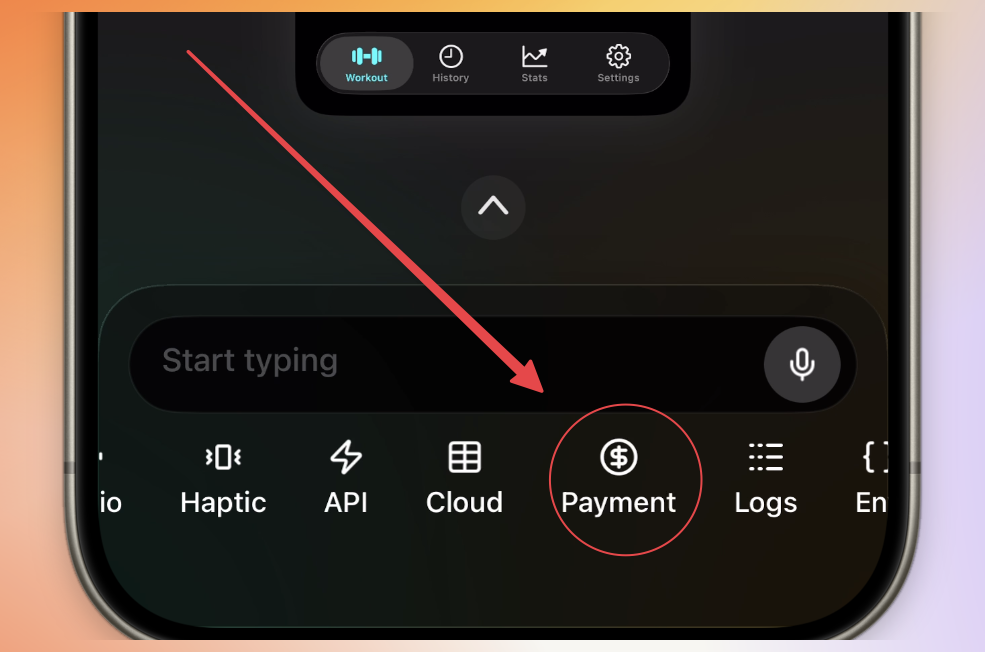
- Click Connect RevenueCat
- Sign into your RevenueCat account in the popup
- Authorize Vibecode to access your account
- You’ll be redirected back automatically
Step 2: Configure Your App Identity
After connecting, you’ll set up your app identity:- Display Name - Your app’s name as it appears on the home screen
- Bundle Identifier - A unique identifier for your app (Vibecode auto-generates one)
Step 3: Configure RevenueCat Credentials
This step is critical! Without these credentials, your in-app purchases will not work.
App Store Connect API Key
- Go to App Store Connect → Users and Access → Integrations → App Store Connect API
- Click Generate API Key with “App Manager” access level
- Download the
.p8file (you can only download this once!) - Note your Issuer ID from this page
- In RevenueCat, go to your app’s settings and upload the
.p8file - Enter your Issuer ID and Vendor number (found in App Store Connect under Payments and Financial Reports)
App Store Connect API Key Configuration
Full Guide
In-App Purchase Key
- Go to App Store Connect → Users and Access → Integrations → In-App Purchase
- Click Generate In-App Purchase Key
- Download the
.p8file (you can only download this once!) - In RevenueCat, upload this key in the In-app purchase key configuration section
- Add your Issuer ID and save
In-App Purchase Key Configuration
In-App Purchase Key Configuration
Step 4: Create Your Product with AI
Ask the Vibecode AI to create your subscription or in-app purchase product: Example prompts:Step 5: Create a Paywall
Ask the AI to create a paywall screen for your app: Example prompts: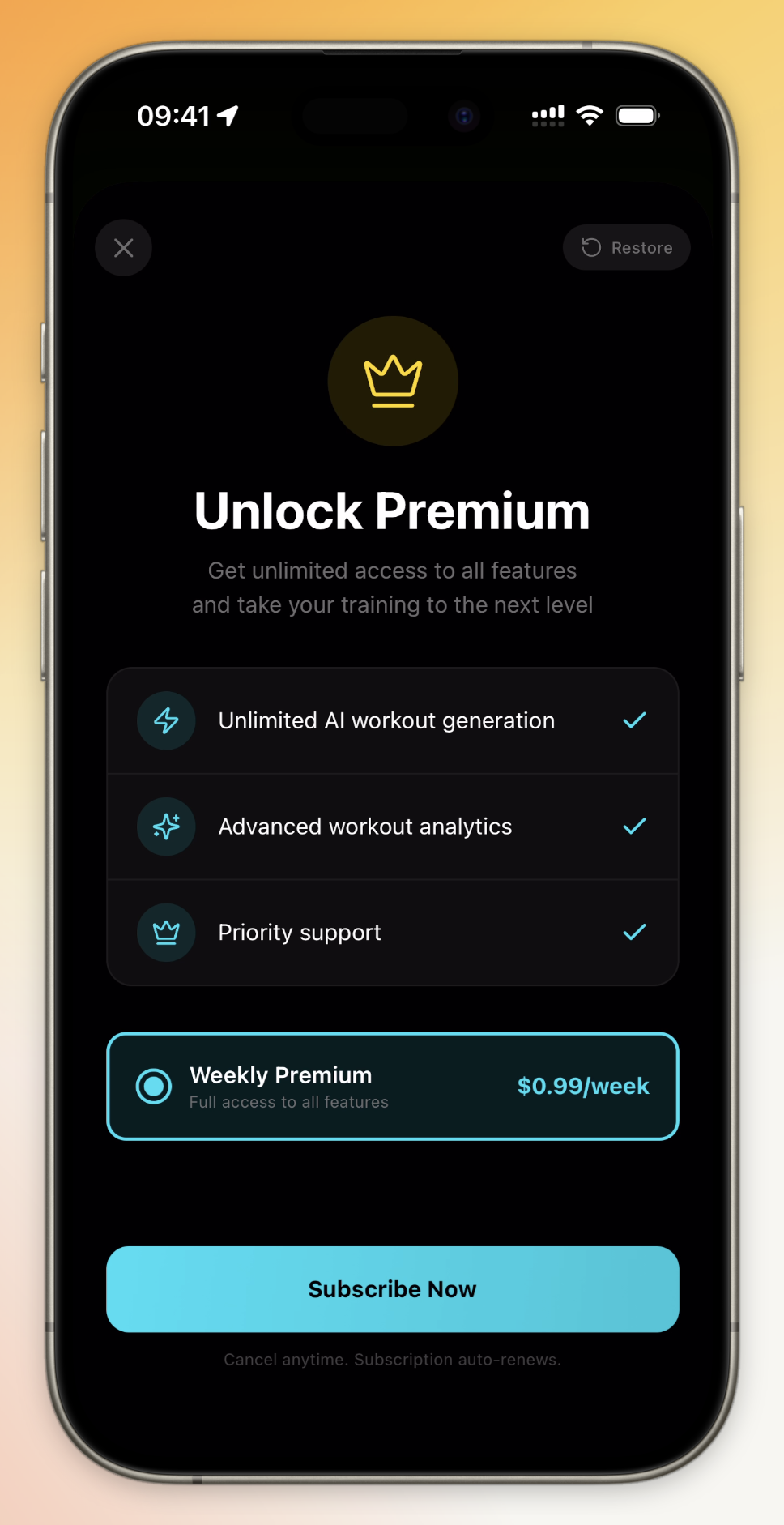
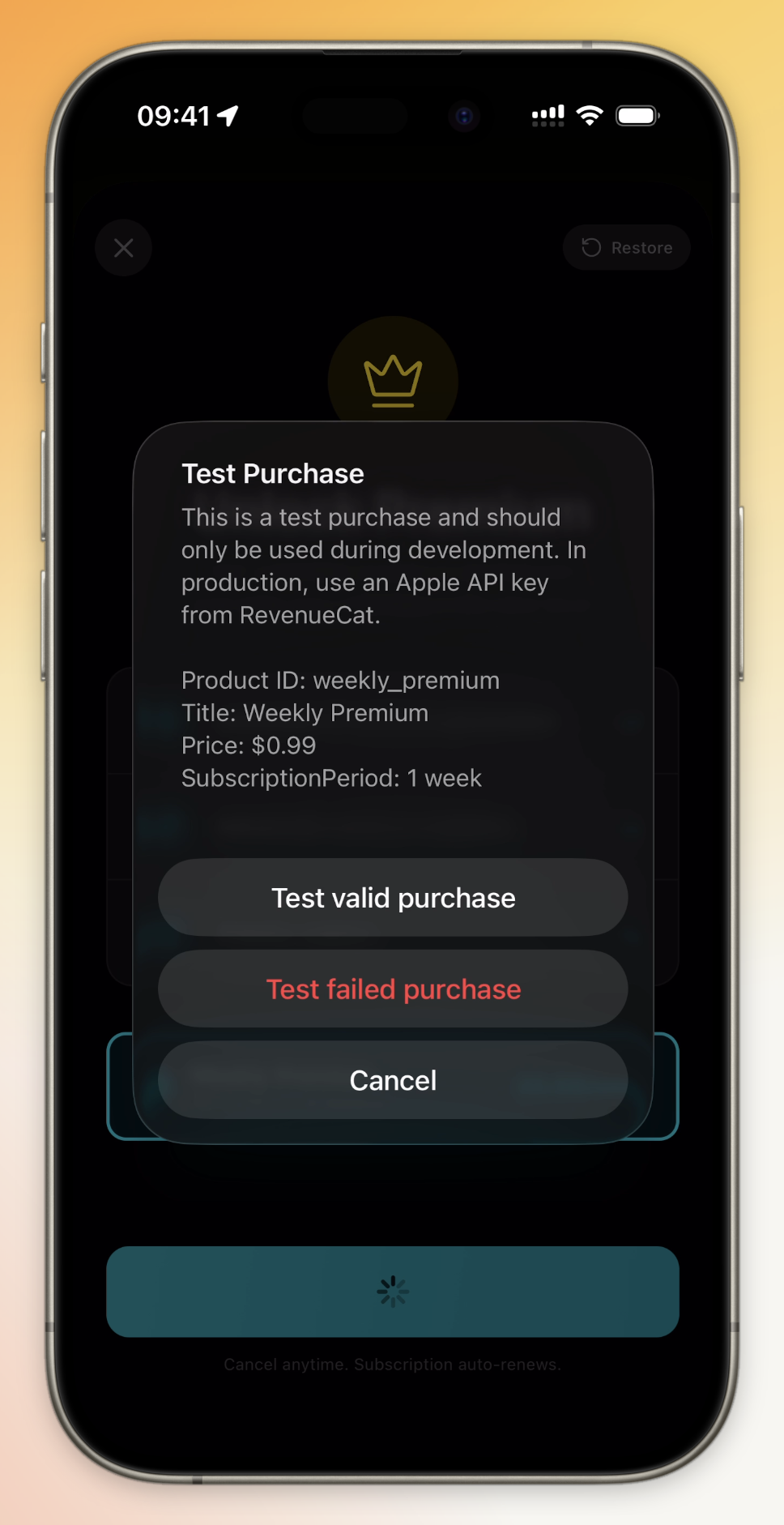
Step 6: Test in Vibecode
Before publishing, test your paywall inside Vibecode:- Preview your app
- Navigate to where the paywall appears
- Verify the products display correctly
- Test the purchase flow
Step 7: Sync Product with App Store Connect
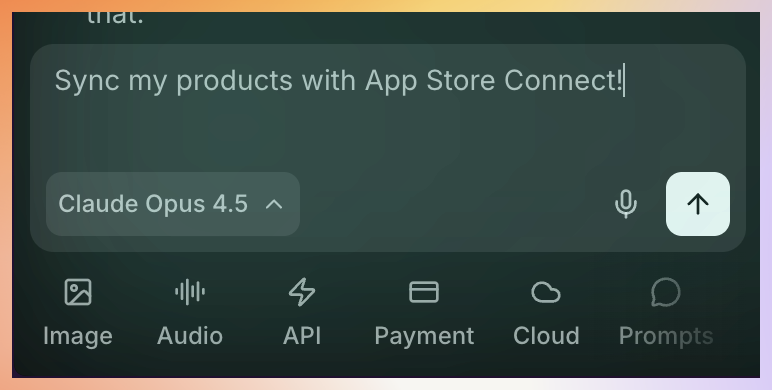
This step creates your product in App Store Connect. You must complete this before your app can accept real payments.
Step 8: Complete Product Setup in App Store Connect
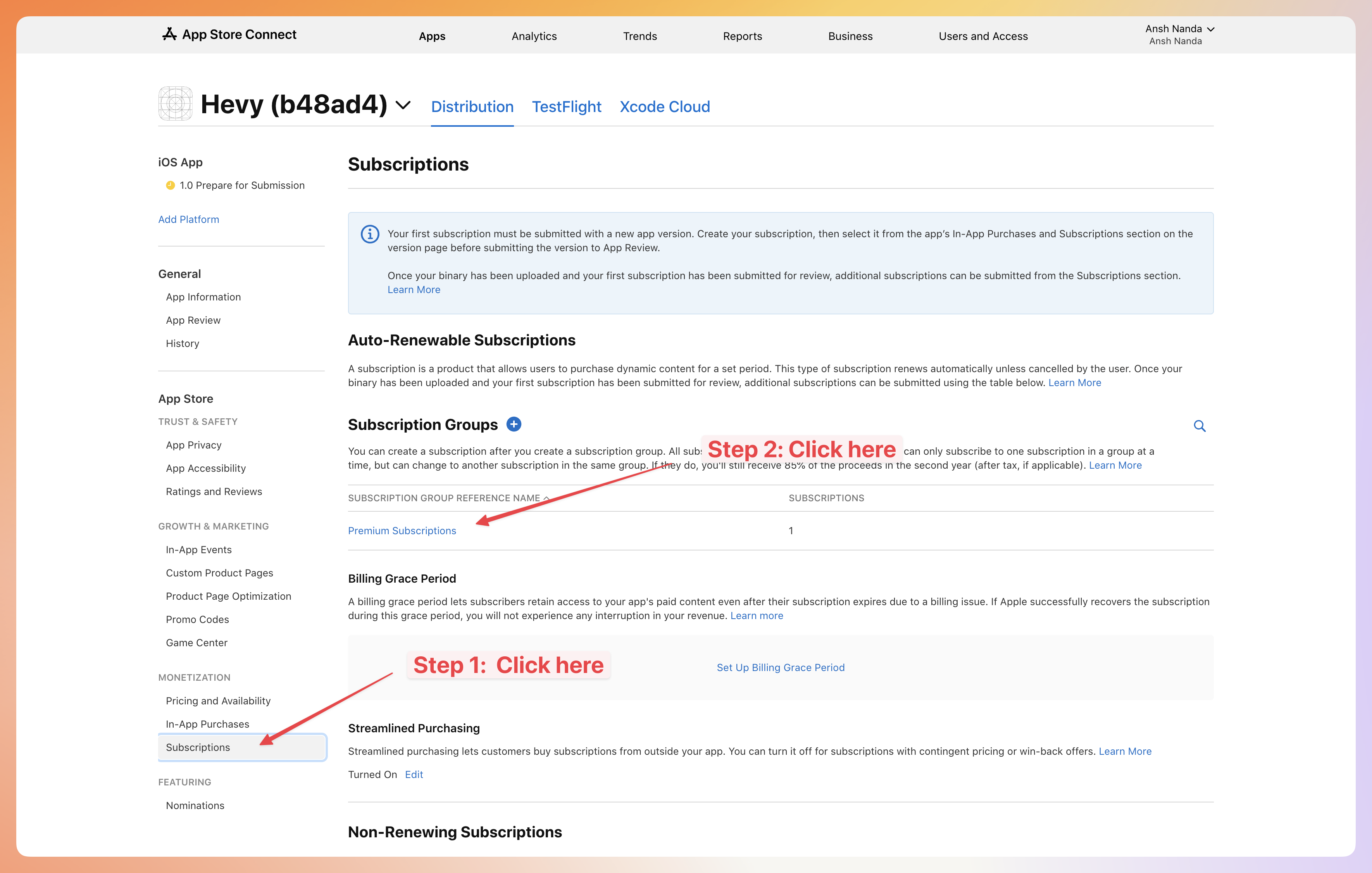
Your product was created but needs additional metadata before it can go live:- Go to App Store Connect
- Click on your app in the bottom left
- Navigate to Monetization → Subscriptions (or In-App Purchases)
- Click on the subscription group that was created
- Select your product
Add Required Metadata
For each product, you need to add:- Display Name - What users see during purchase
- Description - Explain what the subscription includes
- Screenshot - A screenshot showing your subscription in action
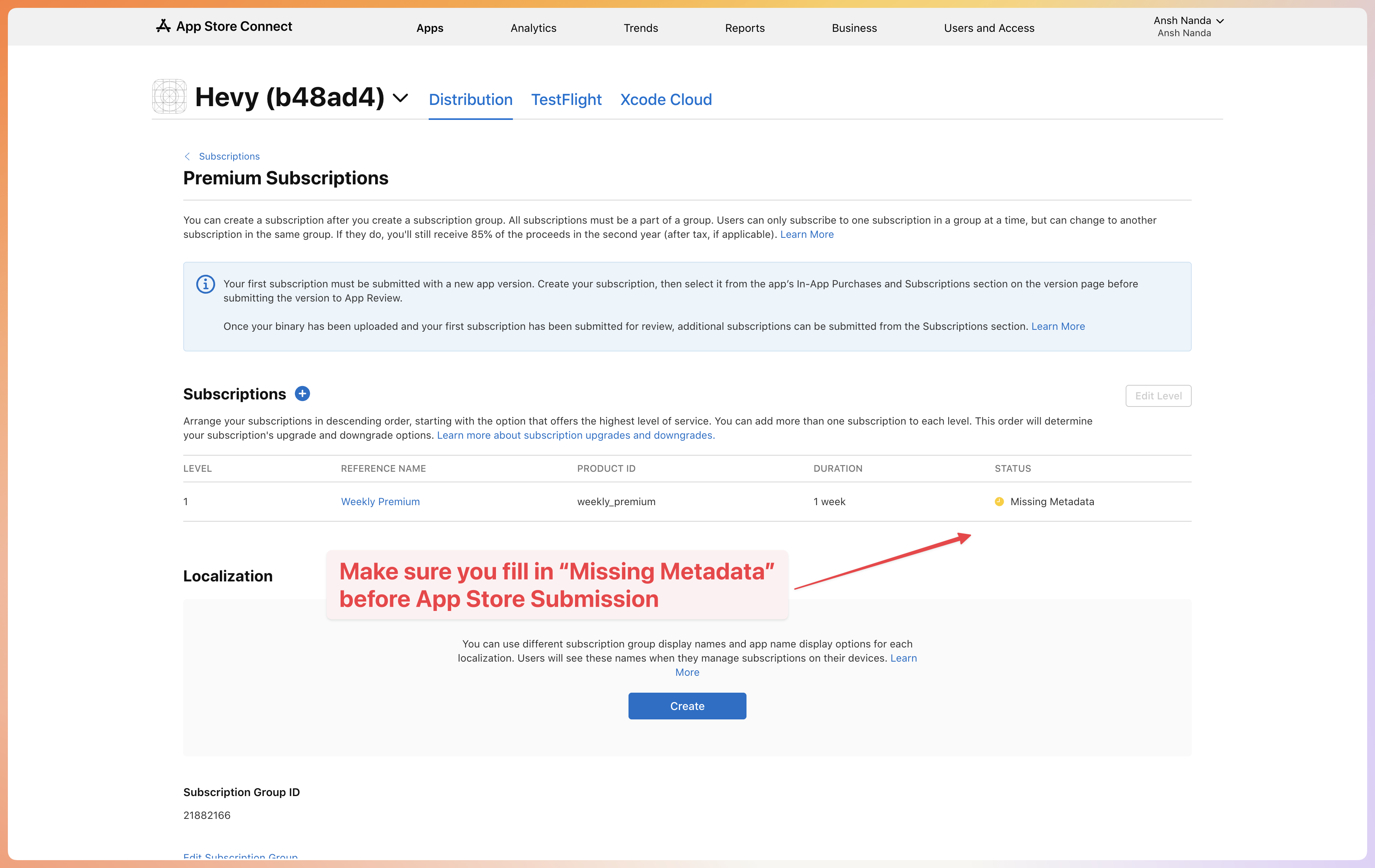
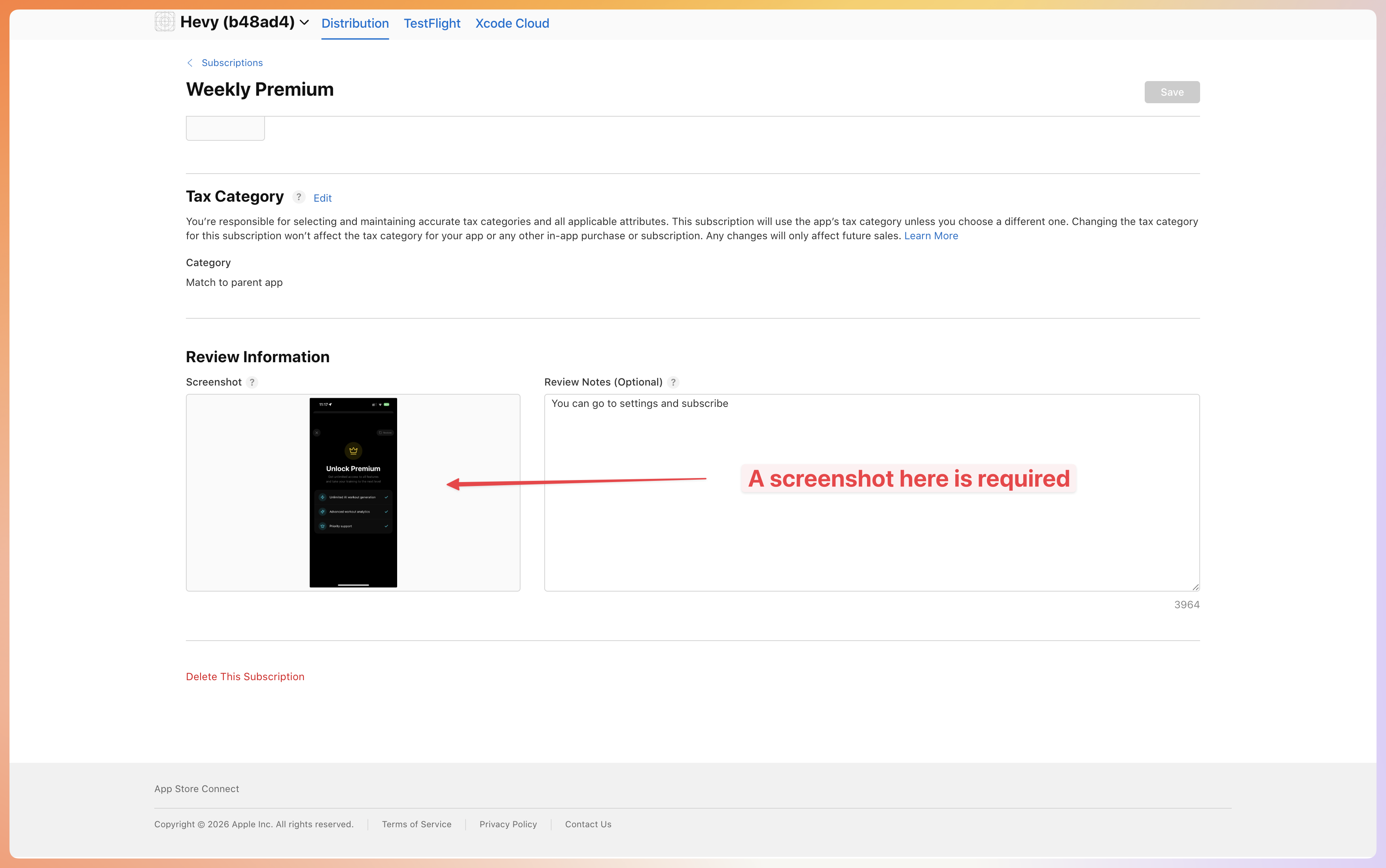
Your product will show “Missing Metadata” status until you add all required information including the screenshot.
Apple’s Rules for In-App Purchases and Paywalls
Apple checks these during App Review. Getting them wrong is a common reason for rejection under guideline 3.1:- Use Apple’s in-app purchase for digital goods. Subscriptions, premium features, in-game currency, and content used inside the app go through Apple (3.1.1). On the US App Store you may also link to your own web checkout; elsewhere that needs an Apple entitlement (3.1.1(a)). Physical goods and real-world services, such as deliveries or rides, use other payment methods.
- Show clear prices and terms. The paywall must say what the user gets, how much it costs, and how often they’re billed.
- Include Restore Purchases. Users who reinstall or switch devices must be able to get back what they paid for.
- Subscriptions must last at least 7 days and provide ongoing value (3.1.2(a)).
- Link your terms of use and privacy policy on the paywall and in your App Store listing.
- Submit your products with the app. New in-app purchases must have complete metadata in App Store Connect and be submitted for review together with an app version.
Troubleshooting
There are many common issues that can prevent your products from working correctly. Please go through all of them and make sure they do not impact you. Can’t connect to RevenueCat?- Check that popups aren’t blocked in your browser
- Try refreshing the page and connecting again
- Ensure you’re signed into your RevenueCat account
- Click Refresh in the Payment Dashboard
- Verify products are created in both App Store Connect and RevenueCat
- Check that products are linked to the correct app in RevenueCat
- Go to App Store Connect and add all required fields
- Make sure to upload a screenshot for the product
- Save your changes and the status will update
- Ensure you’re using a valid Sandbox Tester account
- Sign out of your regular Apple ID first
- Check that your app’s bundle ID matches App Store Connect
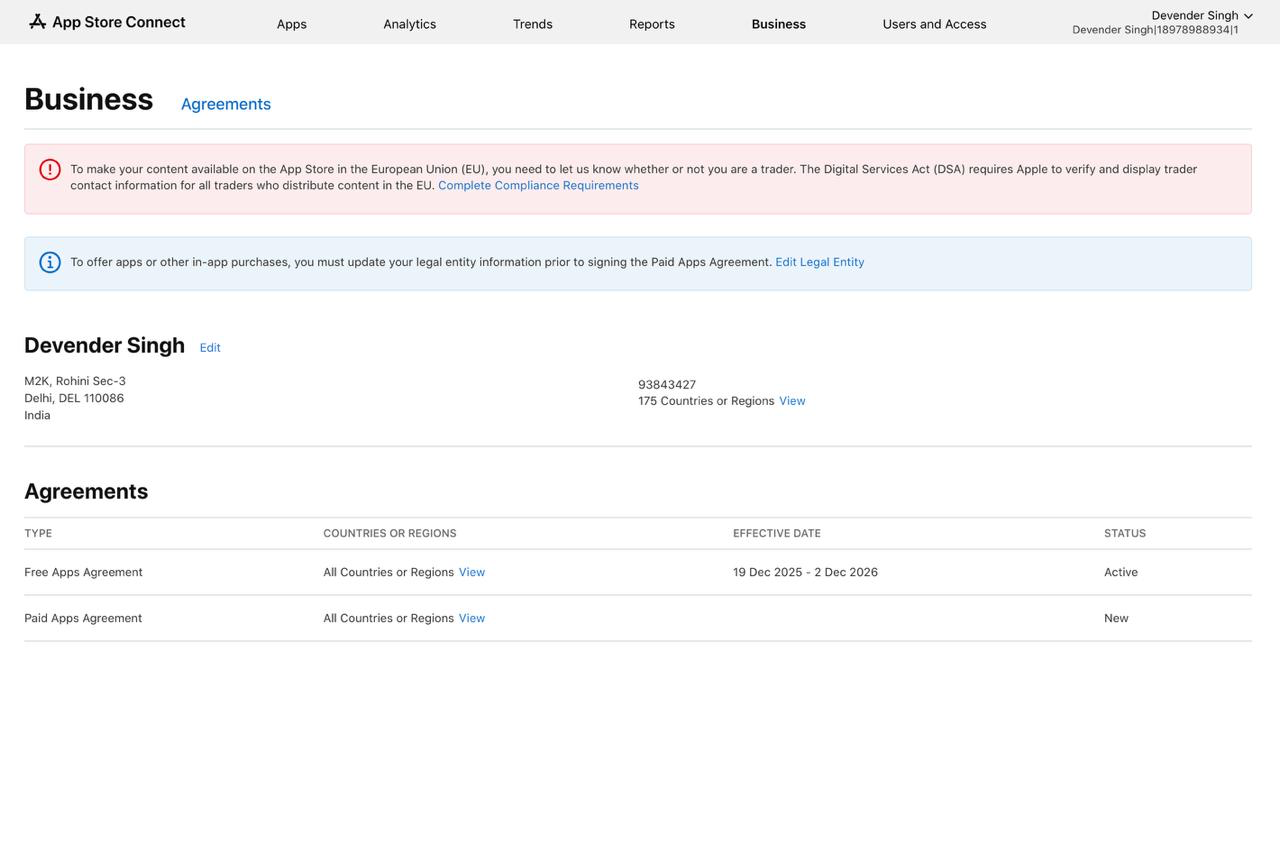
- Go to App Store Connect → Business → Agreements
- Ensure your Paid Apps Agreement is active (not “New”)
- Complete any pending legal entity information
- Fill out all required tax and banking information
- Make sure to also fill out all the metadata for your products in App Store Connect. You can do this by going to App -> Subscriptions -> Your Subscription -> Edit -> Metadata.
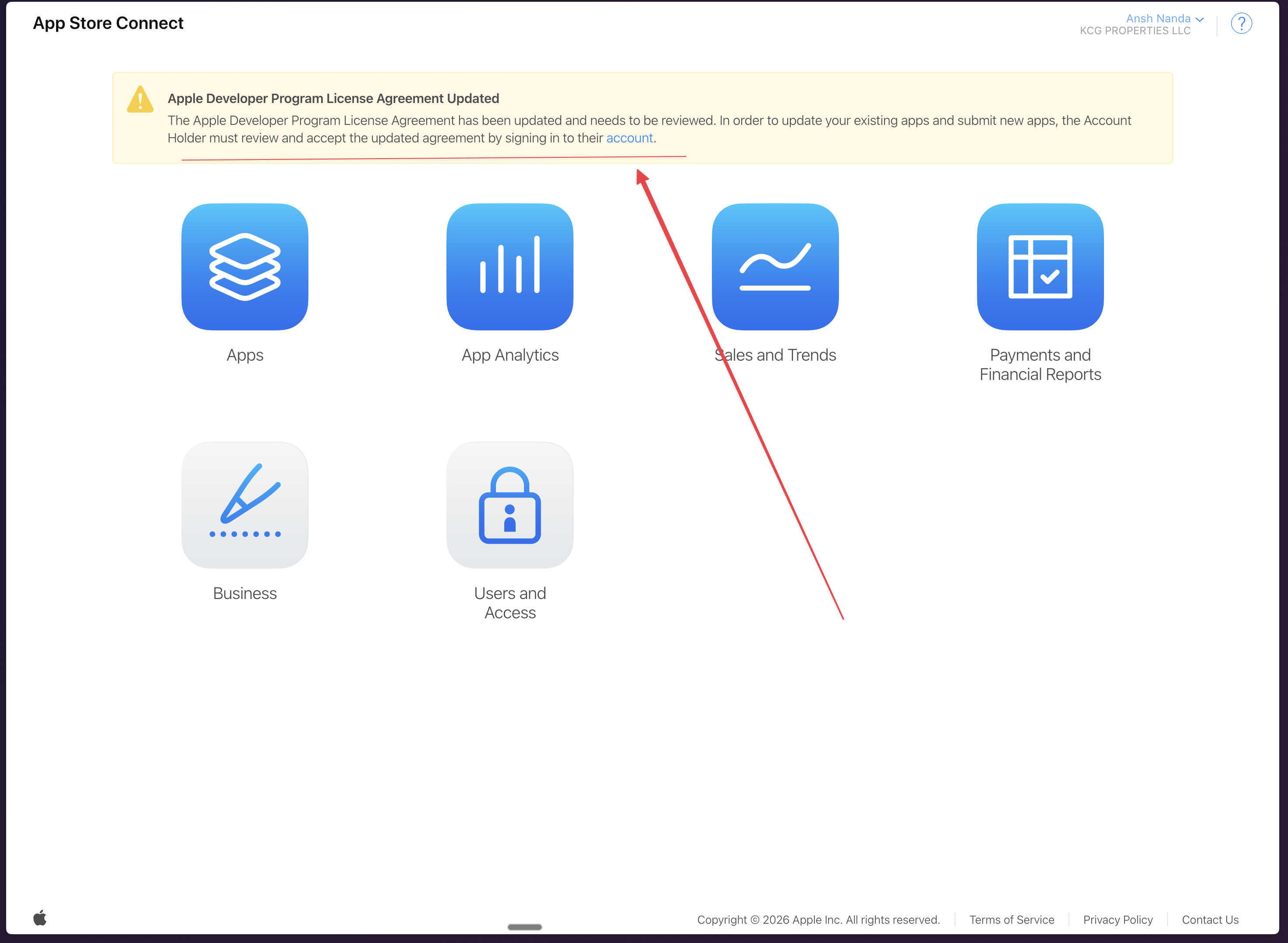
- The Account Holder (not just any team member) must sign in to App Store Connect
- Review and accept any updated license agreements shown in the yellow banner
- Check Business → Agreements for any other pending agreements
- Once all agreements are accepted, the yellow warning will disappear and purchases will work
Frequently Asked Questions
Do I have to use Apple's in-app purchase?
Do I have to use Apple's in-app purchase?
For digital content, features, and subscriptions used in your iPhone app, in-app purchase is required (guideline 3.1.1). On the US App Store you can also add a button or link to your own web checkout; outside the US that needs an Apple entitlement, which only some countries offer (3.1.1(a)). RevenueCat runs on top of Apple’s in-app purchase system. Physical goods and services used outside the app can use other payment methods.
How much does RevenueCat cost?
How much does RevenueCat cost?
RevenueCat is free until your app makes $2,500 in monthly tracked revenue. Above that it charges 1% of tracked revenue. Apple’s commission is separate. Check RevenueCat’s pricing page for current terms.
How much does Apple take from in-app purchases?
How much does Apple take from in-app purchases?
15% if you’re in the App Store Small Business Program (up to $1 million in proceeds a year), and the standard commission above that. Apple’s rates differ by country and program, so check App Store Connect for yours.
Can I test purchases without being charged?
Can I test purchases without being charged?
Yes. Purchases in TestFlight and development builds use Apple’s sandbox, so nobody is charged. In iOS app projects, purchases in the cloud simulator are free too, and the agent can set up a sandbox test account for your iPhone. In Mobile app projects, create a sandbox tester in App Store Connect under Users and Access → Sandbox and sign in with it on your test device.
Why aren't my products showing up?
Why aren't my products showing up?
Usually one of three things: the Paid Apps Agreement isn’t active, the product is missing metadata (including its review screenshot) in App Store Connect, or the bundle ID doesn’t match. See Troubleshooting above.
Can I add in-app purchases to a native Swift iOS app?
Can I add in-app purchases to a native Swift iOS app?
Yes. In an iOS app (Swift) project, ask the agent to add a subscription. It connects RevenueCat, creates the products in App Store Connect, builds the paywall, and tests a purchase in the cloud simulator. See iOS App Projects.
Can I use Stripe instead?
Can I use Stripe instead?
For web apps, yes: see Stripe Setup. Inside an iPhone app, digital goods use Apple’s in-app purchase, and on the US App Store you can also link to a Stripe checkout on your website (3.1.1(a)).
Next Steps
Publish to the App Store
Submit your app and products for review
Review Guidelines Checklist
Avoid payment-related rejections
TestFlight
Test purchases with beta testers
Vibecode Pricing
Compare Vibecode plans