
Before You Start
You’ll need the following:- Vibecode Pro Plan (upgrade in your account settings if needed)
- RevenueCat Account (sign up for free)
- Apple Developer Program Membership ($99/year)
Step 1: Connect Your RevenueCat Account
- Open your project in Vibecode
- Click the Payments tab
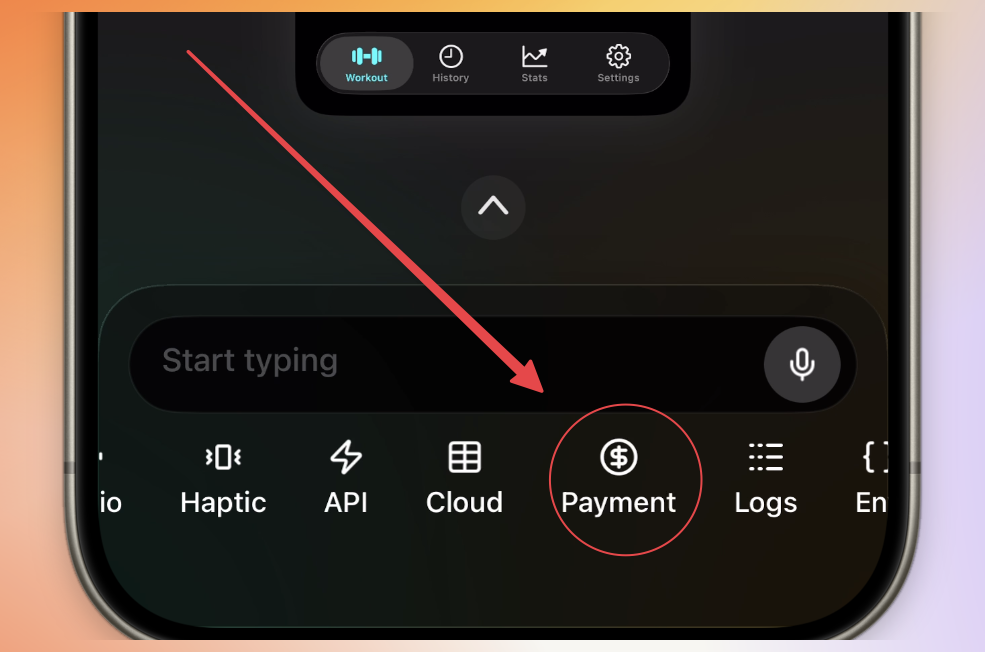
- Click Connect RevenueCat
- Sign into your RevenueCat account in the popup
- Authorize Vibecode to access your account
- You’ll be redirected back automatically
Step 2: Configure Your App Identity
After connecting, you’ll set up your app identity:- Display Name - Your app’s name as it appears on the home screen
- Bundle Identifier - A unique identifier for your app (Vibecode auto-generates one)
Step 3: Configure RevenueCat Credentials
This step is critical! Without these credentials, your in-app purchases will not work.
App Store Connect API Key
- Go to App Store Connect → Users and Access → Integrations → App Store Connect API
- Click Generate API Key with “App Manager” access level
- Download the
.p8file (you can only download this once!) - Note your Issuer ID from this page
- In RevenueCat, go to your app’s settings and upload the
.p8file - Enter your Issuer ID and Vendor number (found in App Store Connect under Payments and Financial Reports)
App Store Connect API Key Configuration
Full Guide
In-App Purchase Key
- Go to App Store Connect → Users and Access → Integrations → In-App Purchase
- Click Generate In-App Purchase Key
- Download the
.p8file (you can only download this once!) - In RevenueCat, upload this key in the In-app purchase key configuration section
- Add your Issuer ID and save
In-App Purchase Key Configuration
In-App Purchase Key Configuration
Step 4: Create Your Product with AI
Ask the Vibecode AI to create your subscription or in-app purchase product: Example prompts:Step 5: Create a Paywall
Ask the AI to create a paywall screen for your app: Example prompts: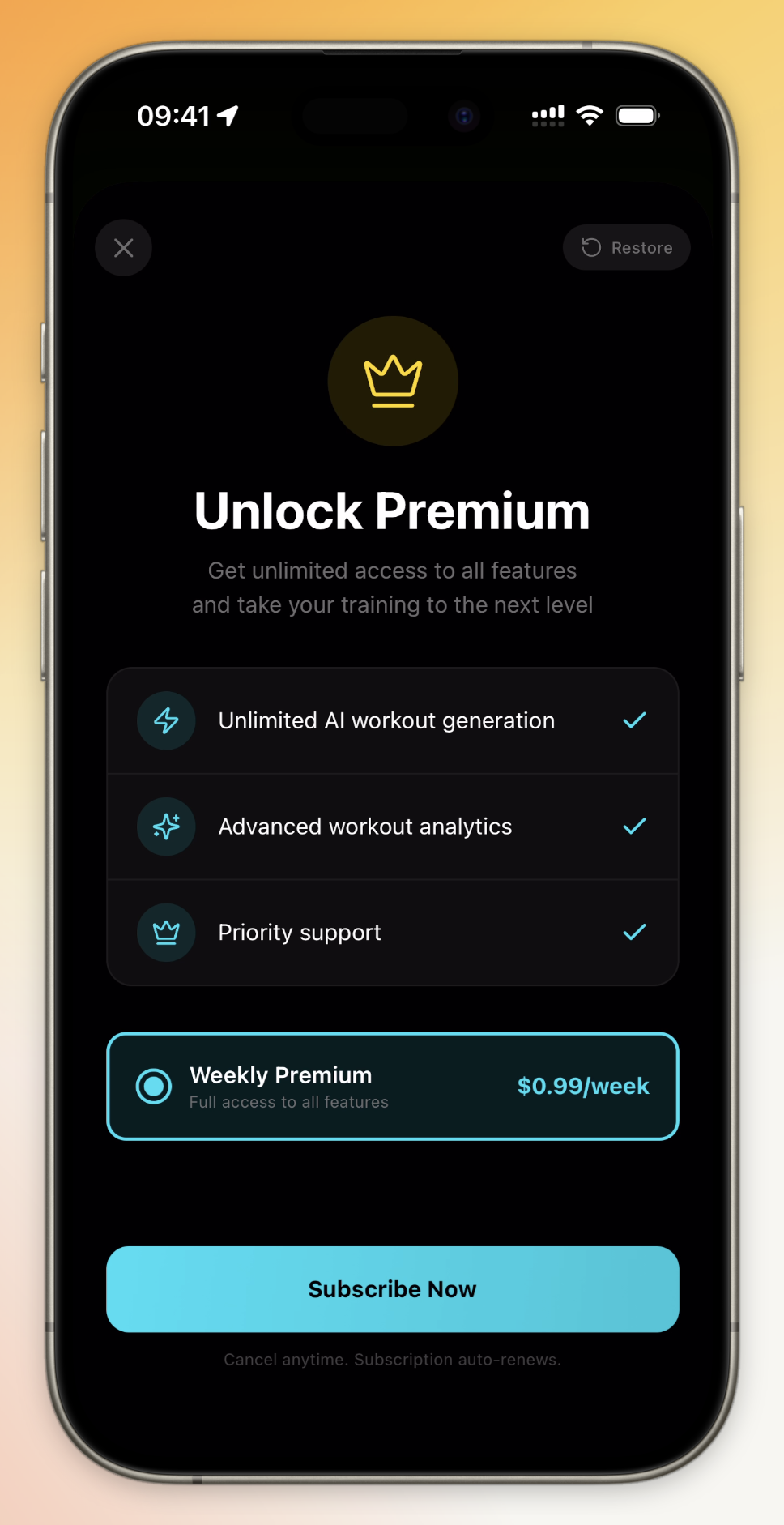
Step 6: Test in Vibecode
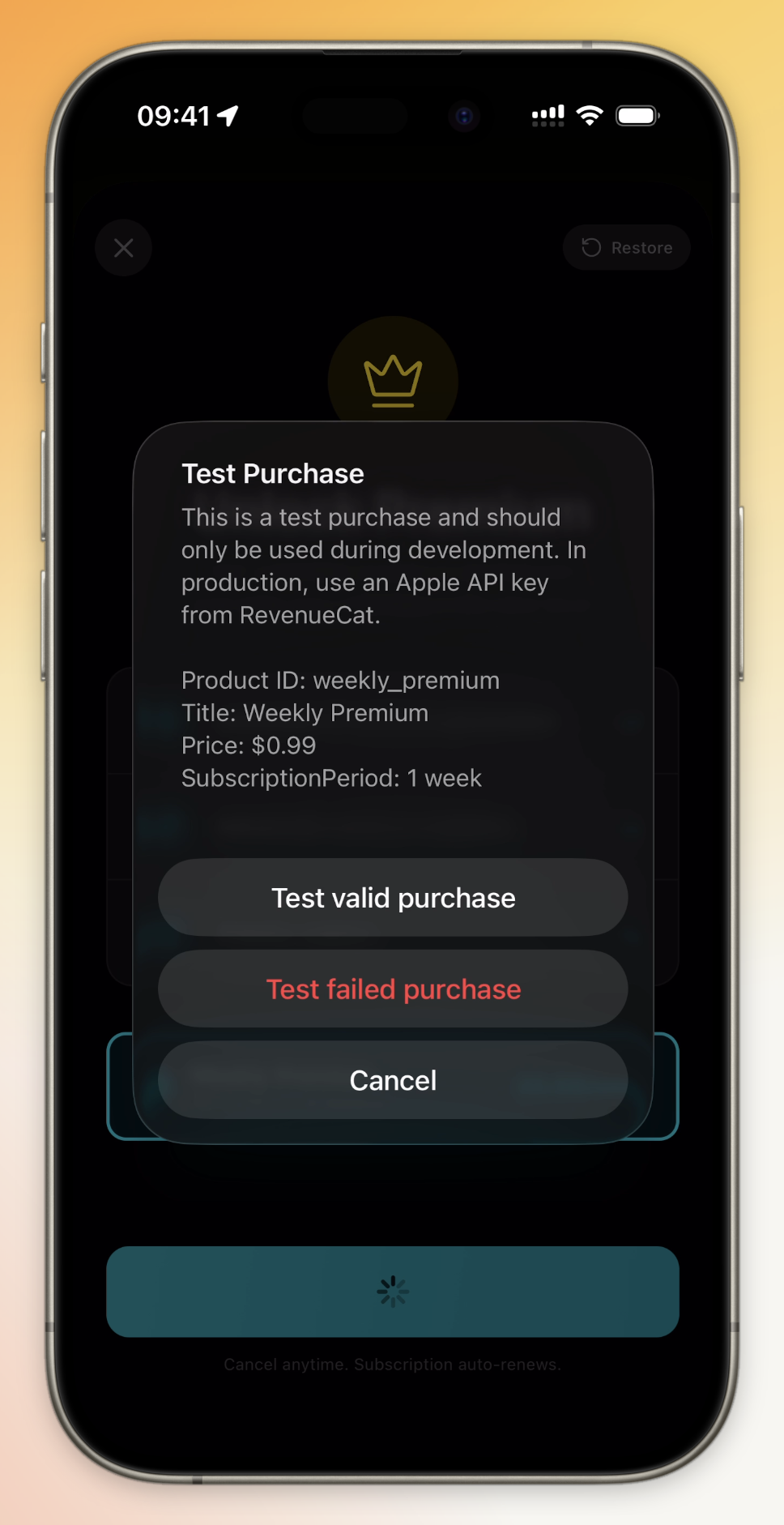
Before publishing, test your paywall inside Vibecode:- Preview your app
- Navigate to where the paywall appears
- Verify the products display correctly
- Test the purchase flow
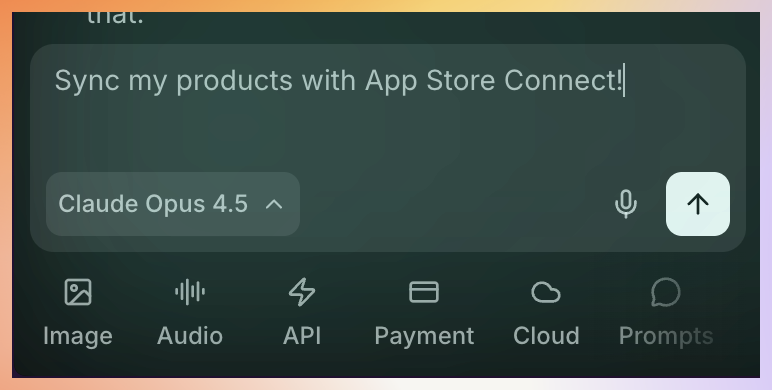
Step 7: Sync Product with App Store Connect
This step creates your product in App Store Connect. You must complete this before your app can accept real payments.
Step 8: Complete Product Setup in App Store Connect
Your product was created but needs additional metadata before it can go live:- Go to App Store Connect
- Click on your app in the bottom left
- Navigate to Monetization → Subscriptions (or In-App Purchases)
- Click on the subscription group that was created
- Select your product
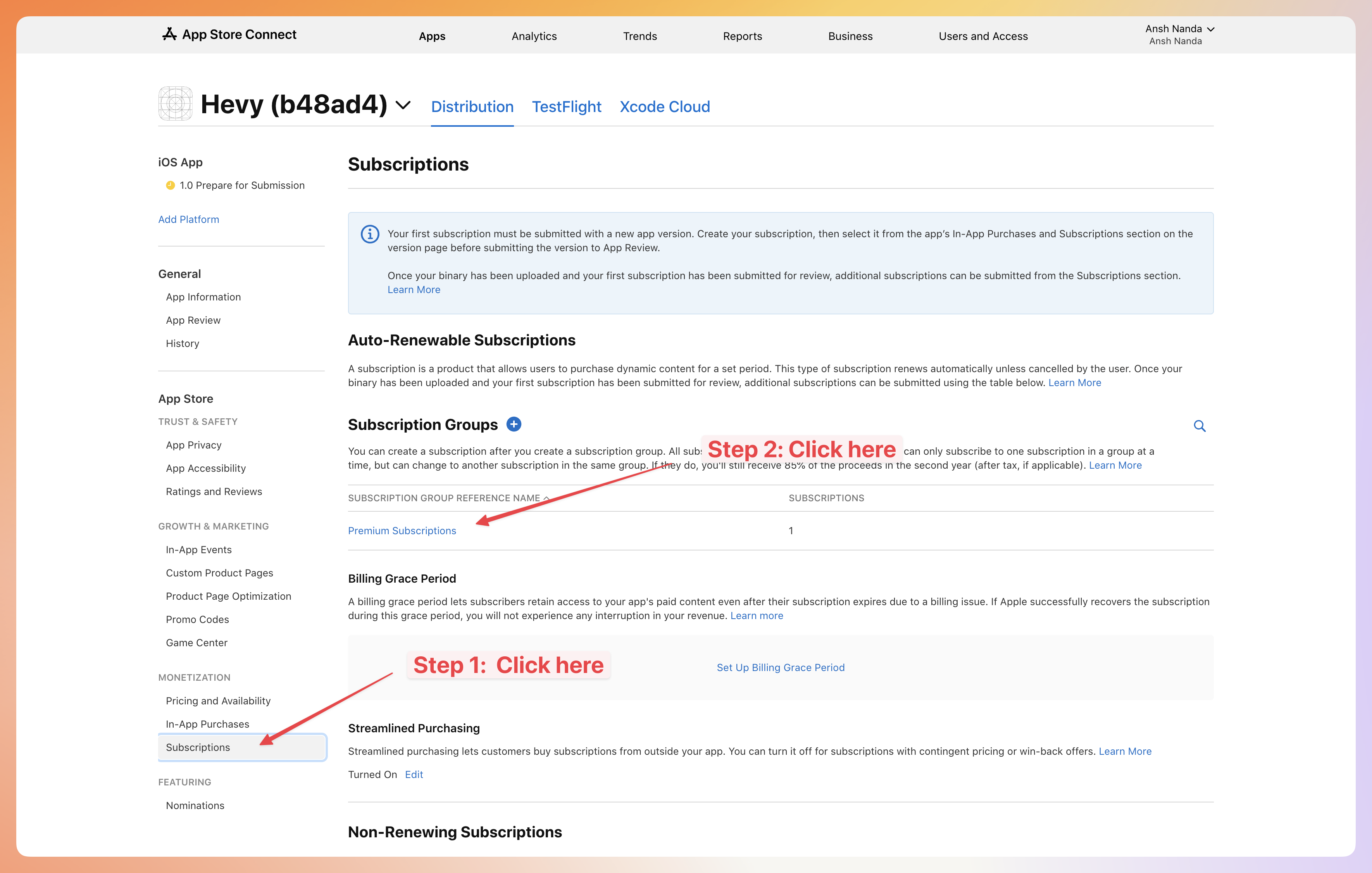
Add Required Metadata
For each product, you need to add:- Display Name - What users see during purchase
- Description - Explain what the subscription includes
- Screenshot - A screenshot showing your subscription in action
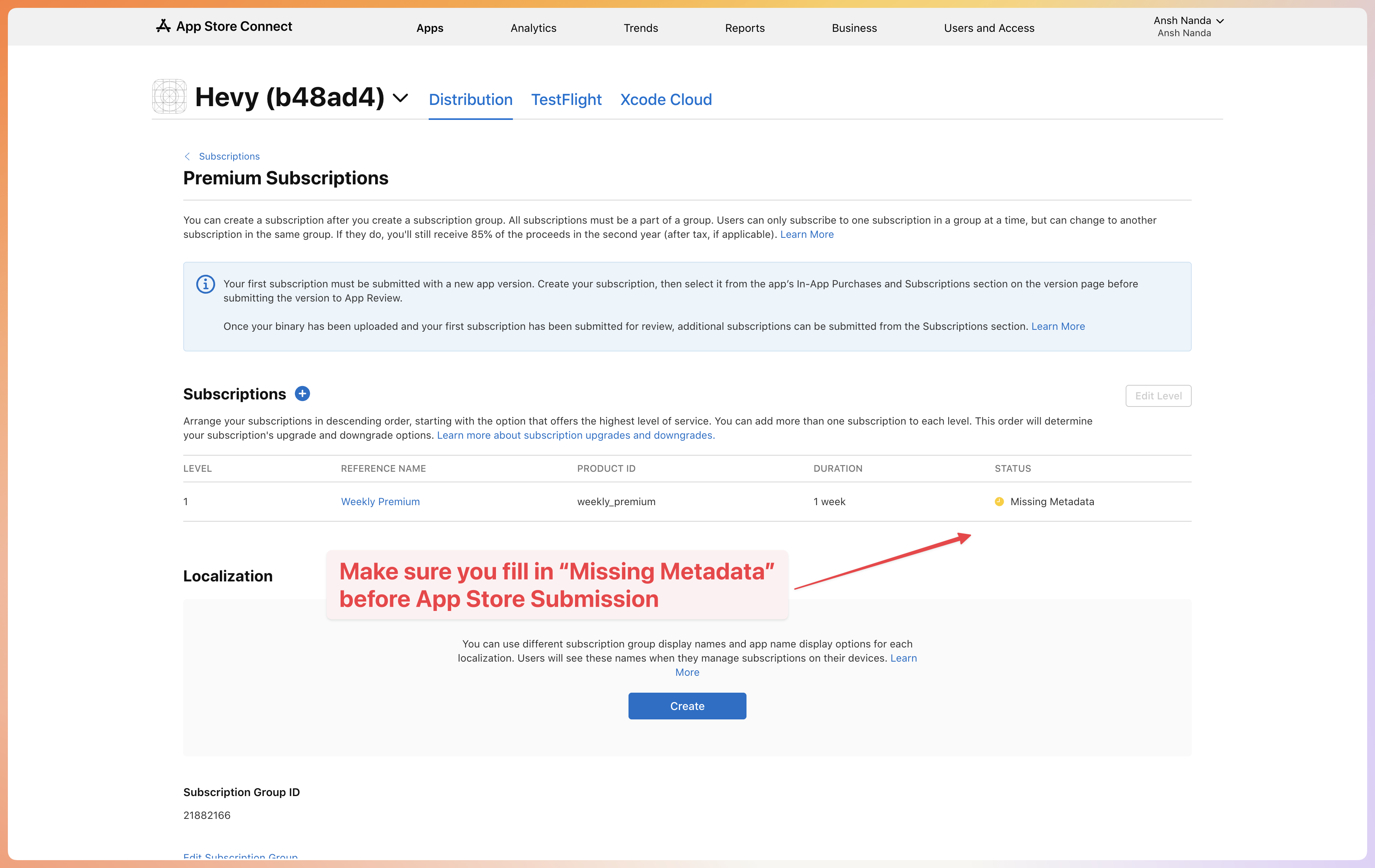
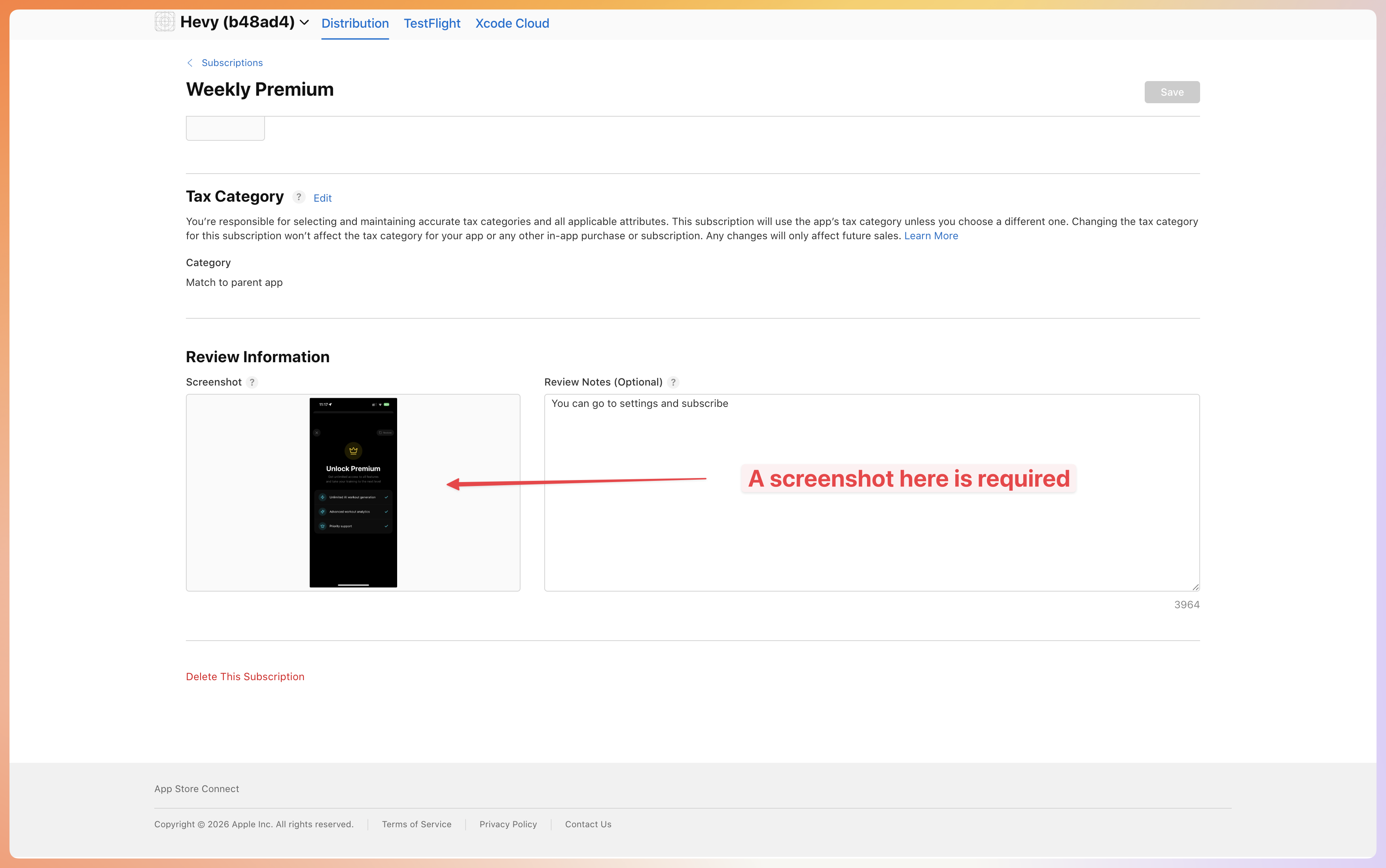
Your product will show “Missing Metadata” status until you add all required information including the screenshot.
Troubleshooting
There are many common issues that can prevent your products from working correctly. Please go through all of them and make sure they do not impact you. Can’t connect to RevenueCat?- Check that popups aren’t blocked in your browser
- Try refreshing the page and connecting again
- Ensure you’re signed into your RevenueCat account
- Click Refresh in the Payment Dashboard
- Verify products are created in both App Store Connect and RevenueCat
- Check that products are linked to the correct app in RevenueCat
- Go to App Store Connect and add all required fields
- Make sure to upload a screenshot for the product
- Save your changes and the status will update
- Ensure you’re using a valid Sandbox Tester account
- Sign out of your regular Apple ID first
- Check that your app’s bundle ID matches App Store Connect
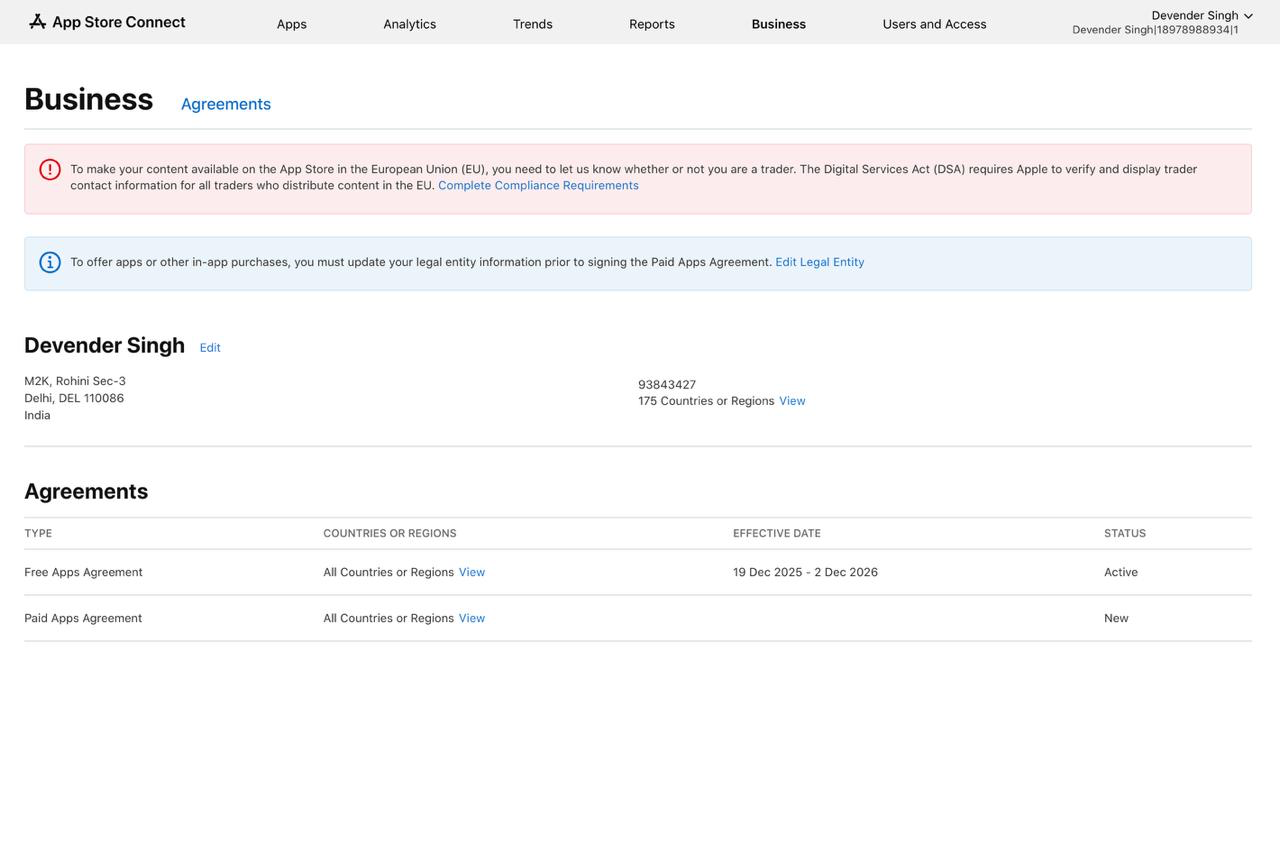
- Go to App Store Connect → Business → Agreements
- Ensure your Paid Apps Agreement is active (not “New”)
- Complete any pending legal entity information
- Fill out all required tax and banking information
- Make sure to also fill out all the metadata for your products in App Store Connect. You can do this by going to App -> Subscriptions -> Your Subscription -> Edit -> Metadata.
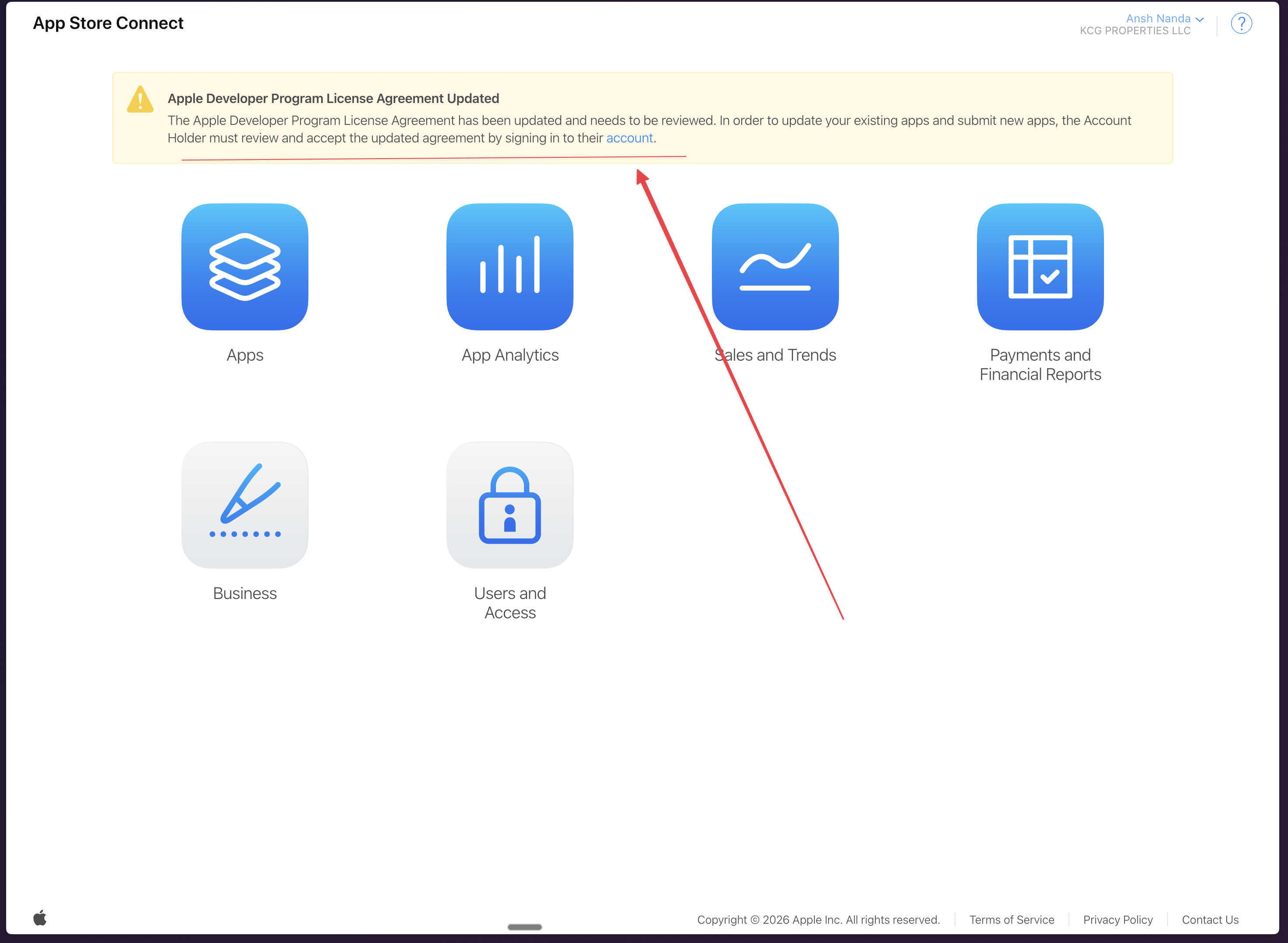
- The Account Holder (not just any team member) must sign in to App Store Connect
- Review and accept any updated license agreements shown in the yellow banner
- Check Business → Agreements for any other pending agreements
- Once all agreements are accepted, the yellow warning will disappear and purchases will work