
Stripe integration is only available for web apps. For native mobile apps (iOS/Android), use RevenueCat instead.
Before You Start
You’ll need the following:- Vibecode Account (sign up if you haven’t already)
- Stripe Account (sign up for free)
- A deployed Vibecode web app ready to accept payments
Step 1: Create a Stripe Account
Visit stripe.com and sign up. Complete all verification steps in the Stripe Dashboard, including confirming your email, verifying your identity, and setting up your business information.If you have not created a company in Stripe
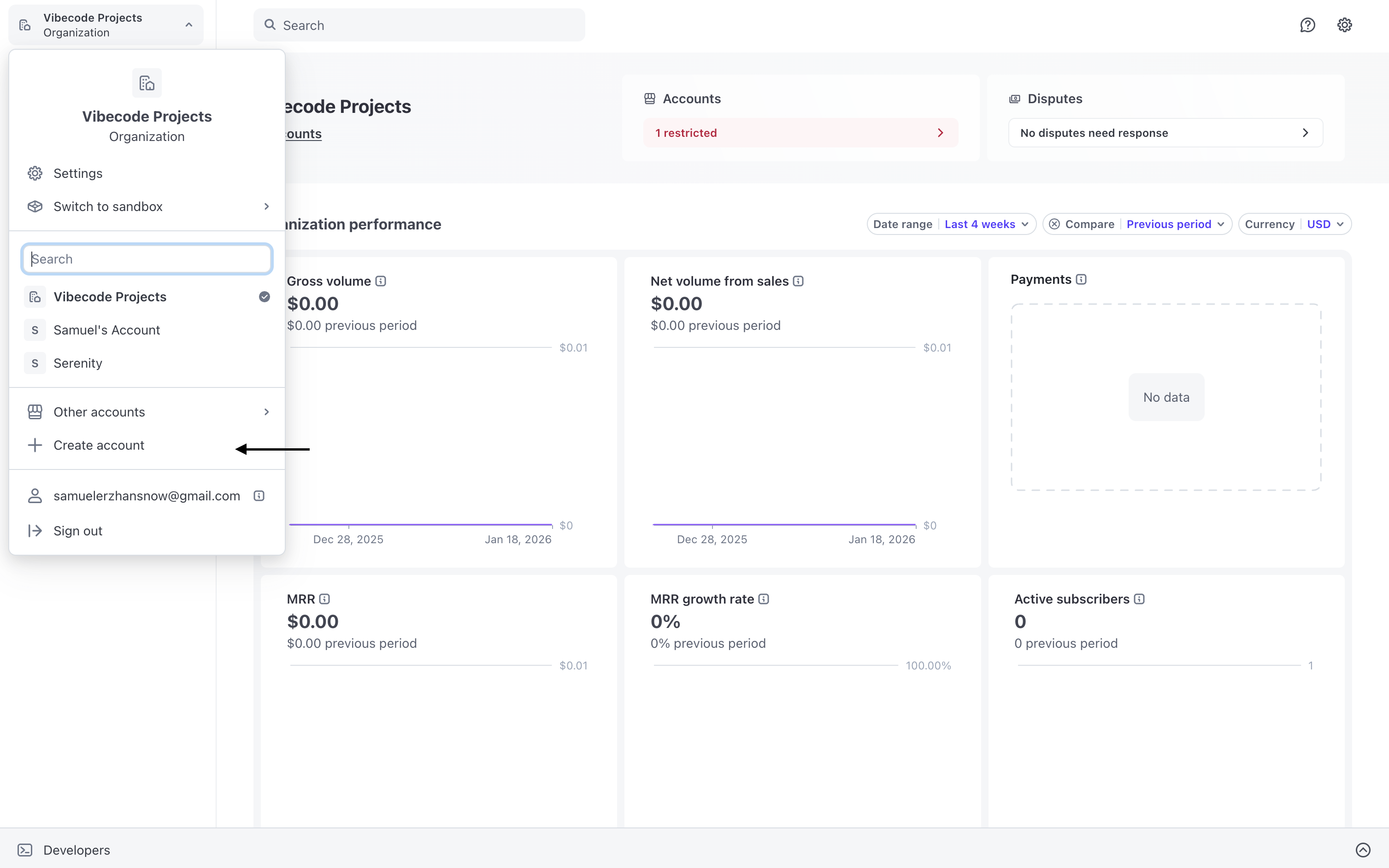
If you haven’t set up a company inside Stripe yet, you’ll need to do this before continuing. If your company is already created, skip to Step 2.- In the top right, click Organizations
- Click Create Account
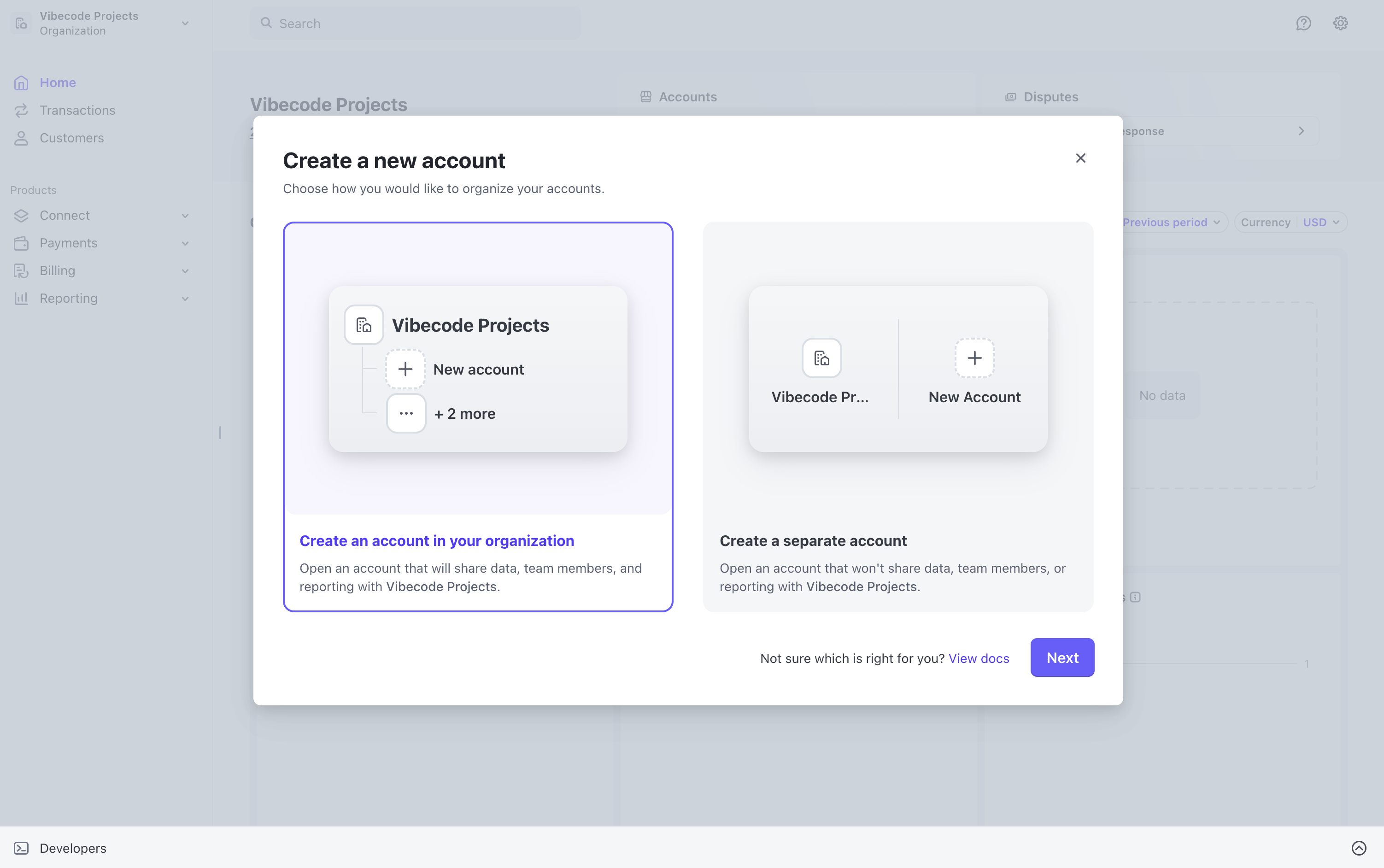
- Choose Create an account from your organization
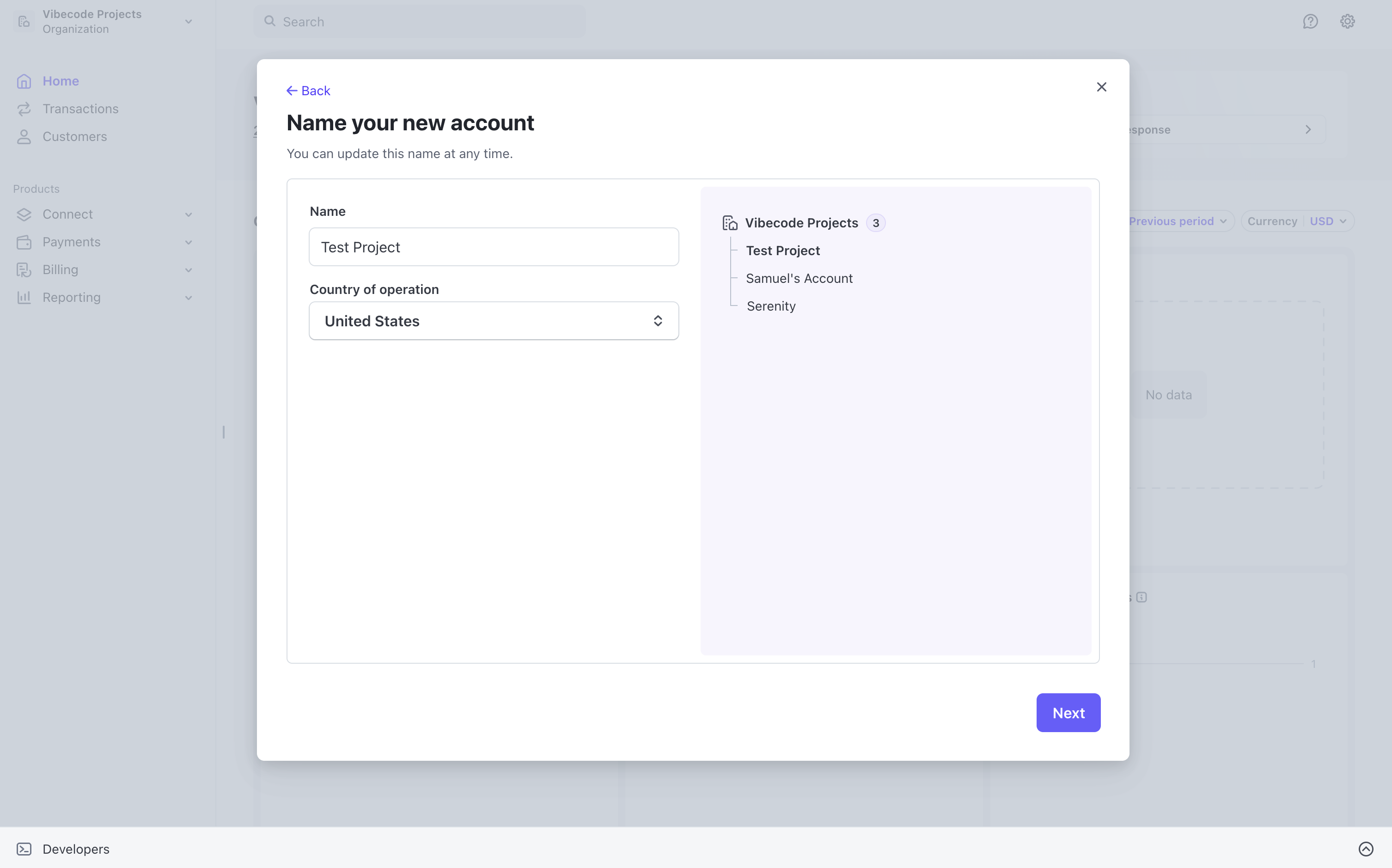
- Fill out all required information such as your business name, address, and other details
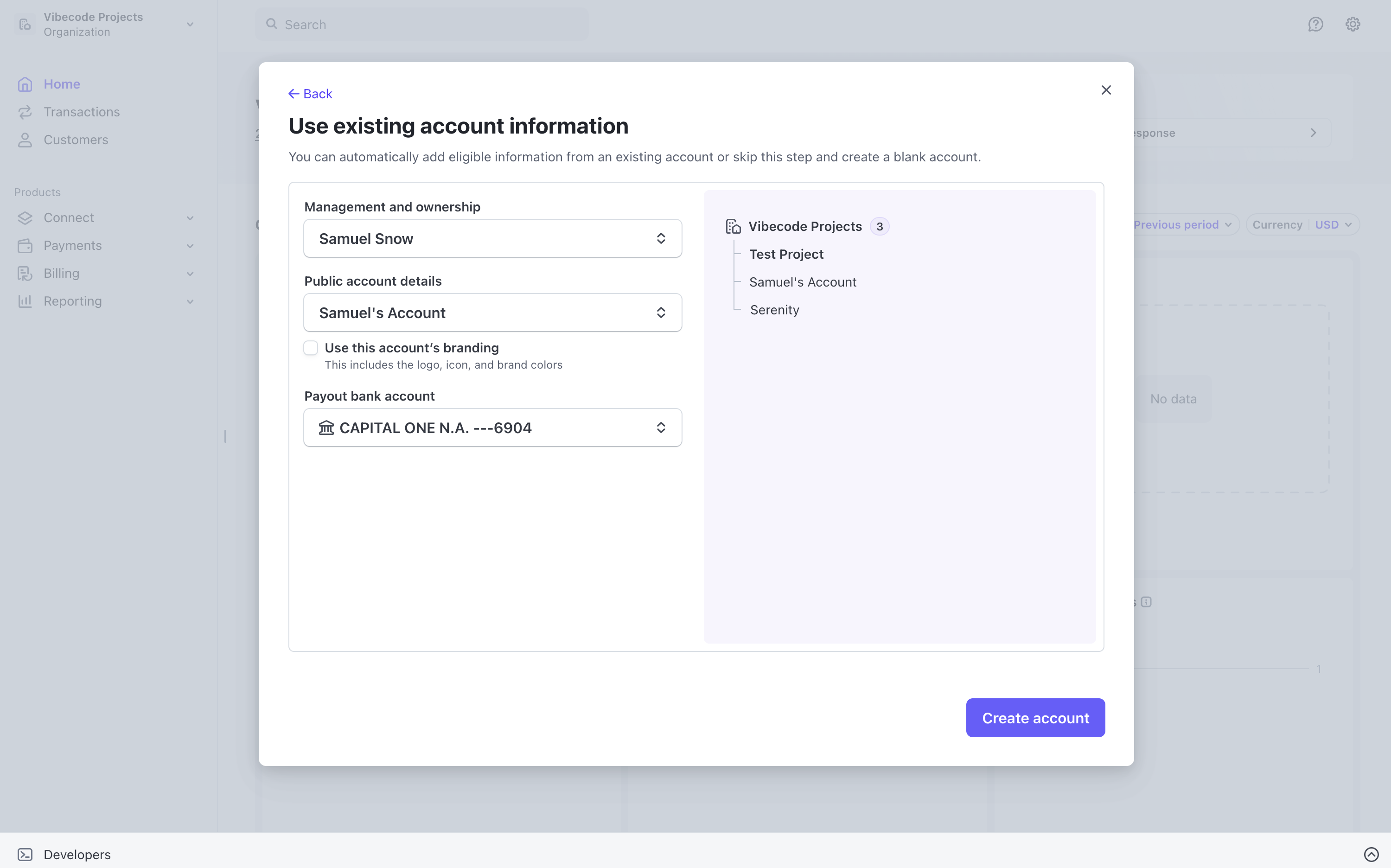
- Add your billing information
- Complete the creation process
Step 2: Get Your API Keys
Your API keys allow your Vibecode app to authenticate with Stripe.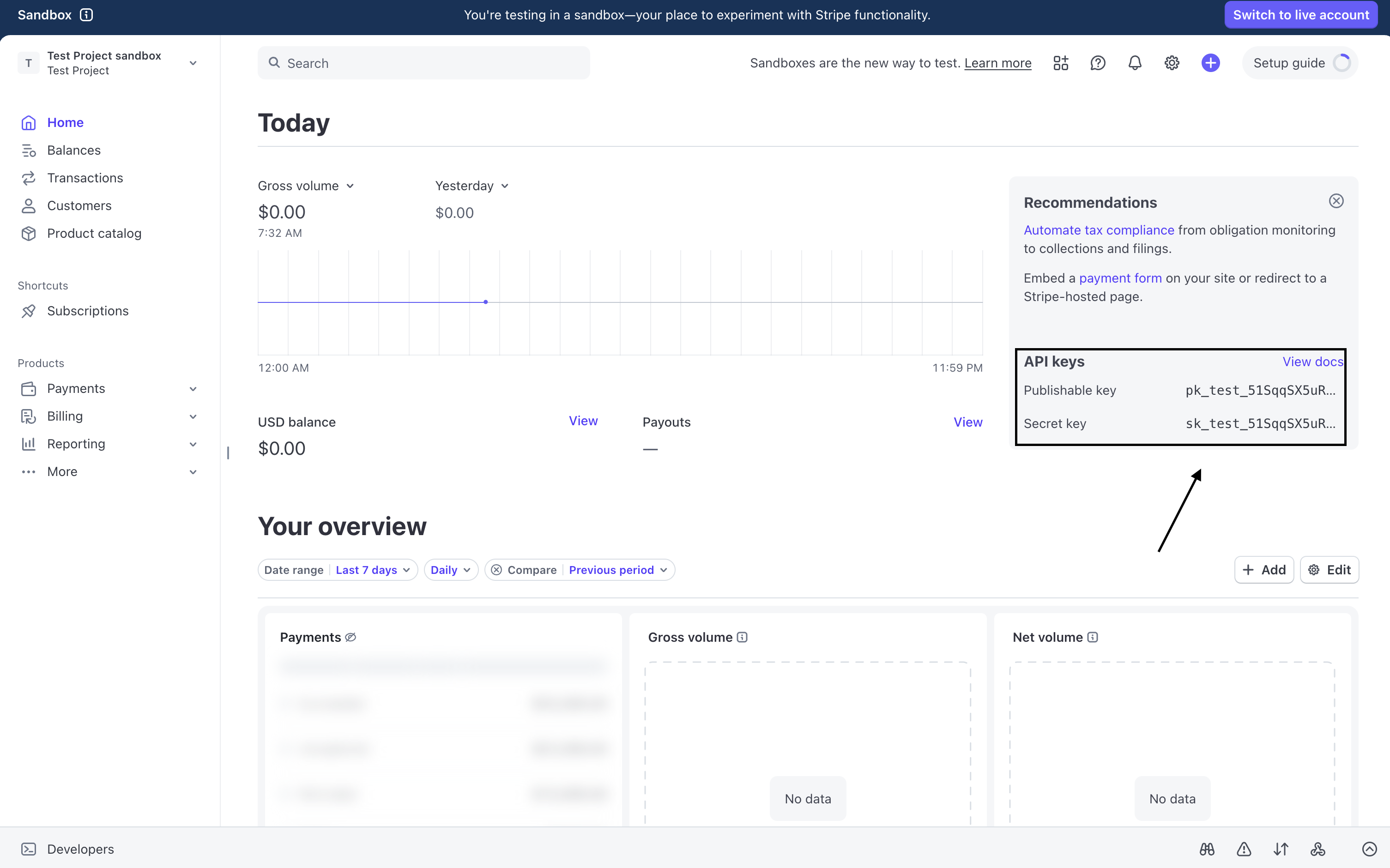
- Click Developers → API keys
- You will see two types of keys:
- Publishable key (
pk_...) for frontend use - Secret key (
sk_...) for backend use only
- Publishable key (
Step 3: Add API Keys to Vibecode
Environment variables let you store sensitive data securely.- Go to vibecodeapp.com and open your project
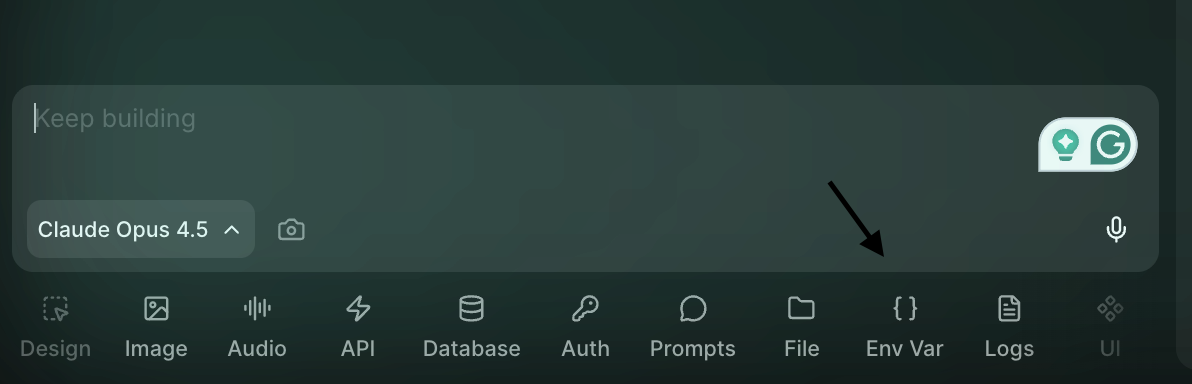
- Select Env Var at the bottom
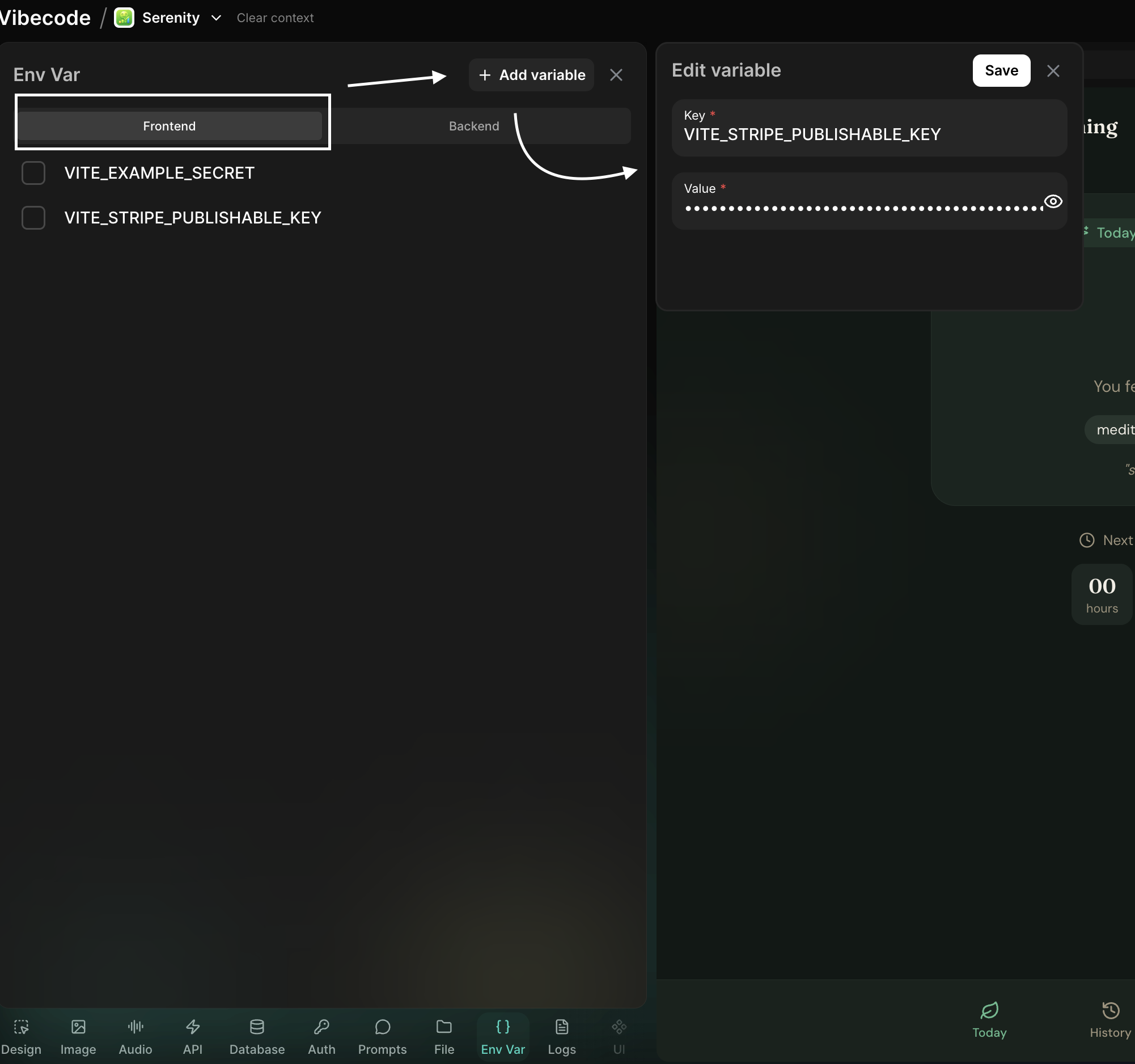
Frontend
- Go to Frontend
- Click add variable
- Key:
VITE_STRIPE_PUBLISHABLE_KEY - Value: your Publishable key (
pk_...)
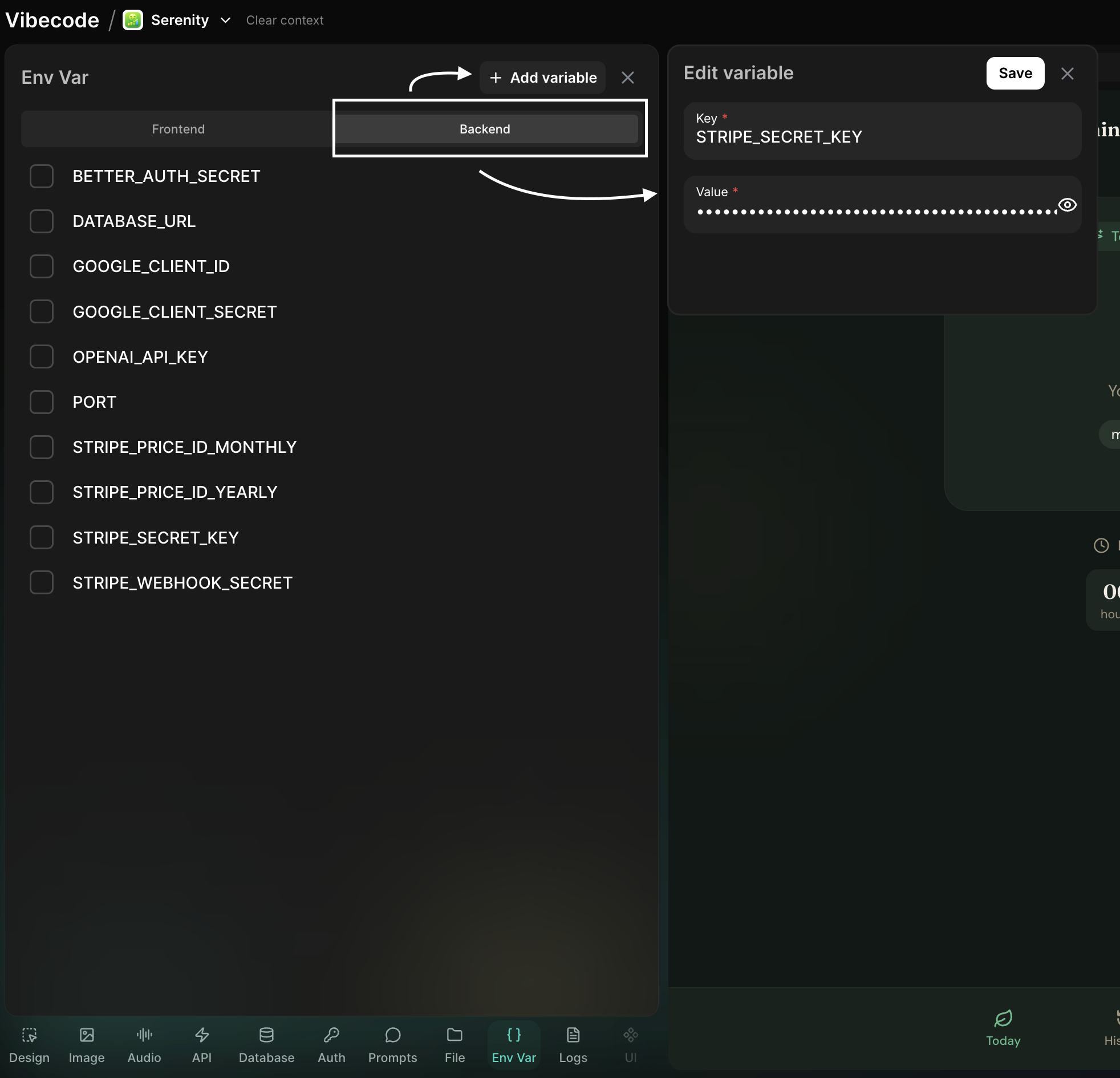
Backend
- Go to Backend
- Click add variable
- Key:
STRIPE_SECRET_KEY - Value: your Secret key (
sk_...)
Step 4: Create Your Product
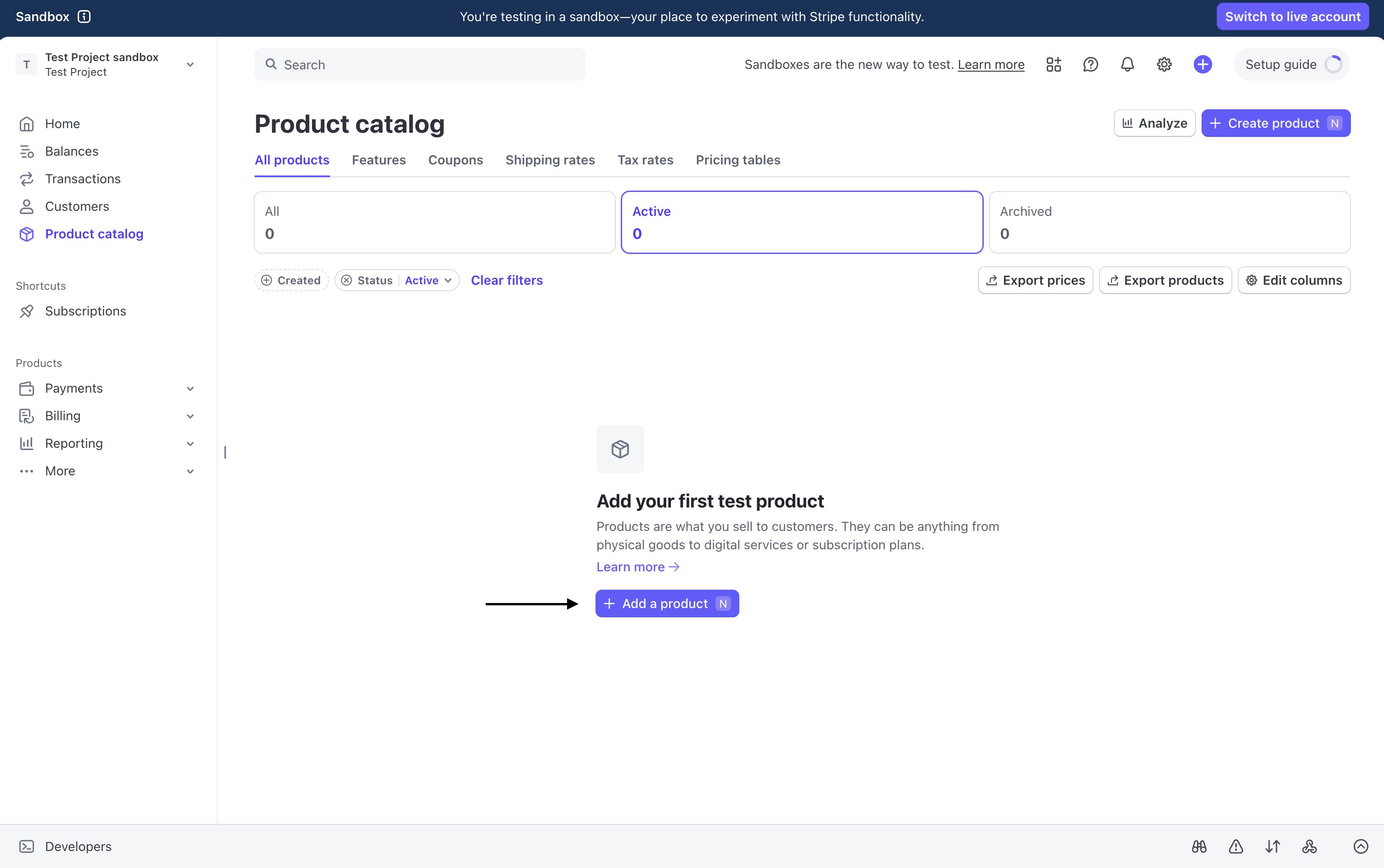
Before customers can purchase anything, you must create at least one product in Stripe.- Go to Product Catalog
- Click Add a product
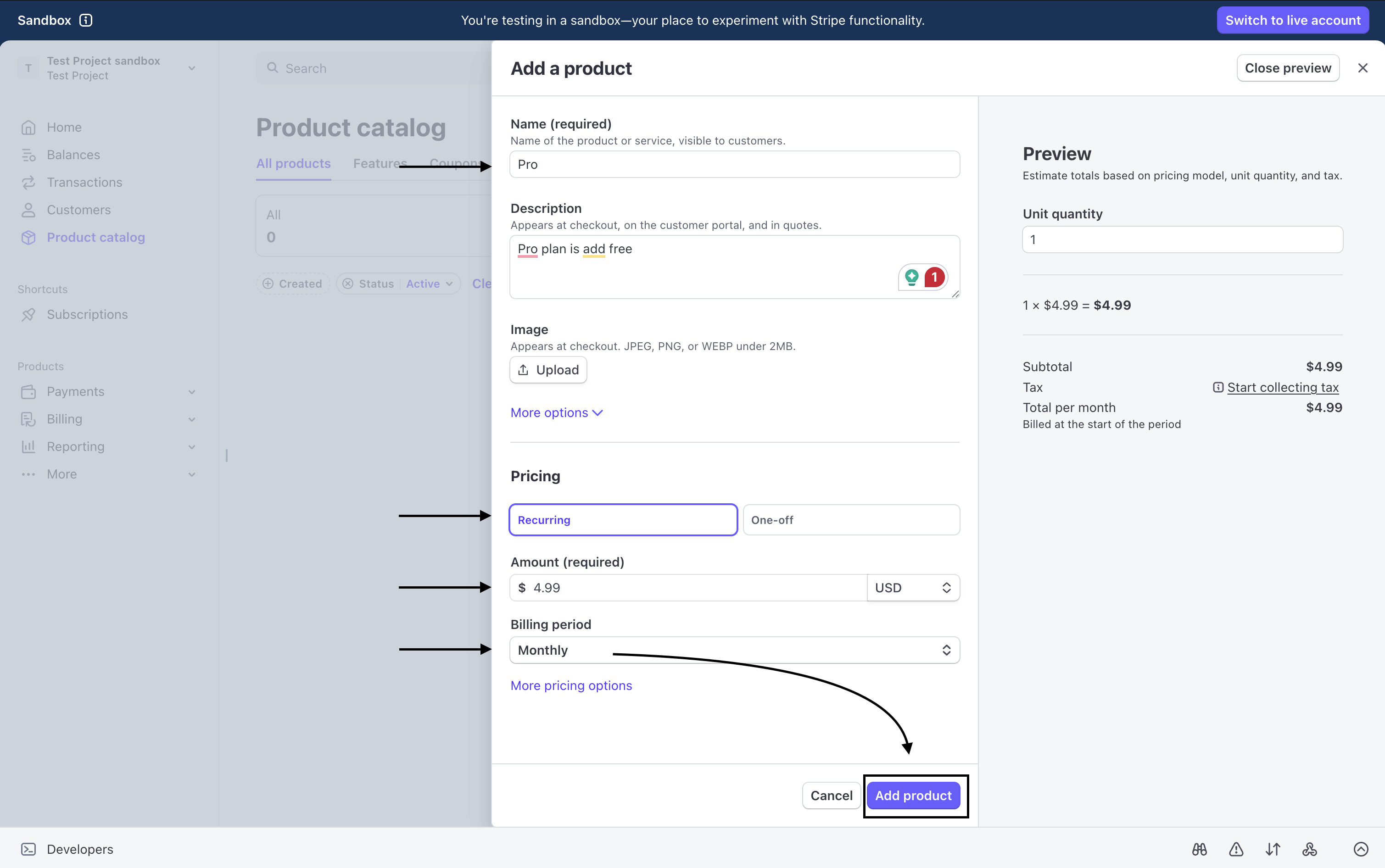
- Enter a product name such as Pro Plan
- Add a description
- Choose Recurring
- Set your price such as 4.99
- Choose billing period such as Monthly
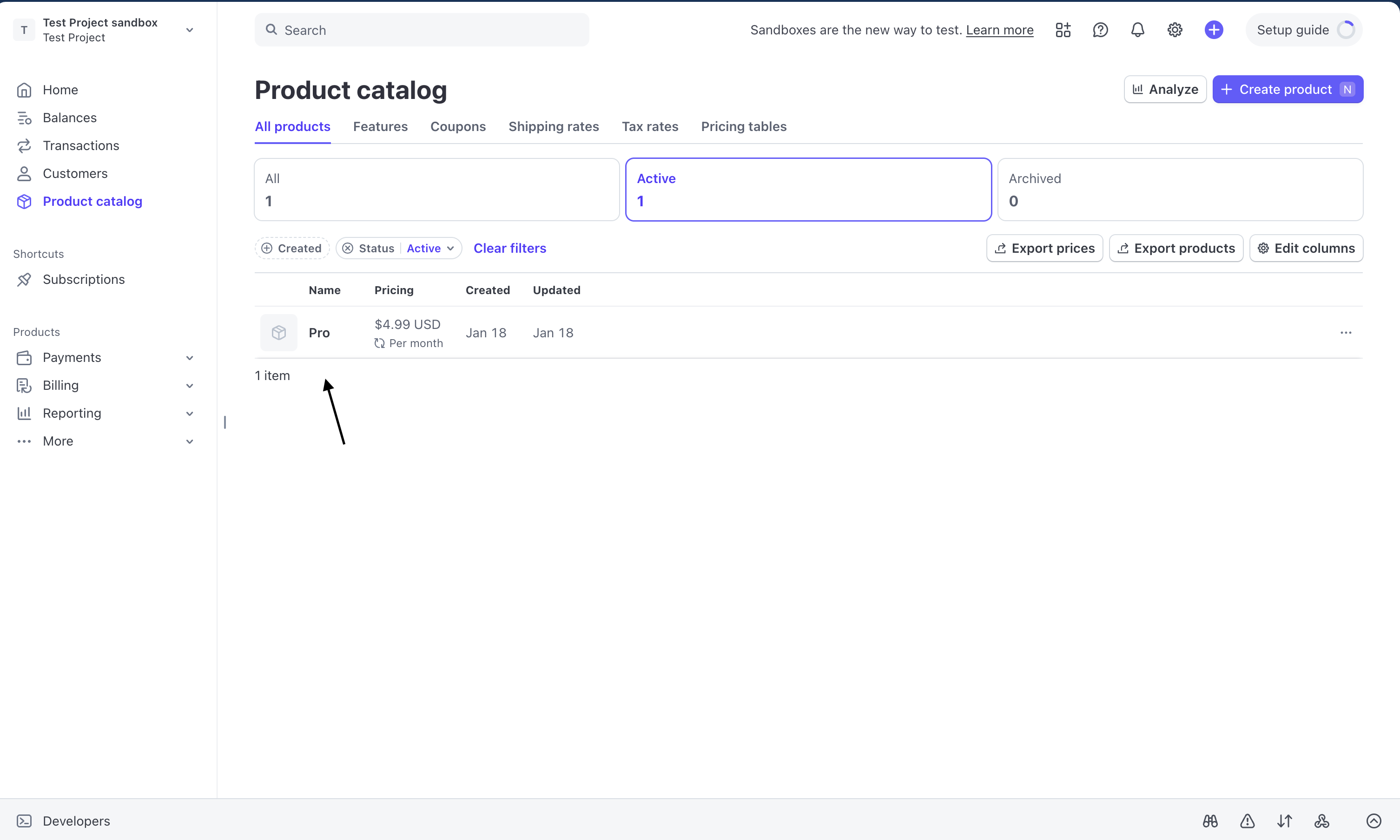
- Save the product
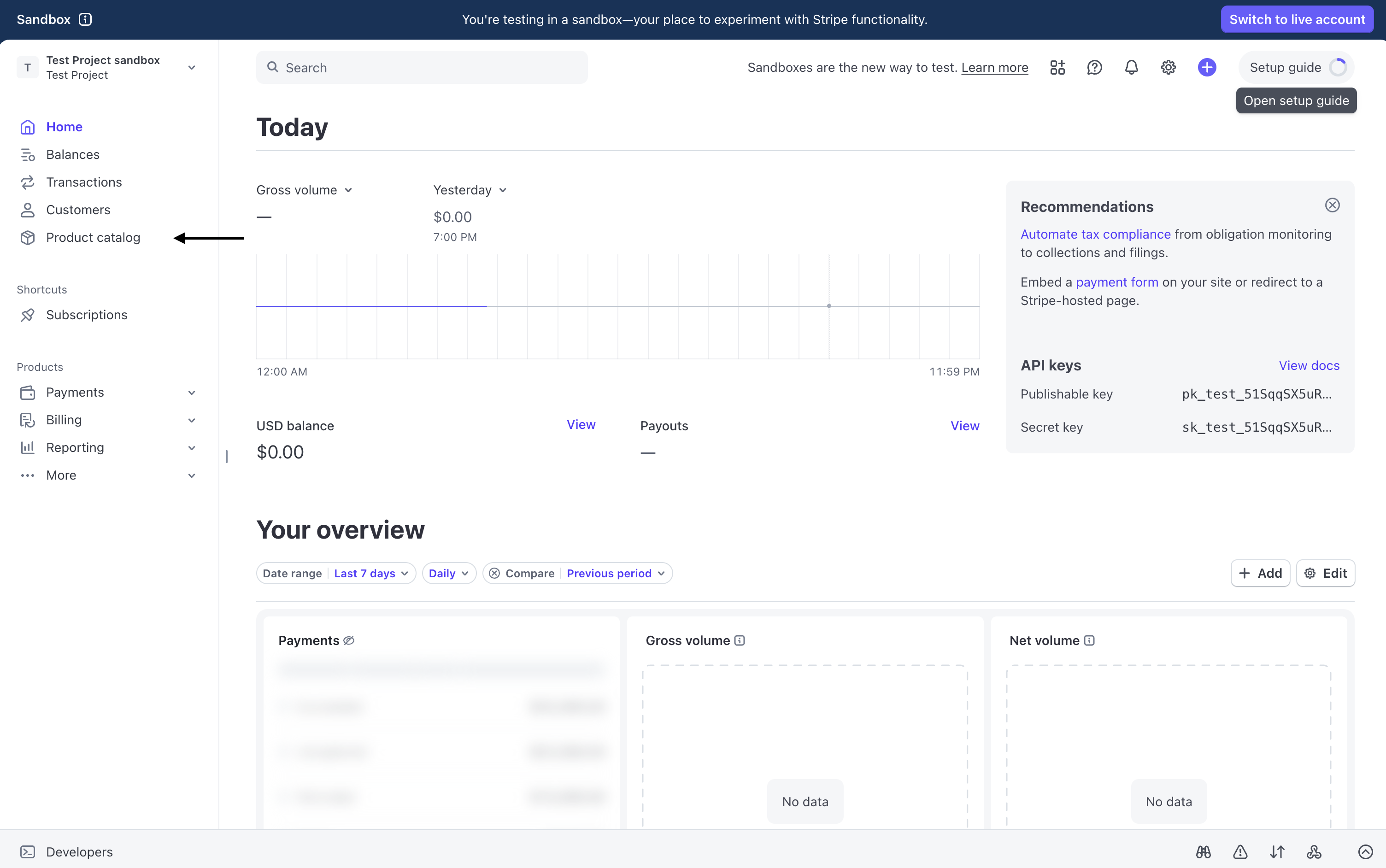
Step 5: Get Your Price IDs
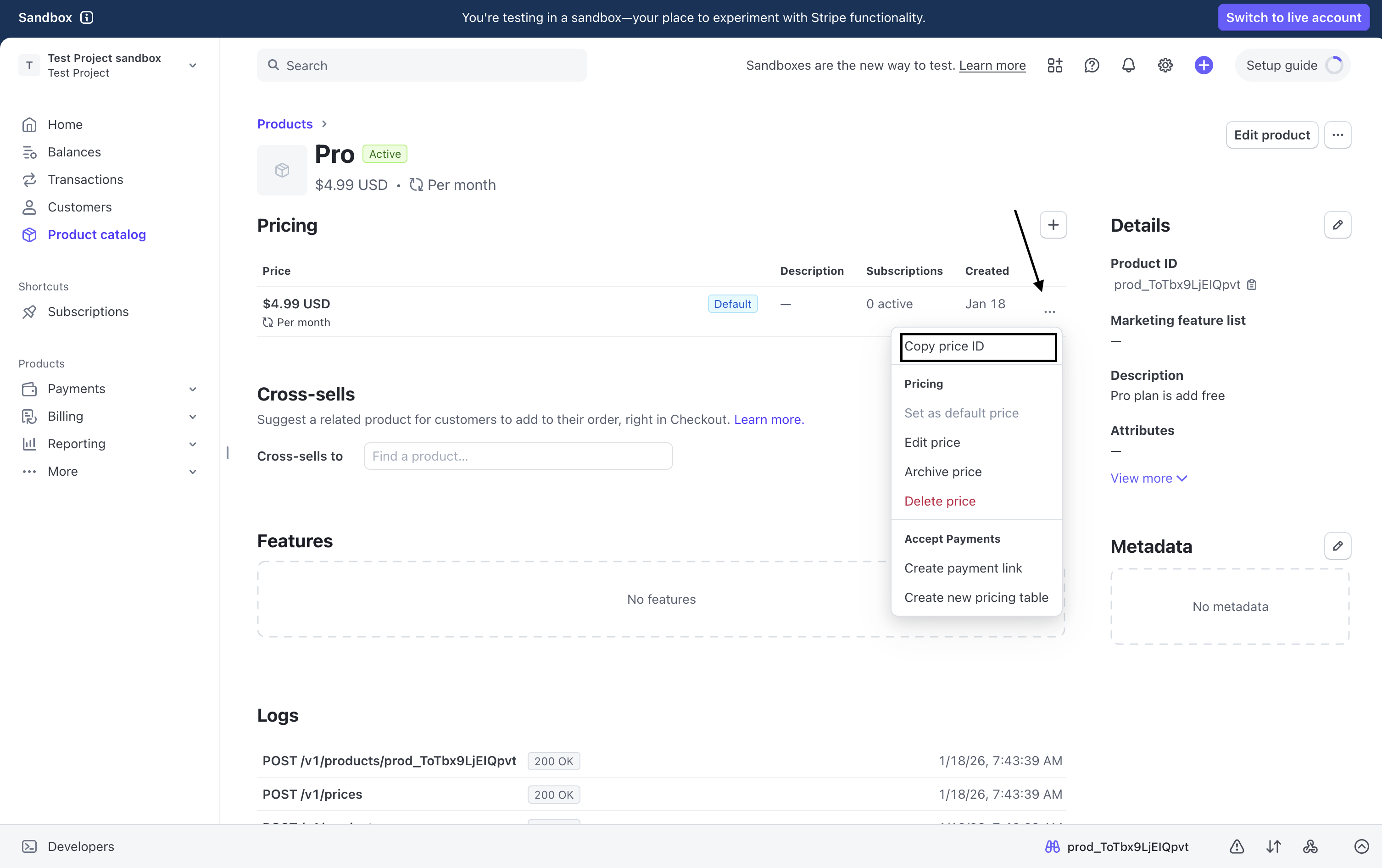
Each price has its own unique ID. You will need this so your Vibecode app knows which product to charge for.- Open your product in Stripe
- Click the three dots beside the price
- Click Copy price ID
- Go to Vibecode
- Navigate to Env Var → Backend
- Add a new variable:
- Key:
STRIPE_PRICE_ID_MONTHLY - Value: your price ID
- Key:
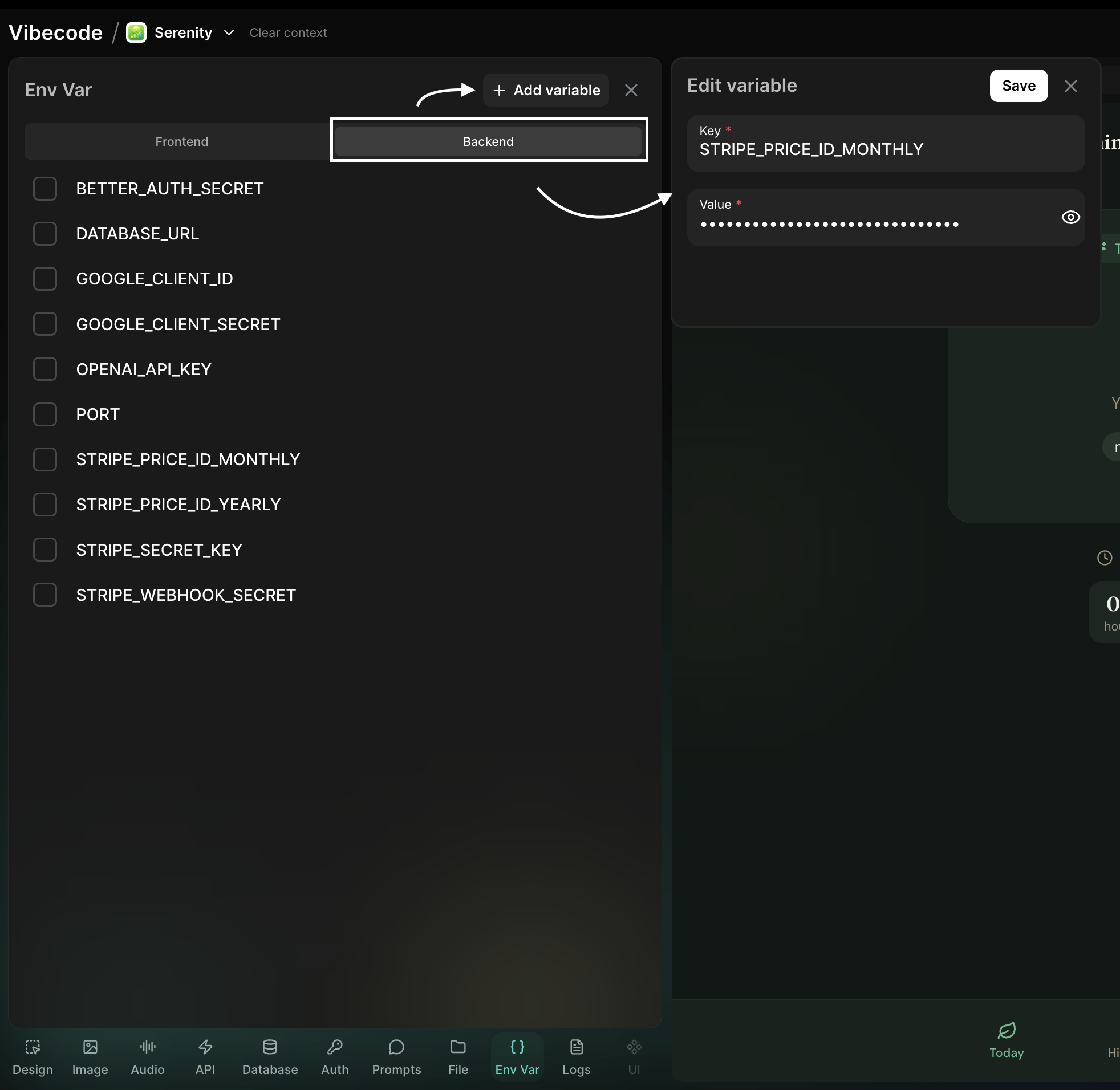
STRIPE_PRICE_ID_YEARLY.
Step 6: Set Up Webhooks
Webhooks notify your app when something happens in Stripe.In Stripe Dashboard
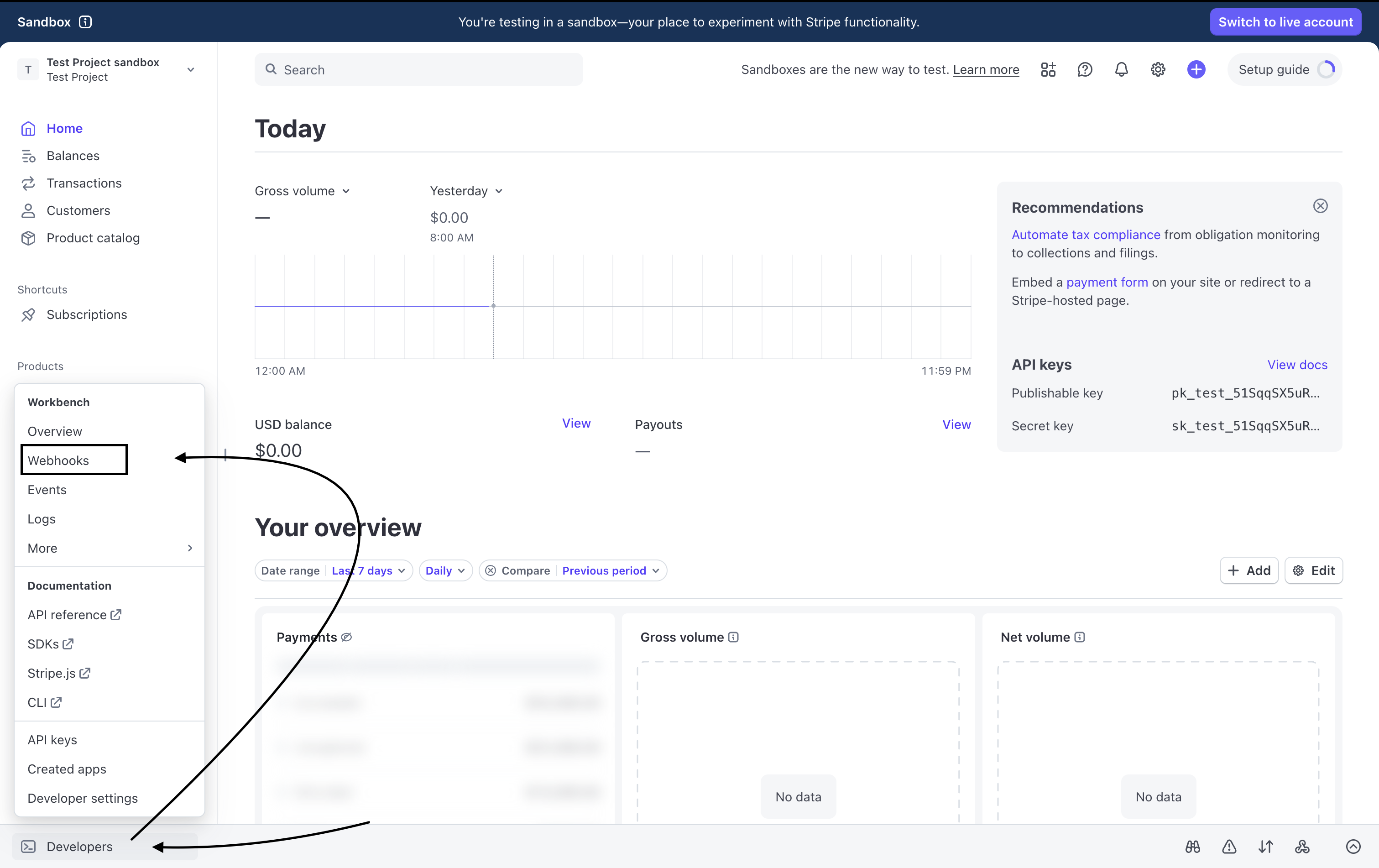
- Go to Developers → Webhooks
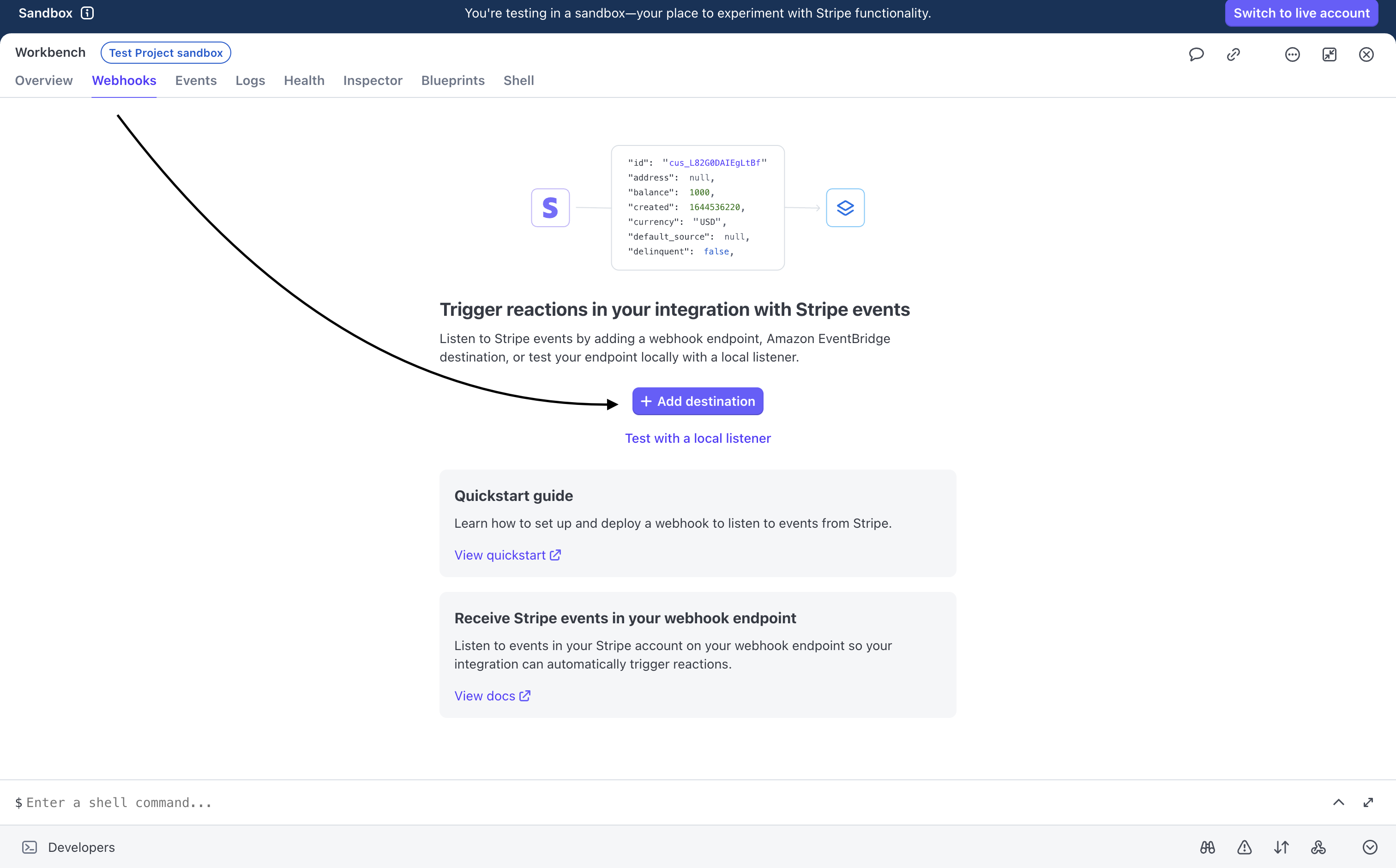
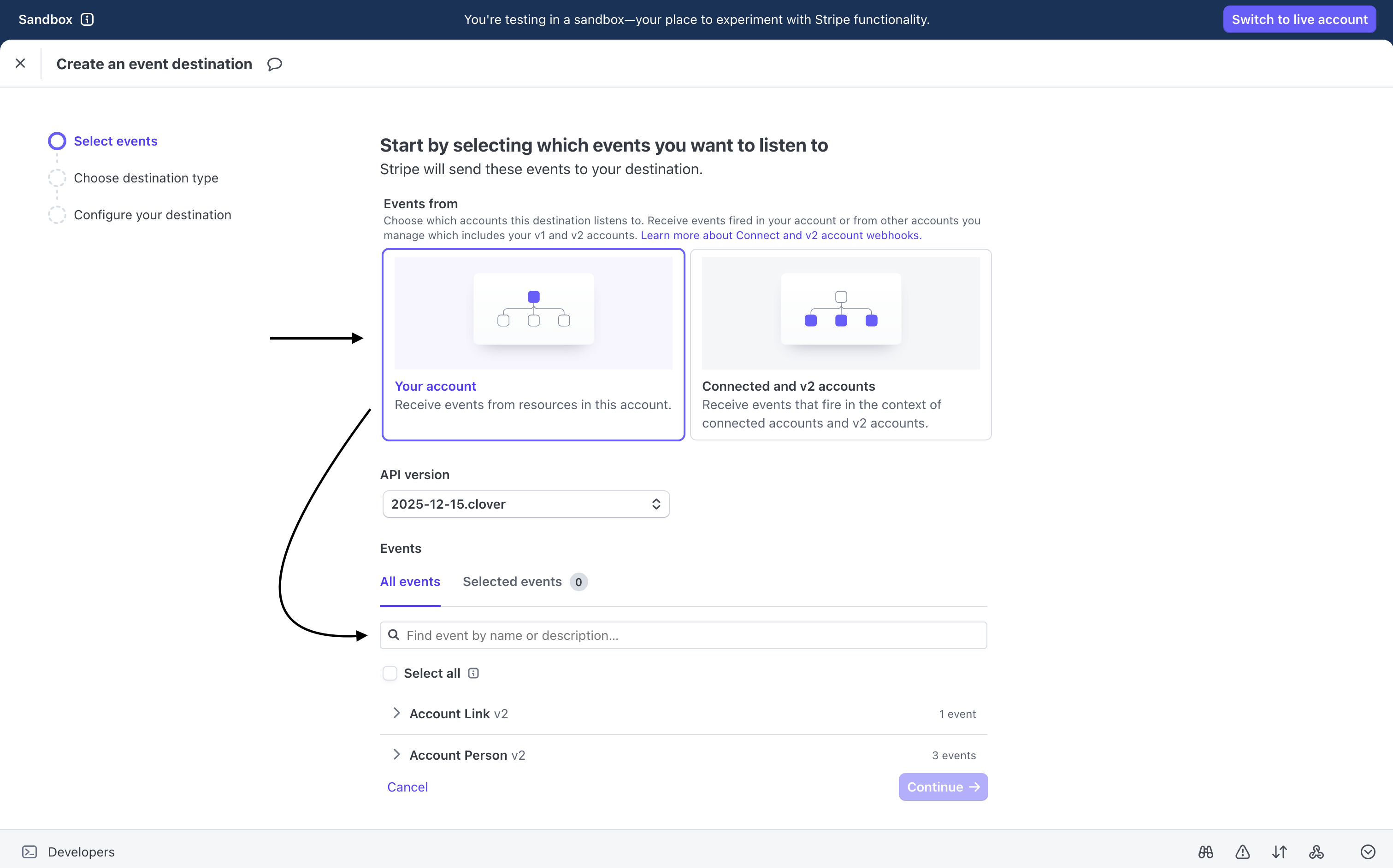
- Click Add destination
- Choose Your account
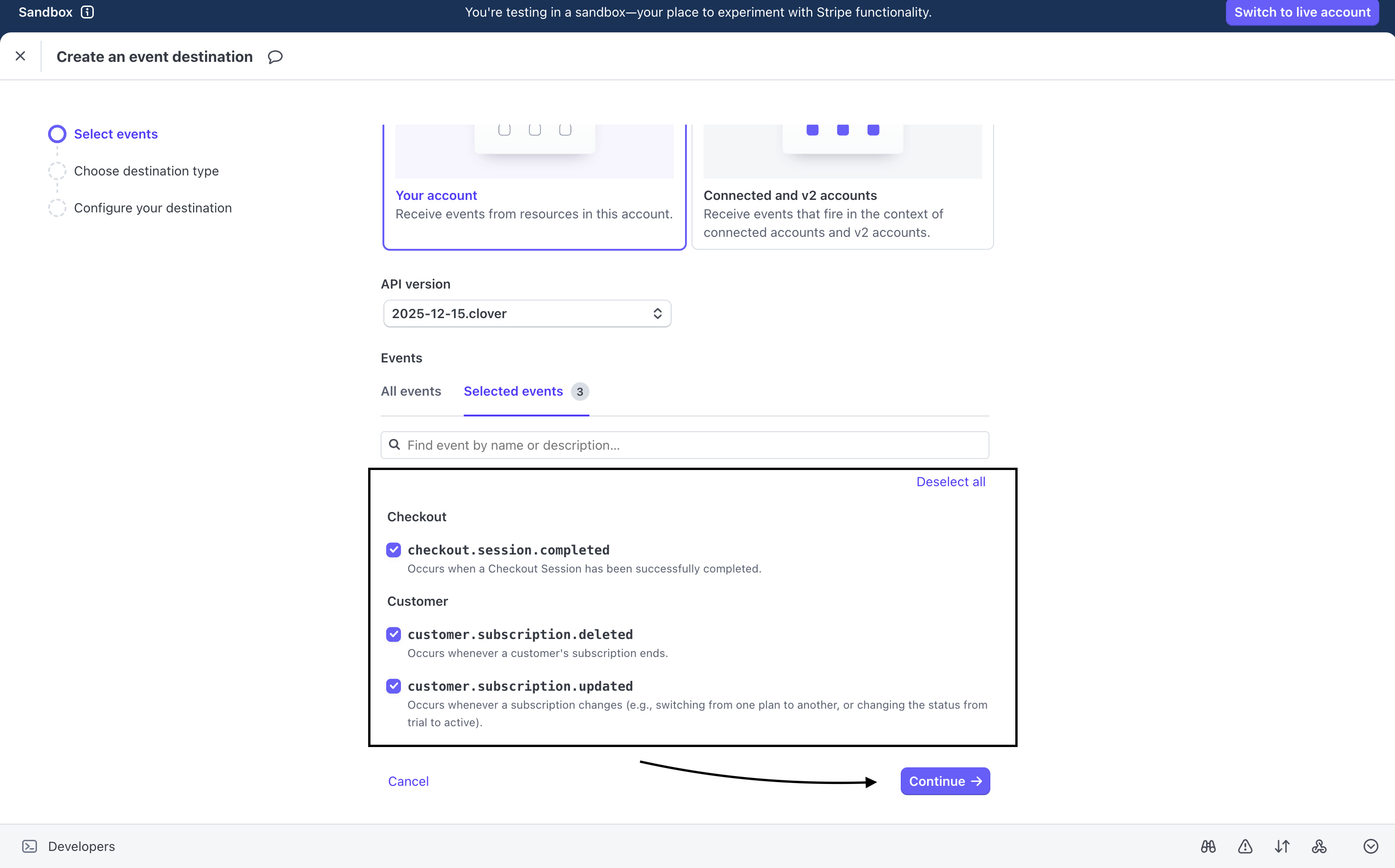
- Select these events:
checkout.session.completedcustomer.subscription.updatedcustomer.subscription.deleted
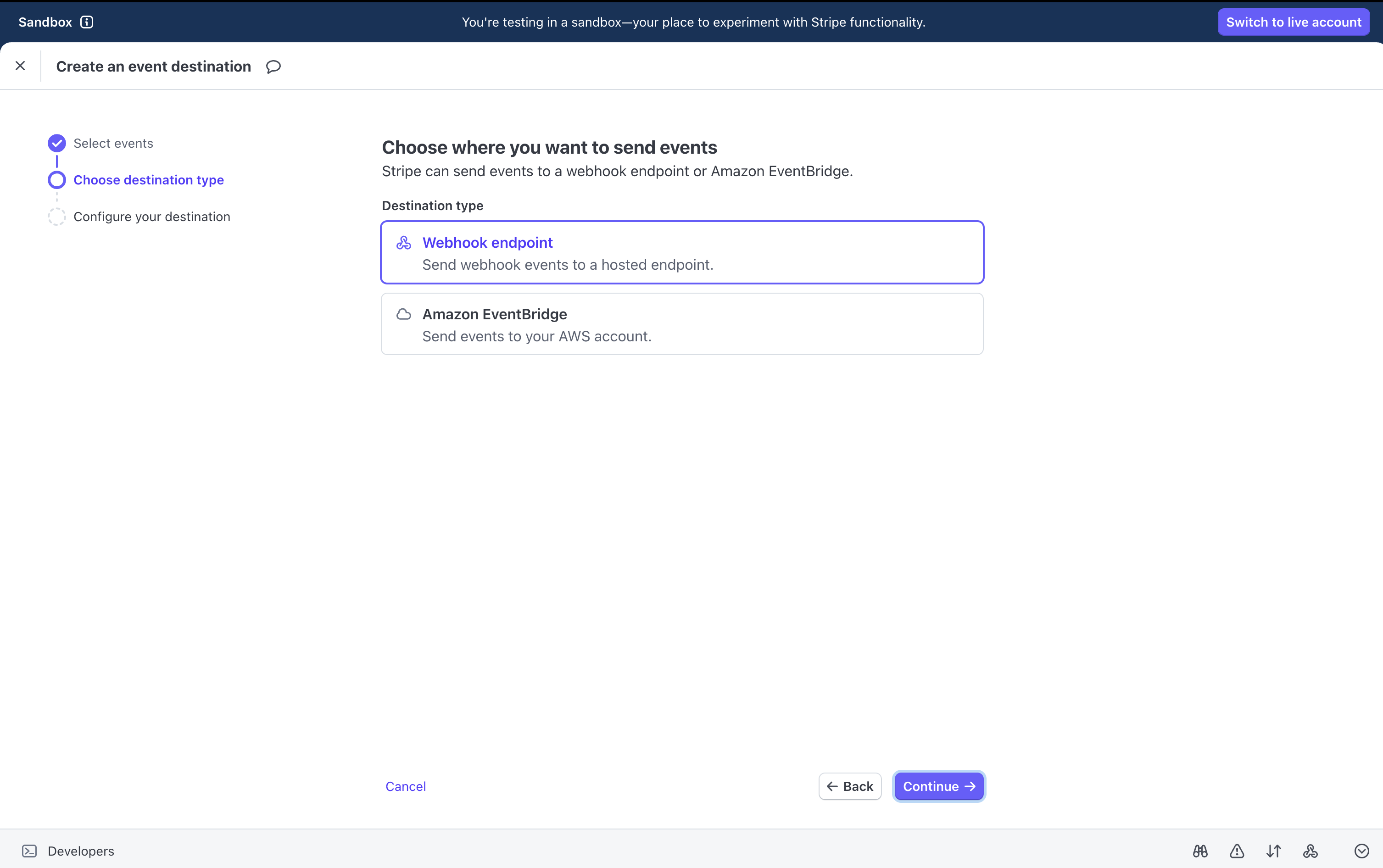
- Click Continue
- Choose Webhook endpoint
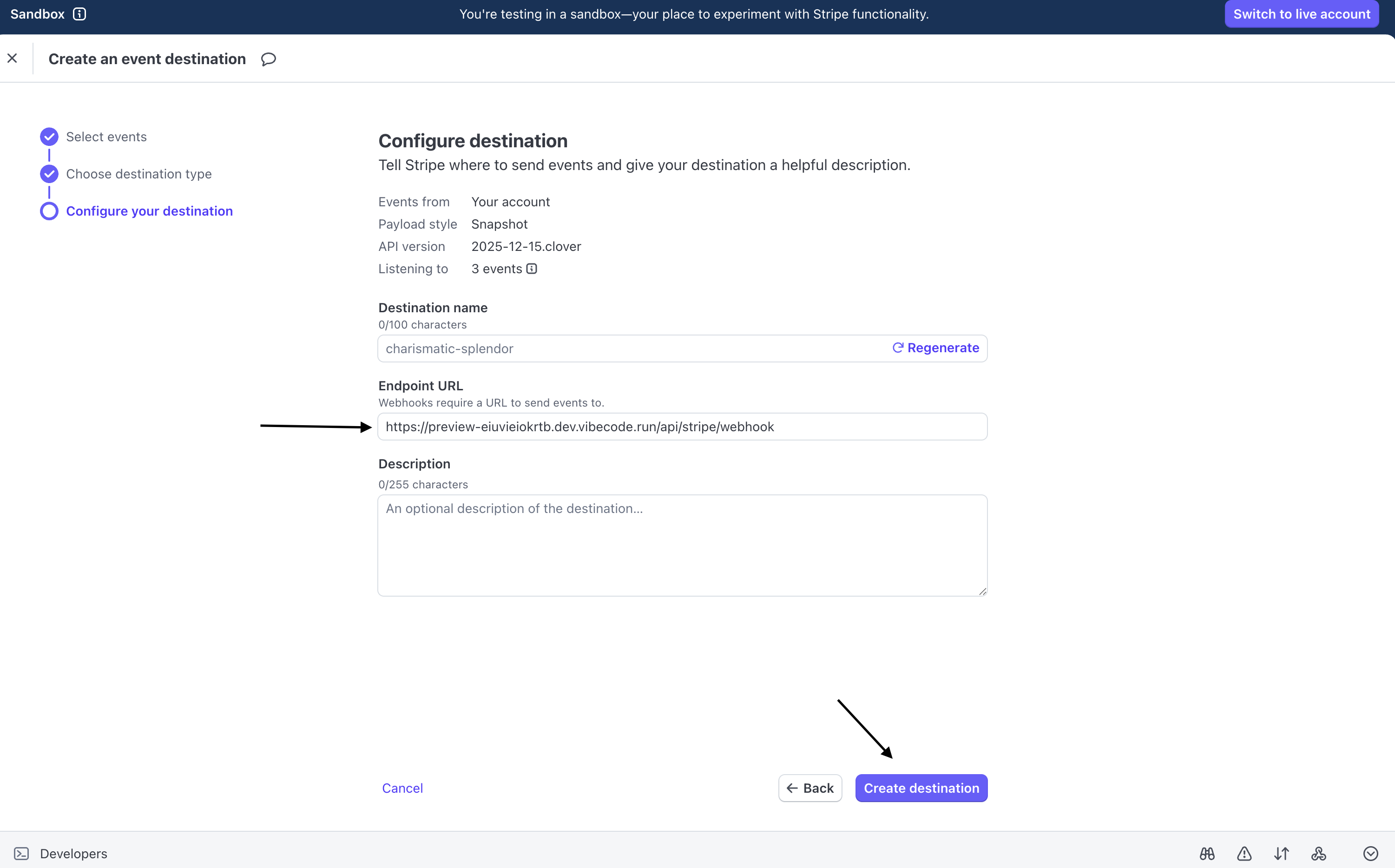
- Enter your Vibecode webhook URL
- Create the destination
- Copy the Signing Secret
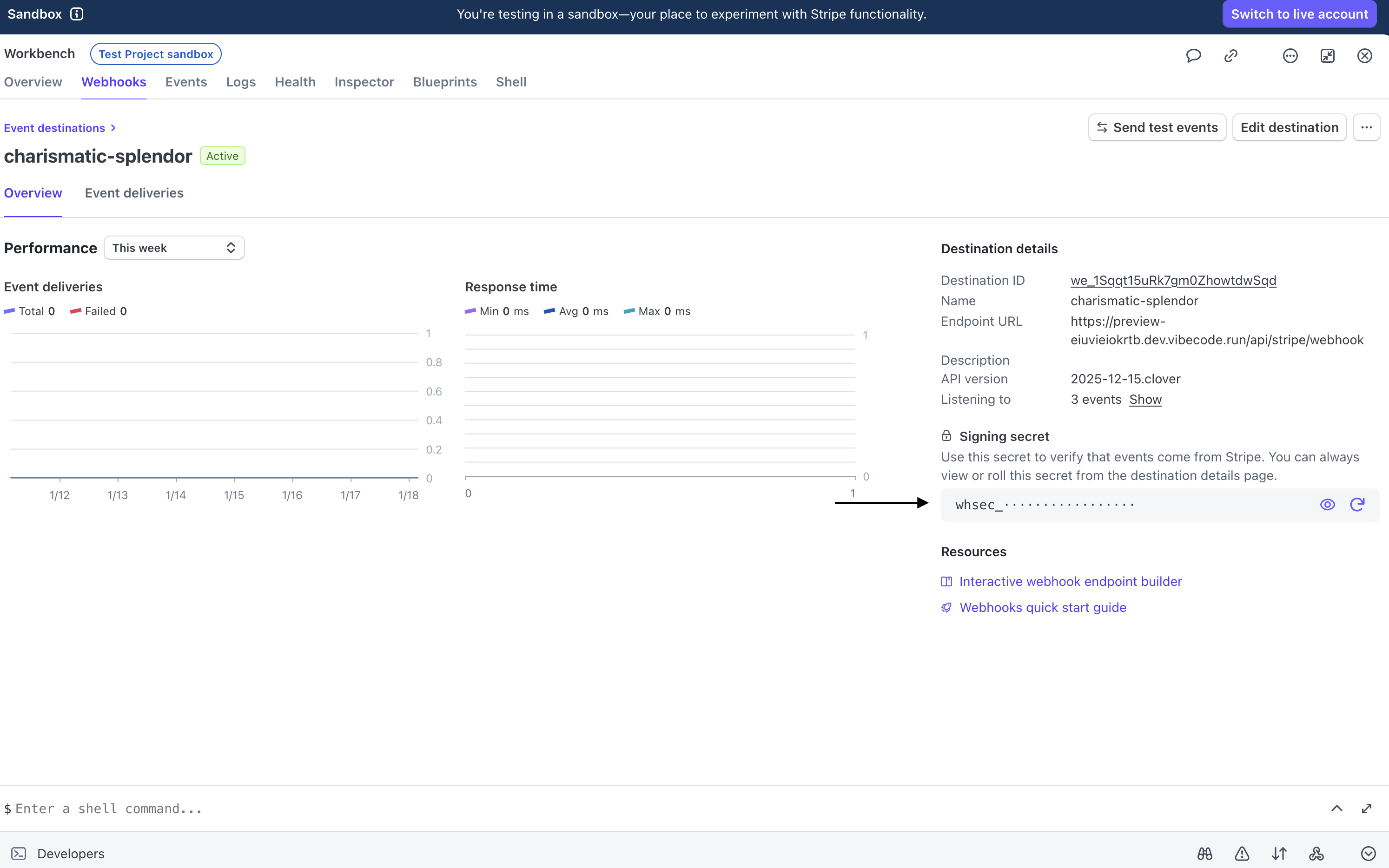
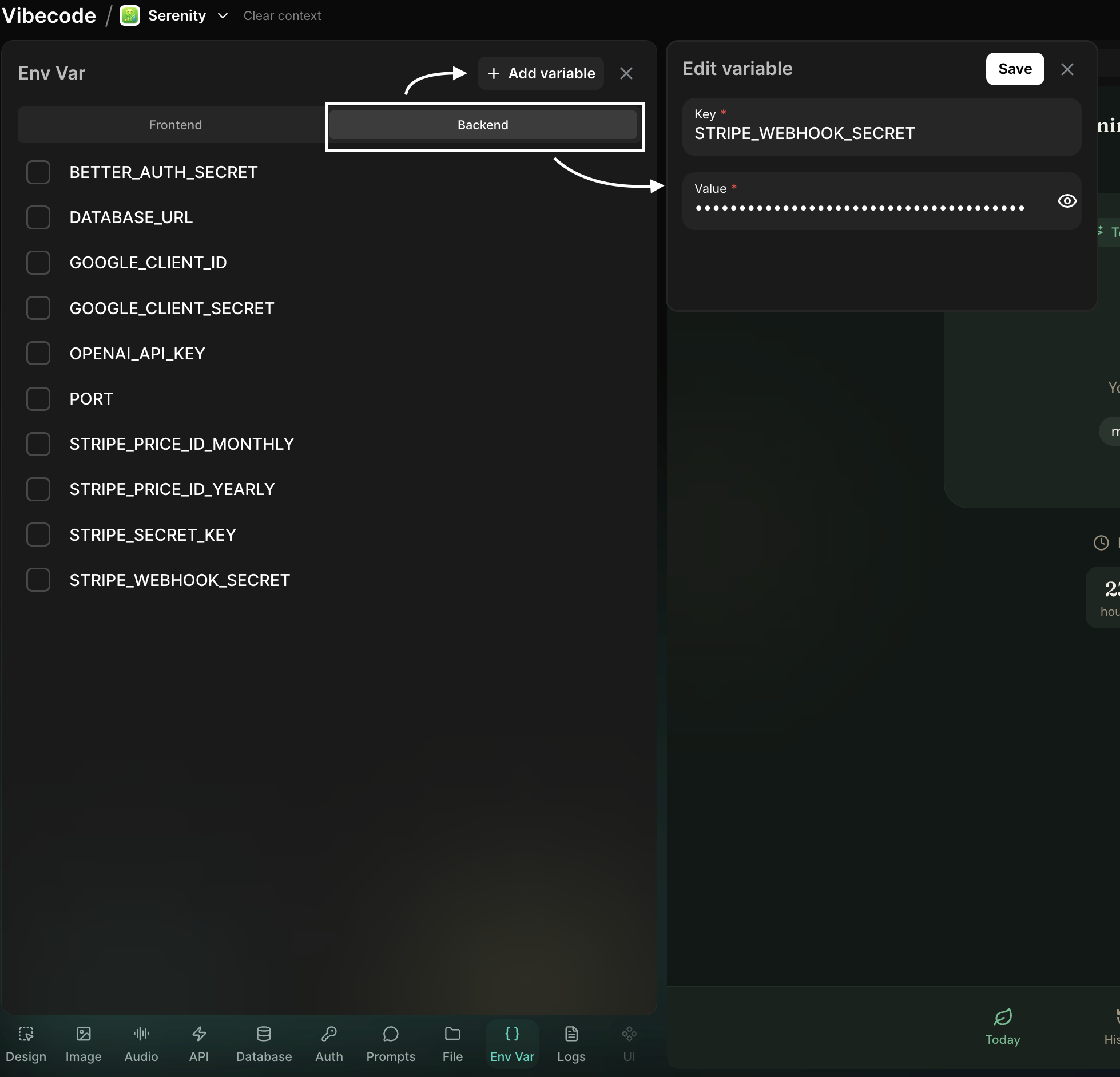
Add to Vibecode
- Go back to Vibecode
- Open Env Var → Backend
- Add:
- Key:
STRIPE_WEBHOOK_SECRET - Value: the secret you copied (
whsec_...)
- Key:
Step 7: Set Up Payments with AI
Ask the Vibecode AI to integrate Stripe into your web app: Example prompts:Environment Variable Summary
| Name | Location | Example |
|---|---|---|
VITE_STRIPE_PUBLISHABLE_KEY | Frontend | pk_live_... |
STRIPE_SECRET_KEY | Backend | sk_live_... |
STRIPE_PRICE_ID_MONTHLY | Backend | price_... |
STRIPE_PRICE_ID_YEARLY | Backend | price_... |
STRIPE_WEBHOOK_SECRET | Backend | whsec_... |
Troubleshooting
Cannot find API keys
- Make sure you are in the correct Stripe account
- Ensure Live mode is enabled
- Go to Developers → API keys
Payments not working
- Verify you are using Live keys
- Check for typos in environment variables
- Make sure the Secret key is in Backend only
- Review Stripe logs
Webhooks not firing
- Confirm your webhook endpoint URL
- Check that the correct events are selected
- Confirm the webhook secret is correct
- Review delivery logs in Stripe
Subscription updates not appearing
- Check your webhook handler for
customer.subscription.updated - Verify your endpoint is receiving payloads
- Confirm your app logic updates subscription status correctly
Need help? Use Vibecode live support or visit Stripe’s documentation at stripe.com/docs.