> ## Documentation Index
> Fetch the complete documentation index at: https://www.vibecodeapp.com/docs/llms.txt
> Use this file to discover all available pages before exploring further.
# How to Build an iPhone App with AI (No Coding, No Mac)
> Build a native iPhone app with AI in seven steps: describe it in plain English, preview it in a cloud iOS Simulator, install it on your iPhone, and publish it to the App Store. No coding, no Mac, no Xcode.
**To build an iPhone app with AI, describe the app in plain English to an AI app builder, test it in a preview, then install it or publish it to the App Store with an Apple Developer account (\$99/year).** In Vibecode you create an **iOS app** project, and its agent (Claude Code, running Claude Opus 5.5 by default) writes a native Swift and SwiftUI app, builds it on cloud Macs, tests it in a cloud iOS Simulator streamed to your browser, and fixes what it finds. You don't need to code, own a Mac, or install Xcode. Your first app build on a new account is free.
## What You Need
| | Needed for | Cost |
| - | - | - |
| A Vibecode account | Building and previewing | First app build free, then [credits](/docs/getting-started/plans-and-credits) (plans from \$20/month) |
| A browser or the [Vibecode iPhone app](https://apps.apple.com/us/app/vibecode-ai-app-builder/id6742912146) | Building | Free |
| An Apple Developer Program membership | Installing on your iPhone and publishing to the App Store | \$99/year ([how to enroll](/docs/guides/apple-developer-account)) |
| A Mac or Xcode | Not needed | |
| Coding experience | Not needed | |
You can build and preview the whole app before you pay Apple anything. The Apple membership only matters once you want the app on a real iPhone or in the App Store.
## Step 1: Create an iOS App Project
1. Go to [vibecodeapp.com](https://www.vibecodeapp.com) and sign up, or open the Vibecode iPhone app
2. Click **New app** (web) or tap the new project button (iPhone)
3. Choose **iOS app**: "Native apps for iPhone, iPhone Duo and iPad, ready for the App Store"
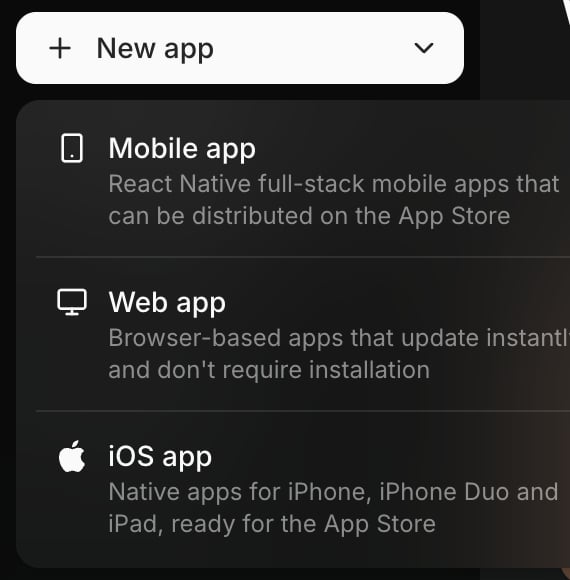 Need the same app on Android? Choose **Mobile app** instead, which builds a React Native app for iPhone and Android. See [Swift vs React Native](/docs/guides/swift-vs-react-native) if you're unsure.
## Step 2: Describe Your App
Write what the app does, who it's for, and the main screens. A good first prompt covers the core feature, not everything you'll ever want:
```text Habit tracker theme={null}
Build a habit tracker for iPhone. Users add habits with a name, an emoji, and a daily or weekly goal. The home screen shows today's habits as cards they tap to check off, with a streak count on each. Add a Stats tab with a calendar heat map per habit. Use a calm green and white design that feels like a native iOS app.
```
```text Small business theme={null}
Build an iPhone app for my coffee shop. Customers can browse the menu by category, add drinks to an order with size and milk options, and see a pickup time. Add a loyalty card that fills a stamp each order and gives a free drink at 10 stamps.
```
```text Game theme={null}
Make a one-thumb arcade game for iPhone: a paper plane flies forward, tap to climb, release to dive, avoid buildings, and collect coins. Show the score at the top and a best score on the game over screen. Add haptics on coin pickups and crashes.
```
Attach screenshots or sketches if you have a design in mind. The [native UI component prompts](/docs/getting-started/native-ui-components) help the app look at home on iPhone.
## Step 3: Watch It Build and Test Itself
When you send the prompt, the agent:
1. Plans the app and writes it in Swift and SwiftUI as a standard Xcode project
2. Adds Swift packages if the app needs them
3. Builds the app and opens it in a cloud iOS Simulator
4. Taps through what it just built and fixes what doesn't work ([agent testing](/docs/features/agent-testing))
You see the app running live in the preview. It's a real iOS Simulator streamed to your browser or phone, so you can tap, swipe, and type in your app while it builds. You can also preview it as **iPhone Duo**, the foldable iPhone. See [How the Preview Works](/docs/getting-started/native-ios-apps#how-the-preview-works).
## Step 4: Change It by Chatting
Keep describing changes, one at a time:
* "Make the check-off animation bounce and add a haptic tap"
* "Add a settings screen with reminder times"
* "The streak resets wrong after midnight. Fix it."
If something breaks, describe what you see. If a build fails, the agent automatically tries to fix it.
## Step 5: Add Accounts, Data, and AI Features
Ask for what the app needs and the agent adds it:
* **User accounts and a database:** "Add sign-in and save each user's habits." Vibecode Cloud adds a backend with a database and login. See [How to Add a Database and Login](/docs/features/backend-auth).
* **AI features:** "Add an AI coach that suggests habits," or image generation, voice, and more through [built-in integrations](/docs/integrations/index), paid with your Vibecode credits. No API keys needed.
* **Generated assets:** an [app icon or images](/docs/features/image-generation) and [sound effects](/docs/features/sound-generation)
## Step 6: Install It on Your iPhone
1. Click **Publish** and choose **Install** (or click **Install on iPhone** in the preview toolbar)
2. Sign in with your Apple ID so Vibecode can connect your Apple Developer account
3. Register your iPhone by scanning the QR code
4. Wait for the build, then scan the install QR code on your iPhone
The full steps are in [Install on Your iPhone](/docs/getting-started/native-ios-apps#install-on-your-iphone).
## Step 7: Publish It to the App Store
Click **Publish → Publish to App Store**, confirm your bundle ID (for example `com.yourname.habits`), and click **Confirm and publish**. Vibecode builds and signs the app, uploads it to Apple, updates your listing, and submits it for review. The full steps are in [Native iOS Apps: Publish to the App Store](/docs/getting-started/native-ios-apps#publish-to-the-app-store); check the [review guidelines checklist](/docs/guides/app-store-review-guidelines) before you submit.
## Other Ways to Build an iPhone App with AI
| Approach | What you do | Needs a Mac? | Native Swift? |
| - | - | - | - |
| **Vibecode (iOS app project)** | Describe the app; Vibecode builds, previews, installs, and publishes it | No | Yes |
| **Vibecode (Mobile app project)** | Same, with one React Native codebase for iPhone and Android | No | No, React Native |
| **ChatGPT or Claude chat + Xcode** | Ask for code, paste it into Xcode, fix build errors, run it yourself | Yes | Yes |
| **Claude Code or Cursor + Xcode** | An AI agent edits your project; you run Xcode, signing, and App Store Connect | Yes | Yes |
| **AI website builders** | Generate a web app, then wrap it as an app | No | No, and wrapped websites are often [rejected by Apple](/docs/getting-started/web-to-mobile) |
Chat assistants and coding agents can write Swift, but on your own computer you still need a Mac with Xcode to build and run it, plus signing and App Store Connect to ship it. More on that in [Claude Code](/docs/getting-started/claude-code).
## Tips for Better Results
1. **Start with the core loop.** Get the one thing your app does working, then add accounts, payments, and polish.
2. **Name the screens.** "A tab bar with Today, Stats, and Settings" is clearer than "a few pages".
3. **Describe the feel.** "Native iOS, like Apple's Reminders app" or "playful, with big rounded cards".
4. **Test on a real iPhone before you publish.** Haptics, the camera, and performance are best judged on a device.
5. **Ask for a plan first on big changes.** "Plan how you'd add a social feed, don't code yet."
## Frequently Asked Questions
Yes. In Vibecode, the agent writes a complete native Swift and SwiftUI app, builds it, runs it in an iOS Simulator, and tests it before you see it. You keep refining it by chatting. Complex apps still take many rounds of feedback, the same as working with a developer.
Not with Vibecode, which compiles the app on cloud Macs. Building it yourself without an AI app builder does require a Mac with Xcode. See [How to Publish an iPhone App Without a Mac](/docs/guides/publish-app-without-mac).
In Vibecode your first app build is free, and after that building uses credits from a paid plan (from $20/month) or auto-reload. Publishing to the App Store also needs Apple's Developer Program at $99/year. See [Plans and Credits](/docs/getting-started/plans-and-credits) and [pricing](https://www.vibecodeapp.com/pricing).
ChatGPT can write Swift code, but it doesn't build, sign, run, or publish the app. You'd copy the code into Xcode on a Mac and handle errors, signing, and App Store Connect yourself. An AI app builder like Vibecode does those parts for you.
An **iOS app** project is native Swift and SwiftUI, a standard Xcode project with no web view or React Native. A **Mobile app** project is React Native, which also renders native components and runs on Android too.
Yes. The app is published under your own Apple Developer account, and on the Pro and Max plans you can [download the Xcode project](/docs/getting-started/download-code) and open it in Xcode.
Yes. In the Vibecode iPhone app you can create an iOS app project, describe it, use the live simulator preview, and tap **Publish** to install it or send it to the App Store.
## Next Steps
Everything about Swift projects in Vibecode
From finished app to App Store listing
Which kind of app to build
Build your first iPhone app free
This documentation is built and hosted on [Mintlify](https://mintlify.com), a developer documentation platform.
Need the same app on Android? Choose **Mobile app** instead, which builds a React Native app for iPhone and Android. See [Swift vs React Native](/docs/guides/swift-vs-react-native) if you're unsure.
## Step 2: Describe Your App
Write what the app does, who it's for, and the main screens. A good first prompt covers the core feature, not everything you'll ever want:
```text Habit tracker theme={null}
Build a habit tracker for iPhone. Users add habits with a name, an emoji, and a daily or weekly goal. The home screen shows today's habits as cards they tap to check off, with a streak count on each. Add a Stats tab with a calendar heat map per habit. Use a calm green and white design that feels like a native iOS app.
```
```text Small business theme={null}
Build an iPhone app for my coffee shop. Customers can browse the menu by category, add drinks to an order with size and milk options, and see a pickup time. Add a loyalty card that fills a stamp each order and gives a free drink at 10 stamps.
```
```text Game theme={null}
Make a one-thumb arcade game for iPhone: a paper plane flies forward, tap to climb, release to dive, avoid buildings, and collect coins. Show the score at the top and a best score on the game over screen. Add haptics on coin pickups and crashes.
```
Attach screenshots or sketches if you have a design in mind. The [native UI component prompts](/docs/getting-started/native-ui-components) help the app look at home on iPhone.
## Step 3: Watch It Build and Test Itself
When you send the prompt, the agent:
1. Plans the app and writes it in Swift and SwiftUI as a standard Xcode project
2. Adds Swift packages if the app needs them
3. Builds the app and opens it in a cloud iOS Simulator
4. Taps through what it just built and fixes what doesn't work ([agent testing](/docs/features/agent-testing))
You see the app running live in the preview. It's a real iOS Simulator streamed to your browser or phone, so you can tap, swipe, and type in your app while it builds. You can also preview it as **iPhone Duo**, the foldable iPhone. See [How the Preview Works](/docs/getting-started/native-ios-apps#how-the-preview-works).
## Step 4: Change It by Chatting
Keep describing changes, one at a time:
* "Make the check-off animation bounce and add a haptic tap"
* "Add a settings screen with reminder times"
* "The streak resets wrong after midnight. Fix it."
If something breaks, describe what you see. If a build fails, the agent automatically tries to fix it.
## Step 5: Add Accounts, Data, and AI Features
Ask for what the app needs and the agent adds it:
* **User accounts and a database:** "Add sign-in and save each user's habits." Vibecode Cloud adds a backend with a database and login. See [How to Add a Database and Login](/docs/features/backend-auth).
* **AI features:** "Add an AI coach that suggests habits," or image generation, voice, and more through [built-in integrations](/docs/integrations/index), paid with your Vibecode credits. No API keys needed.
* **Generated assets:** an [app icon or images](/docs/features/image-generation) and [sound effects](/docs/features/sound-generation)
## Step 6: Install It on Your iPhone
1. Click **Publish** and choose **Install** (or click **Install on iPhone** in the preview toolbar)
2. Sign in with your Apple ID so Vibecode can connect your Apple Developer account
3. Register your iPhone by scanning the QR code
4. Wait for the build, then scan the install QR code on your iPhone
The full steps are in [Install on Your iPhone](/docs/getting-started/native-ios-apps#install-on-your-iphone).
## Step 7: Publish It to the App Store
Click **Publish → Publish to App Store**, confirm your bundle ID (for example `com.yourname.habits`), and click **Confirm and publish**. Vibecode builds and signs the app, uploads it to Apple, updates your listing, and submits it for review. The full steps are in [Native iOS Apps: Publish to the App Store](/docs/getting-started/native-ios-apps#publish-to-the-app-store); check the [review guidelines checklist](/docs/guides/app-store-review-guidelines) before you submit.
## Other Ways to Build an iPhone App with AI
| Approach | What you do | Needs a Mac? | Native Swift? |
| - | - | - | - |
| **Vibecode (iOS app project)** | Describe the app; Vibecode builds, previews, installs, and publishes it | No | Yes |
| **Vibecode (Mobile app project)** | Same, with one React Native codebase for iPhone and Android | No | No, React Native |
| **ChatGPT or Claude chat + Xcode** | Ask for code, paste it into Xcode, fix build errors, run it yourself | Yes | Yes |
| **Claude Code or Cursor + Xcode** | An AI agent edits your project; you run Xcode, signing, and App Store Connect | Yes | Yes |
| **AI website builders** | Generate a web app, then wrap it as an app | No | No, and wrapped websites are often [rejected by Apple](/docs/getting-started/web-to-mobile) |
Chat assistants and coding agents can write Swift, but on your own computer you still need a Mac with Xcode to build and run it, plus signing and App Store Connect to ship it. More on that in [Claude Code](/docs/getting-started/claude-code).
## Tips for Better Results
1. **Start with the core loop.** Get the one thing your app does working, then add accounts, payments, and polish.
2. **Name the screens.** "A tab bar with Today, Stats, and Settings" is clearer than "a few pages".
3. **Describe the feel.** "Native iOS, like Apple's Reminders app" or "playful, with big rounded cards".
4. **Test on a real iPhone before you publish.** Haptics, the camera, and performance are best judged on a device.
5. **Ask for a plan first on big changes.** "Plan how you'd add a social feed, don't code yet."
## Frequently Asked Questions
Yes. In Vibecode, the agent writes a complete native Swift and SwiftUI app, builds it, runs it in an iOS Simulator, and tests it before you see it. You keep refining it by chatting. Complex apps still take many rounds of feedback, the same as working with a developer.
Not with Vibecode, which compiles the app on cloud Macs. Building it yourself without an AI app builder does require a Mac with Xcode. See [How to Publish an iPhone App Without a Mac](/docs/guides/publish-app-without-mac).
In Vibecode your first app build is free, and after that building uses credits from a paid plan (from $20/month) or auto-reload. Publishing to the App Store also needs Apple's Developer Program at $99/year. See [Plans and Credits](/docs/getting-started/plans-and-credits) and [pricing](https://www.vibecodeapp.com/pricing).
ChatGPT can write Swift code, but it doesn't build, sign, run, or publish the app. You'd copy the code into Xcode on a Mac and handle errors, signing, and App Store Connect yourself. An AI app builder like Vibecode does those parts for you.
An **iOS app** project is native Swift and SwiftUI, a standard Xcode project with no web view or React Native. A **Mobile app** project is React Native, which also renders native components and runs on Android too.
Yes. The app is published under your own Apple Developer account, and on the Pro and Max plans you can [download the Xcode project](/docs/getting-started/download-code) and open it in Xcode.
Yes. In the Vibecode iPhone app you can create an iOS app project, describe it, use the live simulator preview, and tap **Publish** to install it or send it to the App Store.
## Next Steps
Everything about Swift projects in Vibecode
From finished app to App Store listing
Which kind of app to build
Build your first iPhone app free
This documentation is built and hosted on [Mintlify](https://mintlify.com), a developer documentation platform.